table of contents
One browser extension with broad permissions can see more than many endpoint tools. It can read pages, change content, and follow a user across every tab.
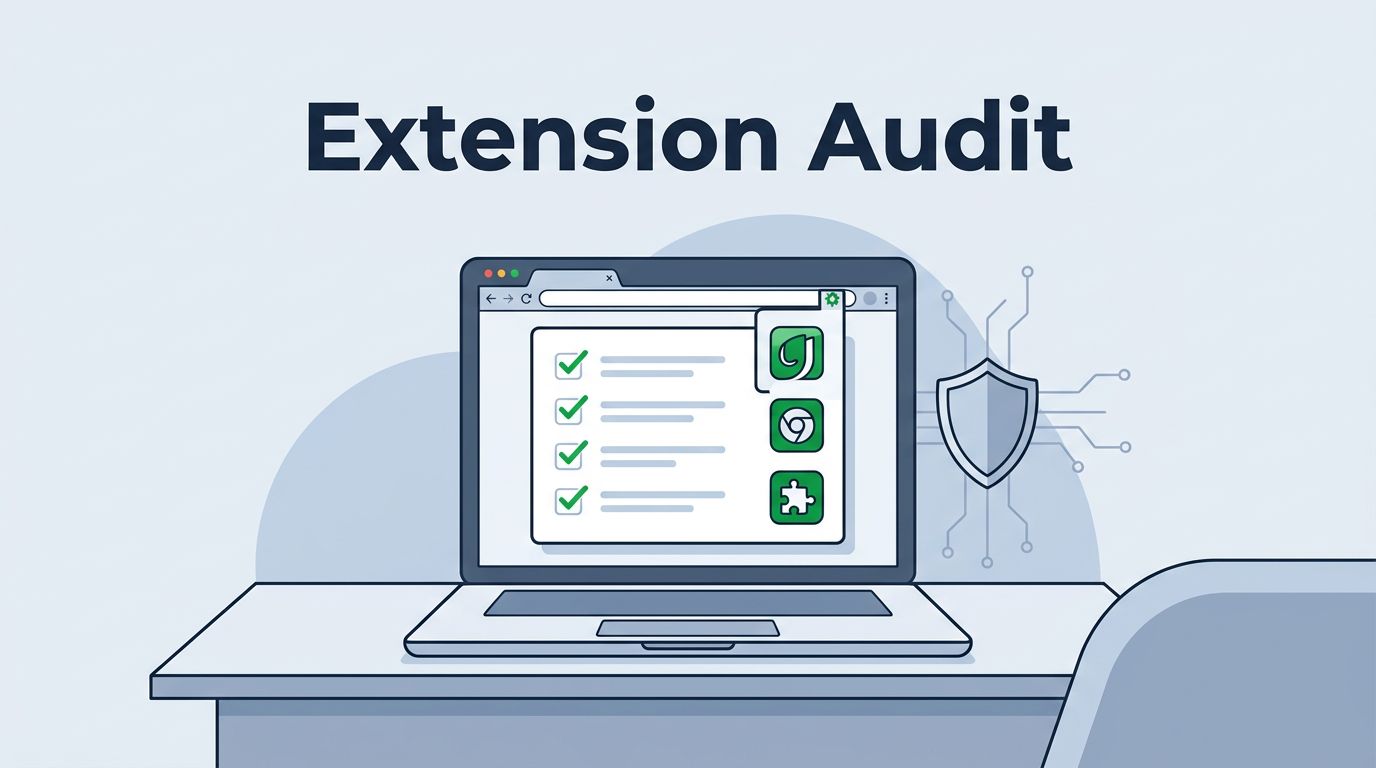
When those add-ons sit on managed endpoints, the risk grows fast. A browser extension audit gives you a clear way to inventory what is installed, review who approved it, check permissions, and decide what stays.
Start with the installed base and the permissions set. That’s where bad surprises usually hide.
Table of contents
- Why browser extensions matter on managed endpoints
- Build the inventory and baseline
- Review permissions with business need
- Validate the publisher and update path
- Score risk and decide what to do
- Enforce policy on managed endpoints
- Monitor for drift after approval
- A repeatable quarterly audit workflow
- Conclusion
- FAQs
Why browser extensions matter on managed endpoints
Extensions sit inside the browser, but their reach often extends beyond it. They can see internal apps, SaaS dashboards, tokens, email, and forms. On a managed endpoint, that makes them part of the trust boundary, whether the browser is Chrome, Edge, or Firefox.
LayerX’s browser extension risk overview is a good reminder that data leaks and credential theft are common abuse paths. A harmless-looking add-on can turn into a path for redirects, page injection, or silent data collection after an update.

Treat browser extensions like privileged software. They can touch content your users trust.
That is why audits matter. You are not counting widgets. You are checking software that sits close to identity, web sessions, and business data. The biggest mistake is treating extensions as user preference items instead of managed assets.
Teams usually see trouble in four places: wide website access, store installs with no owner, stale extensions that nobody remembers, and updates that change permission scope. If those show up in your fleet, the risk is already visible.
Build the inventory and baseline
Start with a complete inventory. If you can’t see every extension, you can’t audit the fleet.
Pull data from your browser management console, endpoint management platform, and any security tooling that reports installed add-ons. The goal is a single list that covers device group, browser, extension name, version, permissions, source, and business owner.
| Field | What to capture | Why it matters |
|---|---|---|
| Extension name and ID | Name, browser ID, and store source | Prevents look-alikes and duplicates |
| Device or group | User, team, or endpoint ring | Shows where the tool is installed |
| Owner and business need | Team, app, and reason for use | Confirms whether it still belongs |
| Version and update date | Current version and last release | Surfaces stale or sudden changes |
| Permissions | Site access, clipboard, history, downloads | Exposes overreach fast |
| Status | Approved, exception, blocked, pending | Makes enforcement measurable |
Every approved entry should have an owner and a review date. If either field is blank, the record is incomplete.
If you need a baseline policy, Vanderbilt’s security best practices for browser extensions are a solid reference. The guidance keeps the focus on trusted stores, necessity, and removal of unused add-ons. That is the right shape for managed endpoints.
A clean inventory also helps your help desk. When users ask why an extension was removed, you can point to a policy instead of a guess.
Review permissions with business need
Permissions tell you what the extension can do, not what the store page promises.
A useful review starts with one question, “Does this permission match the job?” If the answer is unclear, the extension needs a closer look. If the answer is no, remove it or narrow it.
| Permission signal | Audit question | Common response |
|---|---|---|
| Read and change data on all websites | Does it need every domain? | Scope it down or block it |
| Clipboard access | Does the task require copy-paste? | Approve only with a clear use case |
| Browsing history access | Why does it need session data? | Require a documented business need |
| File and download access | Can it touch sensitive files? | Limit to specific roles or remove |
| Wide site access after login | Does it keep working on too many pages? | Re-check update behavior and tokens |
Compare each permission to the job the extension does. If the feature only formats PDFs, it probably doesn’t need history or broad site access. If a tool needs broad access on a single internal portal, scope it tightly and document the exception.
For a more technical checklist, OWASP’s Browser Extension Vulnerabilities cheat sheet is useful. It pushes the same idea from a different angle, least privilege first, then strong controls around data access.
Watch for permission growth after updates. A trusted extension can change its behavior without changing its name. When that happens, your audit should reopen, not wait until the next quarter.
Validate the publisher and update path
The store listing is only one part of the review. Publisher trust, release history, and update behavior matter just as much.
Check four things before you approve or keep an extension. First, confirm the publisher name and ownership. Second, look at the last update date and the pace of recent releases. Third, verify the install source, trusted store, internal package, or policy push. Fourth, check whether support and documentation still match the current product.
Berkeley’s guide to vetting browser extensions is a practical model for this step. It keeps the focus on trusted sources and a simple pre-install review, which works well for managed fleets.
Be careful with sideloading and developer mode. Standard users should not need either on corporate devices. If an add-on bypasses the normal store path, it needs a strong reason and a narrow exception window.
Ownership changes matter too. A known extension can become a problem after an acquisition, a rebrand, or a publisher handoff. If the update history goes stale or the support trail disappears, retirement is usually safer than waiting for a fix.
Score risk and decide what to do
Not every finding needs the same response. Risk scoring helps you sort urgent removals from low-touch monitoring.
| Score | Profile | Action |
|---|---|---|
| 0 to 3 | Known publisher, approved store, narrow permissions, active maintenance | Approve and monitor |
| 4 to 6 | Useful tool, but broad permissions or weak ownership | Time-box the exception |
| 7 or higher | Unknown publisher, stale update chain, sideloaded install, or overbroad access | Block, remove, investigate |
Score the extension, not the user. A finance analyst and a marketing coordinator might install the same add-on, but the data exposure can still differ. The score should reflect the endpoint, the business need, and the permission set.
Tie each decision to a ticket. Include the owner, the expiry date for exceptions, and the next review point. That keeps the audit from fading into chat threads and forgotten spreadsheets.
If your team needs help building the process or closing a browser-policy gap, Book a Discovery Call with Bud Consulting.
Enforce policy on managed endpoints
Policy is what turns review into control.
Use your browser management stack or MDM to block unapproved installs, force-install approved extensions where needed, and stop sideloading on standard endpoints. The browser should follow the policy, not the other way around.

A strong policy usually includes these controls:
- Approved extensions only, with a default deny stance for everything else.
- No developer mode or sideloading on normal managed devices.
- Force-install rules for tools that support core work.
- Removal rules for retired or risky extensions.
- Alerts when a new extension appears outside the approved path.
Keep the exception process simple. If users can request an add-on and get a fast answer, they are less likely to work around the controls. That reduces shadow installs and makes the review process easier to trust.
This is also where policy and staffing meet. Teams that do this well usually need a mix of endpoint management skill, browser policy knowledge, and security review discipline.
Monitor for drift after approval
An extension audit is stale the moment you finish it.
Set alerts for new installs, permission changes, and publisher changes. Watch for odd browser behavior too, like redirects, pop-ups, slow page loads, or unexplained network calls. Endpoint telemetry and browser logs can help you spot those patterns early.
A trusted extension can become risky after one update or one ownership change.
Build a review cadence around that fact. Monthly monitoring works for high-risk groups. Quarterly review is a common baseline for the broader fleet. After a major browser update or a change in business ownership, recheck the extensions tied to that team.
Track a few simple metrics. Count approved extensions, open exceptions, stale installs, and removals. If the numbers drift in the wrong direction, the policy is softening. If high-risk add-ons keep reappearing, the install path needs tighter control.
This is also the point where user reports matter. People notice browser oddities before dashboards do. Give them a clear way to report strange prompts, redirects, or changes in extension behavior.
A repeatable quarterly audit workflow
A good workflow keeps the review fast and consistent. Use the same order every time.
- Export the extension inventory from every browser platform you manage.
- Remove duplicates, retired tools, and entries with no owner.
- Review permissions, source, publisher, and last update date.
- Score each extension and record the decision.
- Push policy changes, removals, or approved exceptions.
- Recheck the fleet after browser updates or user onboarding.
That sequence works because it starts with facts and ends with enforcement. It also keeps the audit from turning into a one-time clean-up project.
If you want a practical benchmark, compare your results with the allowlist, install-source, and removal guidance in your browser policy. That same structure also fits endpoint hardening, identity review, and software allowlisting work.
The best teams keep the report short. They show what was removed, what was approved, what needs another review, and what changed since the last pass. That makes the next audit faster.
Conclusion
A browser extension audit works when it starts with visibility and ends with enforcement. Inventory, permissions, publisher trust, and update monitoring give you the facts.
Policy turns those facts into control on managed endpoints. Keep the list short, the review dates current, and the exceptions time-boxed.
That is how a small browser add-on stops being a blind spot.
FAQs
How often should browser extensions be audited on managed endpoints?
A quarterly review is a good baseline for most teams. Add event-driven checks after a browser policy change, a major extension update, a security incident, or an ownership change in a key app. High-risk groups may need monthly review.
Which permissions are the biggest red flags?
Broad website access, clipboard access, browsing history, download rights, and file access deserve extra attention. Any permission that reaches across many sites should need a clear business reason.
Should employees be allowed to install extensions on their own?
Only if policy allows it and you can review the install path. Most enterprise fleets work better with an allowlist and a simple request process for exceptions. That keeps unmanaged add-ons from creeping into the fleet.
What should happen when a trusted extension changes behavior?
Re-open the review right away. Compare permissions, update notes, and network behavior. If the change is not justified, remove the extension and check for exposed sessions or credentials.