table of contents
One broad Snowflake role can expose more sensitive data than a stack of weak queries ever will. When grants spread, customer details, payroll records, card data, and regulated tables can sit one hop away from the wrong person. Maintaining strong identity security is essential to ensure that your sensitive data remains protected from unauthorized access.
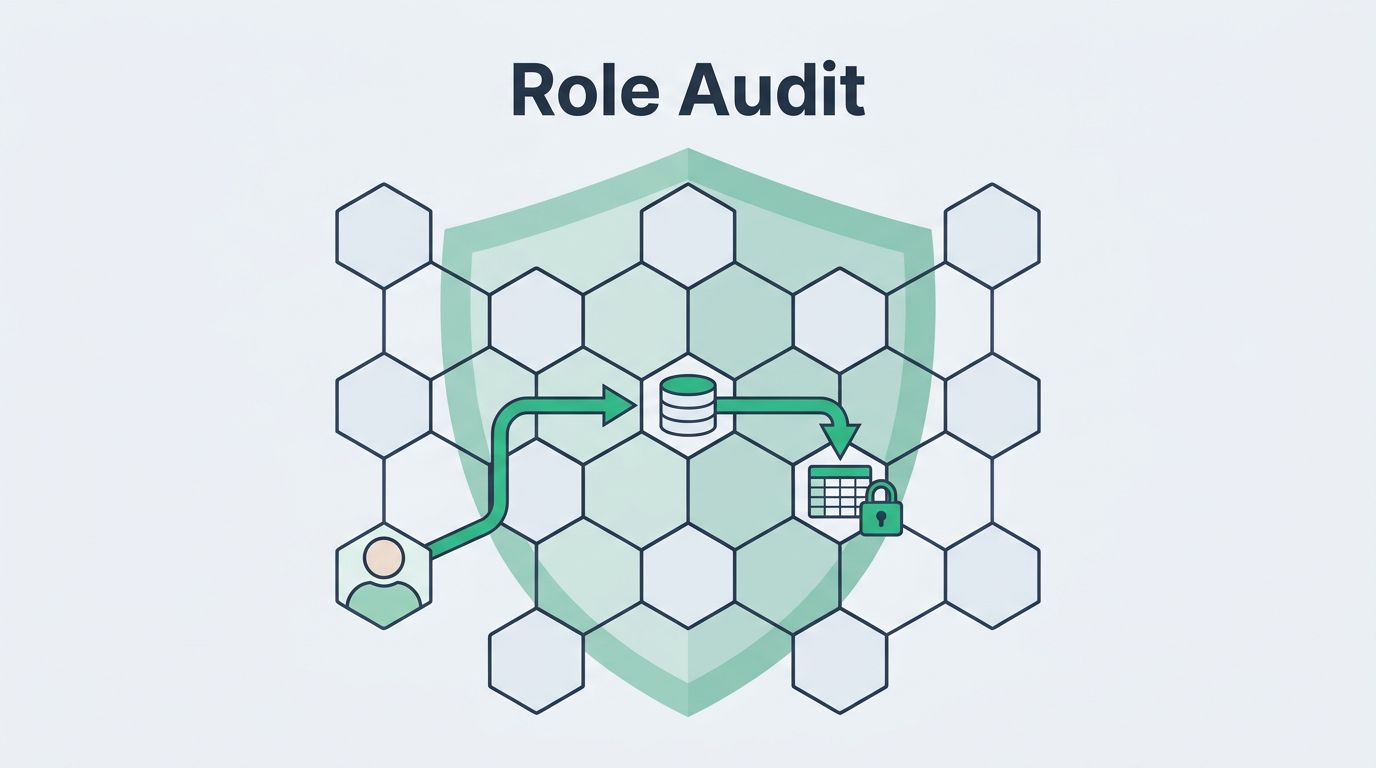
A solid snowflake role audit finds those paths before they turn into audit findings or incident reports. The trick is to review roles, inheritance, and real usage in the same pass, ensuring that your RBAC framework is both functional and secure.
Start with the roles that can reach sensitive data, then work outward until the full access path is clear.
Key Takeaways
- Prioritize sensitive data mapping: Begin by identifying all databases, schemas, and tables containing PII or regulated data, then map exactly which roles have access to these specific assets.
- Audit inheritance and chains: Use Snowflake’s account usage views to trace role hierarchies, as small roles often inherit broad permissions from parent roles, leading to unintended exposure.
- Compare grants to actual usage: Use Access History and Query History to compare what a role is permitted to do versus what it actually does, flagging any access to sensitive data that lacks a clear business justification.
- Automate and schedule audits: Implement a repeatable checklist that covers active roles, future grants, and dormant permissions to identify and address configuration drift before it becomes a security incident.
Map every role that can reach sensitive tables
Begin with a sensitive data inventory to form the foundation of your data governance strategy. List the databases, schemas, tables, and secure views that hold PII, financial data, HR data, health data, or regulated records. If your catalog already tags those objects, use the tags. If not, build a simple inventory by schema first, then drill into the tables that matter most.
Next, map the user role assignments that can reach these assets. In Snowflake, that means reviewing privilege assignments at the database, schema, and object level. Use SHOW ROLES to generate a list of existing roles, and then use SHOW GRANTS TO ROLE to verify exactly what one role can do. Similarly, commands like SHOW GRANTS IN SCHEMA and SHOW GRANTS ON DATABASE help determine whether the scope of access is broader than a specific job role requires.
Treat control roles with extra care. ACCOUNTADMIN, SECURITYADMIN, SYSADMIN, and USERADMIN are not intended for day-to-day access. If a business user reaches sensitive tables through one of these administrative roles, the design is too loose and creates unnecessary risk.
If your team uses Snowflake Horizon, its Trust Center and Horizon Catalog can speed up this first pass. For a broader control checklist, Aembit’s Snowflake security guide is a useful companion when you want to compare your current access design with other security benchmarks.
The goal here is simple. Every sensitive dataset should have a short list of roles that can touch it, and every role should be strictly limited according to the principle of least privilege to ensure that no user has more access than their business function requires.
Find excessive privileges in Snowflake grants
Now look for grants that are broader than the job needs. The biggest red flags are OWNERSHIP, MANAGE GRANTS, ALL PRIVILEGES, and any role that can change objects in a shared schema. Direct grants to users are another warning sign, because they bypass the role model and make reviews harder later.
Use the current grant view as your first filter. By utilizing SQL queries against the Snowflake ACCOUNT_USAGE schema, you can quickly identify where role sprawl lives. Checking grants to roles is the most effective way to audit permissions across your account.
| What to check | Example command | What bad looks like |
|---|---|---|
| Current role grants | SHOW GRANTS TO ROLE finance_analyst; | The role can read, write, and administer more than its job requires. |
| Schema scope | SHOW GRANTS IN SCHEMA finance.prod; | A reporting role has wide access on a schema that should stay narrow. |
| Future grants | SHOW FUTURE GRANTS IN SCHEMA finance.prod; | New tables inherit access automatically, even when no one meant them to. |
| Grant chains | SELECT * FROM SNOWFLAKE.ACCOUNT_USAGE.GRANTS_TO_ROLES; | High-risk privileges sit on a role that should only read data. |
If a role can grant access onward, own production objects, or perform DDL operations that create objects inheriting broad access, trim it fast. A read-only analyst role should rarely carry ownership anywhere near production.

A clean grant map makes overreach easier to spot. It also gives you a clear before-and-after record when you start removing excess access.
Trace inherited access through role chains
Snowflake role chains often hide significant exposure. Because of how RBAC functions, a small analyst role can inherit from a broader parent role, which in turn inherits from another parent. By the time you reach the top of the hierarchy, a single role may touch far more data than its name suggests.
Audit the chain one hop at a time. The command SHOW GRANTS TO ROLE finance_analyst tells you which roles or privileges sit directly above it. Repeat that command for every parent role until you reach the top of the chain. If you prefer a query-based view, the SNOWFLAKE.ACCOUNT_USAGE schema provides a clearer picture. By joining GRANTS_TO_ROLES and GRANTS_TO_USERS, you can visualize the entire privilege structure across your account.
Functional roles and access roles should stay separate to maintain strong regulatory compliance. A payroll analyst may need a read-only role, but they should never inherit a payroll admin role. If a business role inadvertently inherits admin permissions, that is where data exposure usually begins.
If a role can reach sensitive tables and also inherit another broad role, the exposure is the sum of both paths.
Compare the inherited path with the actual tasks the person performs. When the job description and the grant path disagree, the grant path loses. That is the point where sensitive data usually leaks into places it should never be. Relying on the ACCOUNT_USAGE schema ensures you have visibility into these unintended inheritance paths before they become a liability.
A role hierarchy should read like a clean org chart, not a pile of shortcuts.
Catch dormant roles and future grants
A role can look harmless and still be a problem. Old project roles, expired contractor roles, and one-off admin roles often stay active long after the work ends. You should leverage your query history to find roles that have not interacted with your data in a long time. These SQL queries serve as a simple starting point:
SELECT role_name, MAX(start_time) AS last_seen FROM SNOWFLAKE.ACCOUNT_USAGE.QUERY_HISTORY GROUP BY role_name HAVING MAX(start_time) < DATEADD(day, -90, CURRENT_TIMESTAMP());
Adjust the window to match your review cycle. Ninety days is a common starting point, but your policy may be shorter. If a role has not touched sensitive data in months, it deserves a close look.
Then inspect future grants. SHOW FUTURE GRANTS IN SCHEMA finance.prod; and SHOW FUTURE GRANTS IN DATABASE finance; reveal which roles will inherit access when new tables land. This is where overexposure sneaks in. A schema may look tight today, then a new table appears tomorrow and gets auto-granted to a wide role, potentially exposing unused tables to unauthorized users.
Future grants are easy to miss because they affect objects that do not exist yet. That makes them powerful, but it also makes them risky. Keep an eye on dev and test schemas, too. Teams often allow broad future grants there and forget to narrow them before promotion. Valence’s overview of Snowflake security best practices is a useful cross-check when you want to compare your grant model with another practical checklist to ensure robust data warehouse security.
Use access history to prove real exposure
Grant reviews show what a role can do. Access history shows what it actually did. That difference matters because many environments keep broad roles for a reason that stopped being true months ago. By utilizing the Access History view, you can effectively trace exactly which objects were read and which roles were involved in the process.
On Enterprise Edition, the ACCOUNT_USAGE schema provides the views necessary to analyze activity. Start with these SQL queries to get a clear picture of your environment:
SELECT query_id, query_start_time, direct_objects_accessed, base_objects_accessed FROM SNOWFLAKE.ACCOUNT_USAGE.ACCESS_HISTORY WHERE query_start_time >= DATEADD(day, -30, CURRENT_TIMESTAMP());
Then, compare the direct objects accessed and base_objects_accessed with your sensitive data inventory. If a role touched a table that stores salaries, customer exports, or card data, you have proof of real exposure.
QUERY_HISTORY is also useful for a faster pass. Try this:
SELECT query_id, user_name, role_name, query_text, start_time FROM SNOWFLAKE.ACCOUNT_USAGE.QUERY_HISTORY WHERE start_time >= DATEADD(day, -30, CURRENT_TIMESTAMP()) AND role_name = ‘FINANCE_ANALYST’;
A payroll role querying customer exports, or a marketing role touching salary tables, needs immediate review. The query text gives context, while the role name shows who had the access path.
If you tag sensitive columns, the review becomes much more effective. Match these tags against the accessed objects, then flag anything that crosses team boundaries or compliance lines. By incorporating column lineage, you gain the depth needed to see exactly how data flows from sensitive sources to specific users. The aim is not to read every line of your SQL queries, but to catch roles that touched data they should never see.
Remediate overexposed PII, financial, and regulated data
Once you find overexposed roles, fix the path and verify the fix. Start with the least disruptive changes and work toward structural cleanup. When dealing with complex environments, consider using stored procedures to automate the application of permissions and ensure consistency across your environment.
- Remove direct user grants first. Every person should enter through a role, not a one-off permission.
- Split broad roles into smaller ones. A finance analyst who needs reports should not inherit schema ownership or grant rights.
- Replace raw table access with secure views, a masking policy, or a row access policy when the job does not require full access to the source data.
- Tighten future grants in every sensitive schema. New objects should not widen access by default.
- Re-run SHOW GRANTS TO ROLE and review recent access history after each change. If the role can still reach sensitive data, keep trimming.
Keep the audit data itself on a restricted role. Query history can reveal table names, project codes, and work patterns. Prioritizing robust access governance is a core component of maintaining security, and Faberwork’s note on Snowflake security best practices is a good reminder that audit data needs protection too.
If the cleanup is bigger than your team can handle in one pass, Book a Discovery Call with Bud Consulting and map the risky paths before they turn into repeat findings.
A repeatable Snowflake role audit checklist
A successful security strategy relies on consistency. To maintain a secure environment, build a concise checklist, run it on a set schedule, and document the results in a separate control record. You can automate these checks by running specific SQL queries to monitor your environment and prevent permission drift.
| Checkpoint | Query or command | Red flag | Response |
|---|---|---|---|
| Role inventory | SHOW ROLES; | Old project or contractor roles still active | Disable or remove unused roles. |
| Current grants | SHOW GRANTS TO ROLE finance_analyst; | Broad object, schema, or admin privileges | Replace them with narrower grants. |
| Future grants | SHOW FUTURE GRANTS IN SCHEMA finance.prod; | New tables inherit wide access | Remove or scope future grants. |
| Inherited access | SELECT * FROM SNOWFLAKE.ACCOUNT_USAGE.GRANTS_TO_ROLES; | A small role inherits a broad parent | Break the chain and retest. |
| Objects modified | SELECT * FROM SNOWFLAKE.ACCOUNT_USAGE.ACCESS_HISTORY; | Unexpected modifications to sensitive tables | Review logs and restrict access. |
Run the checklist weekly for active data platforms and monthly for steadier ones. Revisit your process after creating a new warehouse, implementing a schema change, undergoing a team reorganization, or defining a new scope for your data governance.
The most effective review rhythm is the one your team can sustain without skipping steps. A shorter, consistent review catches configuration drift much sooner than a massive annual cleanup. Implementing this habit is a foundational step for effective compliance auditing, ensuring your organization remains audit-ready while minimizing the risk of unauthorized data exposure.
Frequently Asked Questions
Why should I audit administrative roles like ACCOUNTADMIN?
Administrative roles provide broad, high-level permissions that bypass standard security controls. If business users hold these roles, they gain unnecessary access to sensitive data, which violates the principle of least privilege.
What is the risk of future grants in Snowflake?
Future grants automatically apply permissions to new tables created within a schema. If these grants are too broad, new sensitive data can become instantly accessible to unauthorized users without any additional administrative action.
How can I identify dormant roles that are no longer needed?
Use the QUERY_HISTORY view in the SNOWFLAKE.ACCOUNT_USAGE schema to identify roles that have not executed a query within a defined period, such as 90 days. Removing these stale roles helps reduce the attack surface of your data environment.
Is it better to rely on grant reviews or access history?
Grant reviews tell you what a role is theoretically capable of doing, while access history shows you what it has actually performed. Using both methods together provides the most accurate picture of your true risk and helps you prioritize the most critical remediations.
Conclusion
Snowflake role exposure typically stems from a series of minor configuration oversights rather than a single massive failure. A role might be inherited, a future grant could be accidentally applied, or an outdated administrative shortcut might persist for months. To stay ahead of these risks, many teams now use Streamlit dashboards or Snowflake Notebooks to visualize their audit findings, making it much easier to identify complex permission structures at a glance.
A comprehensive snowflake role audit is essential because it validates what a role is permitted to do, what privileges it has inherited, and how those permissions align with actual usage. By cross-referencing these findings with the Access History view, security teams can verify which roles are truly active and where real-world data access is occurring. When these insights align, you can effectively prevent accidental exposure.
If you find that a role can access PII, financial records, or regulated tables without a clear business requirement, move to remediate those permissions immediately. The safest grant is the one that never needed to exist, so stay proactive in securing your sensitive data to maintain a robust security posture.