table of contents
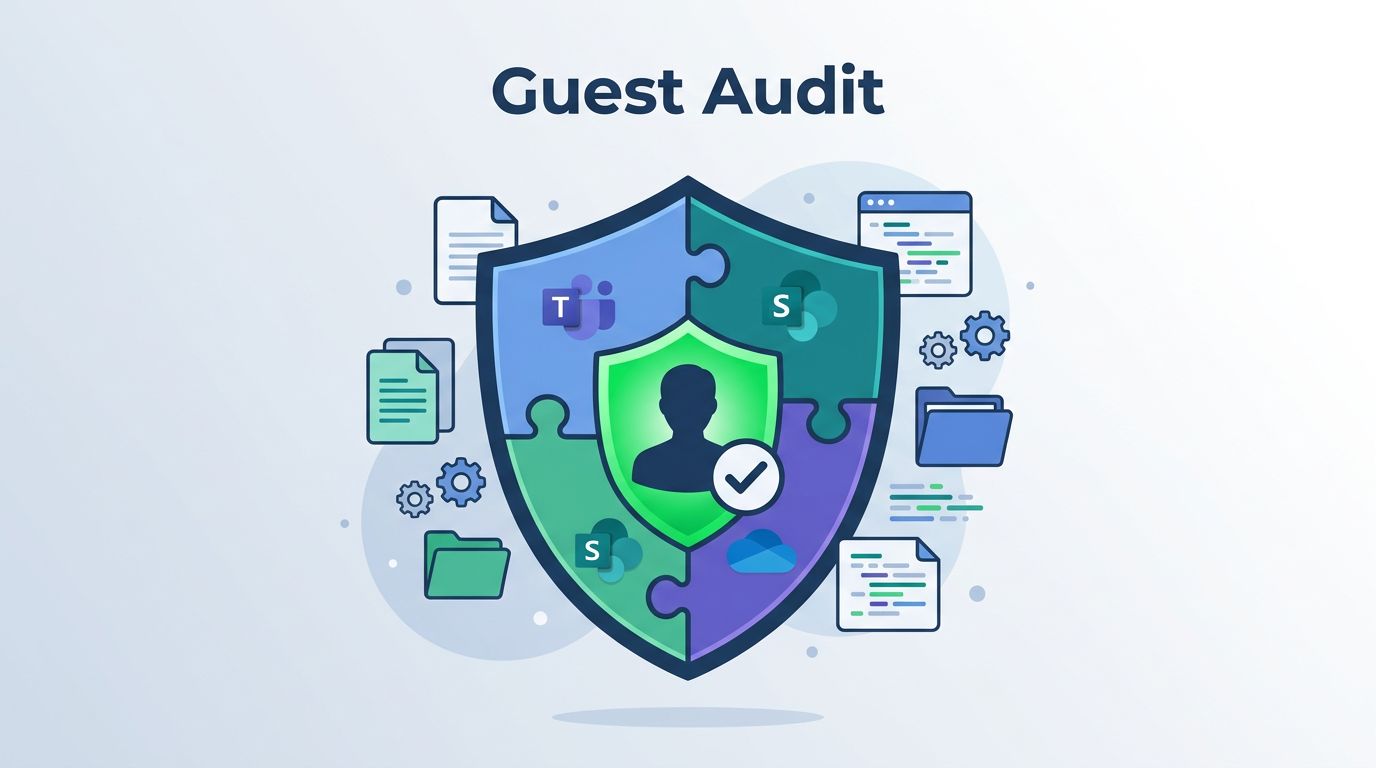
A guest account in Microsoft Teams can expose more than just a chat thread. Within the broader Microsoft 365 environment, external users can reach messages, files, shared links, and the SharePoint site behind the team if permissions drift out of sync.
A solid Microsoft Teams guest access audit checks every place that access can hide. That means evaluating guest settings, file permissions, audit logs, labels, DLP policies, and stale accounts that never got removed to ensure secure collaboration.
Key Takeaways
- Go Beyond Teams: A guest account’s reach often extends into SharePoint, OneDrive, and private channels, so a complete audit must evaluate permissions across the entire Microsoft 365 ecosystem.
- Establish an Inventory: Before tightening security, create a comprehensive list of all external guests, their business sponsors, and the specific teams and channels they can access to identify unauthorized or stale accounts.
- Prioritize Sensitive Content: Shift focus from counting accounts to identifying high-value data; scan for broad sharing links and files that are improperly stored in teams with external access.
- Implement Recurring Reviews: Reduce long-term risk by automating access reviews in Microsoft Entra ID to force team owners to justify continued guest access on a quarterly or project-based cadence.
Table of contents
- Microsoft Teams guest access audit: why the risk spreads fast
- Build a complete guest inventory first
- Review Teams, SharePoint, and OneDrive permissions
- Find sensitive files before guests do
- Check audit logs, sensitivity labels, and DLP
- Use access reviews to clear stale guest access
- Remediate exposure without breaking collaboration
- Conclusion
- FAQs
A comprehensive Microsoft Teams guest access audit is essential for maintaining a secure environment. By performing a thorough review of your guest access settings, you can protect your organization from potential data leaks and unauthorized information exposure.
Microsoft Teams guest access audit: why the risk spreads fast
Microsoft Teams looks simple on the surface. A guest joins a team, reads a channel, and sees shared files. Underneath, that access can travel through the broader Microsoft 365 ecosystem in ways that are easy to miss.
Microsoft Teams does not hold every file by itself. Most team files live in SharePoint, and private channels create their own site and permission set. That means a guest may have one kind of access in Teams and a different kind of access in storage.
If you only check external collaboration settings in Microsoft Teams, you only check one lock on a much larger door.
Microsoft’s Teams security and compliance overview is a good reminder that auditing is really a cross-service job. You have to look at identity, messaging, storage, and policy together.
The risk grows fast when teams are created for projects, partners, or time-bound work. Owners add external users to move work forward, then forget to remove them. Files keep moving and links keep spreading. Weeks later, nobody remembers who still has guest access.
A good audit starts with that reality. It assumes the leak is more likely to come from permissions drift than from one dramatic mistake.
Build a complete guest inventory first
Start by listing every team that has guests, then map those guests back to Microsoft Entra ID and the Microsoft 365 group behind each team. To make this process more efficient, you should consider using a PowerShell script to automate the mapping of guests and groups. That gives you the base layer for the rest of the review.

The Teams admin center shows where guest access is enabled. Microsoft Entra ID shows the guest identities themselves. Those are not the same view, and you need both. A guest account can still exist in the directory even after team owners forget why they were added.
A practical inventory should answer a few direct questions:
- Which teams include guests right now?
- Who invited each guest, and who owns the team?
- What channels can the guest reach, including private or shared channels?
- Is the guest still active, or have they been idle for months?
- Does the team handle regulated, legal, financial, or customer data?
Once you have that list, add a short note for each guest. Record the business sponsor, the project name, and the date access should end. That small step makes later cleanup much easier.
The point is not to count accounts for its own sake. The point is to find every path a guest can use to reach sensitive content. If you do not know where the guests are, you cannot know what they can see. Establishing this foundation is essential for effective reporting and monitoring of your environment.
Review Teams, SharePoint, and OneDrive permissions
Guest access in Teams is only half the story. The real exposure often sits in SharePoint and OneDrive, where files, folders, and sharing links can outlast the original team conversation.
What to compare in each layer
| Location | What to check | Why it matters |
|---|---|---|
| Teams team | Guest membership, owners, private channels, and shared channels | This controls who can enter the collaboration space |
| SharePoint site | Site members, visitors, external sharing, and guest user permissions | This controls who can open the files behind the team |
| OneDrive | Shared copies, direct links, and old exports | Files often get copied out of Teams and forgotten |
| Microsoft Entra ID | Guest objects, group membership, and pending reviews | Stale accounts stay active if nobody removes them |
When these layers disagree, the broadest path usually wins. A guest may look limited in Teams but still open the linked document library through SharePoint. That is why a Teams-only review leaves blind spots.
Watch for private channels too. They create separate SharePoint sites, and those sites can drift from the parent team. A channel that feels private in chat may still have a permissions setup that exposes files to the wrong people.
For a useful checklist of guest access controls across Microsoft 365, ShareGate’s guest access management best practices is a helpful reference. It lines up well with what admins see in real environments, where permissions often spread across multiple owners and sites.
The safest habit is simple. Compare Teams membership, site access, and link sharing side by side. If one layer is broader than the others, fix that gap first.
Find sensitive files before guests do
The next question is not just who can enter, but what they can reach once they are inside. Prioritizing data security is the best way to ensure that sensitive files remain protected from unauthorized external users who may have gained access to your environment.
Look for files that would cause real damage if they left the organization. That usually includes HR records, payroll data, legal drafts, customer lists, contracts, source code, incident reports, and board material. In many teams, these sensitive items are not hidden in a vault; they sit in normal folders with ordinary names.
A quick scan should focus on these patterns:
- Files shared through Anyone links or broad People in your org links.
- Documents stored in SharePoint sites that were never rechecked after the project changed.
- Files copied into personal OneDrive folders and then shared back out.
- Exports from Excel, Word, or PDF files that contain data no one planned to distribute.
A file does not need a dramatic label to be risky. A spreadsheet with client names and account data can be just as sensitive as a formal policy document, so the audit should catch both.
While sensitivity labels help classify content, they are only effective when applied at the right level. In Teams, the label may need to govern the Microsoft 365 group or site, not just the visible team name. If the site allows broad sharing, the label alone will not stop exposure.
DLP matters here too. Check whether Microsoft 365 oversharing risks show up in the places your team uses most, such as document libraries, channel messages, and shared links. The best result is not silence from DLP; it is DLP catching a risky action before the file spreads.
When you audit files, think like an attacker and like an overworked employee. Both can create exposure. One is intentional, and the other is easy to overlook.
Check audit logs, sensitivity labels, and DLP
Effective compliance and auditing begin with a clear understanding of user behavior. Audit logs tell you what actually happened, rather than what people assume occurred. This distinction is vital because guest access risks often stem from historical activity rather than current configurations.
Start by examining the Microsoft 365 audit log to identify guest additions, file downloads, sharing link creations, permission changes, and channel membership updates. Simultaneously, check sign-in data in Microsoft Entra ID to confirm whether a specific guest account is still active or has become stale.
A thorough log review should focus on the specific events that shift your risk profile:
- A guest was added to a team, group, or channel.
- A file was downloaded, copied, or shared outside the original team.
- A sharing link was modified from specific people to a broader access setting.
- A label or DLP policy was triggered on a document or message.
- A guest account remained active long after the associated project concluded.
If your audit log window is too short, the audit trail disappears before you can investigate it.
This is why retention policies matter. If you only maintain a narrow data window, you may miss the exact event that exposed a sensitive file. Ensure your log coverage aligns with the time period required for your internal oversight.
Sensitivity labels and DLP work best when they support your broader investigative process. Labels define what should have been protected, while DLP policies show where the system blocked or flagged risky content. Together, they demonstrate whether your control set is functioning effectively or is merely installed as a formality.
If your environment includes access reviews in Microsoft Entra ID, use them for guest-heavy teams. These reviews are essential when they force team owners to answer a simple question: does this guest still need access? That consistent verification process removes a significant amount of stale risk from your environment.
Use access reviews to clear stale guest access
Guests rarely become a problem on day one. They become a problem when nobody checks them again. Integrating access reviews into your broader identity governance strategy provides a regular cadence for cleanup and ensures your external security posture remains tight.
If a guest still needs access, the owner confirms it. If the guest has no current reason to stay, the account gets removed. This habit is the most effective way to eliminate inactive guest accounts that contribute to lingering exposure. By using Microsoft Entra ID to automate these workflows, you reduce the manual burden on your IT department.
High-risk teams need more frequent reviews than casual project spaces. Finance, legal, HR, security, and client-data teams should not wait for an annual cleanup. Quarterly is a better baseline, and monthly can make sense for short projects.
A strong process should include three checks. First, confirm the guest still has a business sponsor. Second, confirm there has been recent activity. Third, confirm the team still needs external collaboration at all.
Use the review outcome to clean up related permissions too. A guest who leaves the team may still have old file links or access to a private channel site. Once you remove the guest account, ensure you also remove any leftover paths.
Clear ownership helps here. Every team owner is responsible for knowing exactly why a guest exists. Without that specific sponsor, guest access tends to live forever. In practice, stale access is one of the easiest leaks to miss because it looks normal on paper, which is why regular access reviews are essential for maintaining a secure environment.
Remediate exposure without breaking collaboration
Fixing exposure does not mean shutting down teamwork. It means ensuring guests have access only where it belongs. These steps are essential components of broader governance policies designed to support secure collaboration across your digital workspace.
Start with the broadest openings first. Adjust your organization-wide setting to disable guest access in teams that do not require external input. Use separate collaboration spaces for outside partners when the main team carries sensitive work. Tighten SharePoint sharing to specific people instead of broad links, and remove any anonymous links that no one can explain.
Then, harden the identity layer to protect your B2B collaboration. Require MFA for guests where your policy supports it, and use conditional access to block risky sign-ins or unmanaged devices. Set clear rules for who can invite guests and which domains are allowed. These controls keep Microsoft Teams from turning into a landscape of free-form sharing.
For high-risk areas, pair these controls with sensitivity labels and DLP. Apply sensitivity labels to the team, group, or site so the sharing rules match the data’s classification. Use DLP to catch files and messages that should not leave the team. This is where policy turns into actual behavior, effectively managing guest access while maintaining productivity.
A good public checklist from guest access management best practices can help when you are mapping these changes across many teams. For larger environments that need a repeatable audit and remediation plan, Book a Discovery Call with Bud Consulting.
The cleanest remediation plans do one thing well. They keep guest collaboration open where it is useful, and they close it where it creates real exposure.
Conclusion
A successful Teams guest review works when you treat identity, storage, and content as one connected chain. If any link is too loose, sensitive data can easily slip through. To secure your environment, organizations must shift from sporadic manual checks to consistent reporting and monitoring of all external connections.
The strongest audits start by building a complete guest inventory before moving through permissions, specific files, logs, and recurring reviews. That order matters because it reveals exactly where access lives, who still requires it, and where stale sharing is hiding. By managing these security layers within Microsoft Teams, you ensure that collaboration remains productive without sacrificing data integrity.
A careful Microsoft Teams guest access audit does not just count external users. It identifies the specific areas where collaboration outgrew control, then brings those access paths back into line.
FAQs
How often should you audit Microsoft Teams guest access?
Quarterly is a good baseline for most teams. High-risk groups, such as legal, finance, HR, and incident response, often need monthly checks.
Also review guest access after major project changes, vendor offboarding, or a rework of team structure. Those moments create the most permission drift.
Can guests access SharePoint files from Microsoft Teams?
Yes. In many cases, that is where the files actually live. Teams is the front door, but SharePoint is the file store behind it.
That is why a guest access review has to include the linked SharePoint site, folder permissions, and sharing links. Examining the environment as a whole ensures you understand exactly how guests interact with your data.
Do sensitivity labels stop guests from seeing data?
They help, but they do not fix every gap by themselves. A label only works when it is applied to the right team, group, site, or file, and when the sharing rules match.
Sensitivity labels should sit beside DLP, conditional access, and sharing limits. Used together, they reduce the chance of accidental exposure.
What audit log events matter most?
Look for guest additions, file downloads, sharing link creation, permission changes, and channel membership changes. Those are the events that usually change exposure.
It also helps to review sign-ins and policy matches within the audit logs. That gives you context for whether a guest account is active or just lingering in the directory.
What should you remove first during remediation?
Start with stale guests, broad sharing links, and teams that no longer have a clear business owner. Those three items often create the biggest exposure with the least effort.
After that, tighten the remaining teams one by one. The goal is to keep Microsoft Teams collaboration useful while shrinking the paths to sensitive data.