table of contents
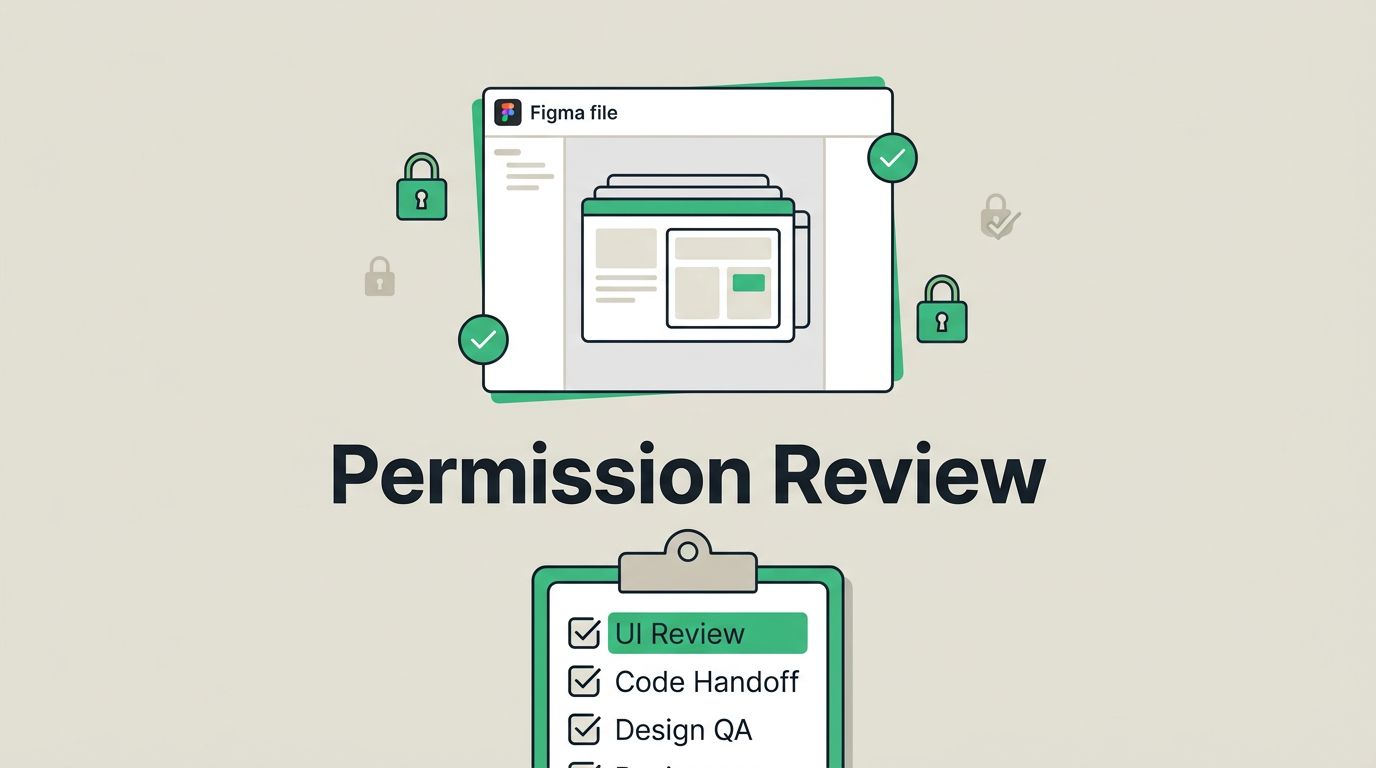
A Figma file can hold more risk than many teams notice. One loose share setting can expose unreleased product mocks, customer data, or an executive deck. A solid figma permission review helps you catch those gaps before they spread. Use this checklist when you need a fast, repeatable way to audit access.
Table of contents
- What counts as sensitive in Figma
- Figma permission review checklist
- Team-level vs file-level permissions
- Fixing the biggest access gaps
- Keeping reviews routine
- Conclusion
- FAQ
What counts as sensitive in Figma
When a file carries business, legal, or customer risk, treat it as sensitive.
- Unreleased product mocks can reveal plans before launch.
- Design system libraries can expose internal patterns, component names, and structure.
- Regulated workflow screens may show health, finance, or identity data paths.
- Customer data in prototypes often looks safe because it is temporary, but it still needs control.
- Executive presentations can contain strategy, pricing, vendor names, or deal details.
If a file mixes routine work with one of these items, split it out. That keeps access cleaner and reduces the chance that a broad team permission opens the wrong content.
Public access should always have a reason, an owner, and an end date.
For a broader look at secure access habits, secure Figma access best practices gives a useful cross-check against your own review process.
Figma permission review checklist
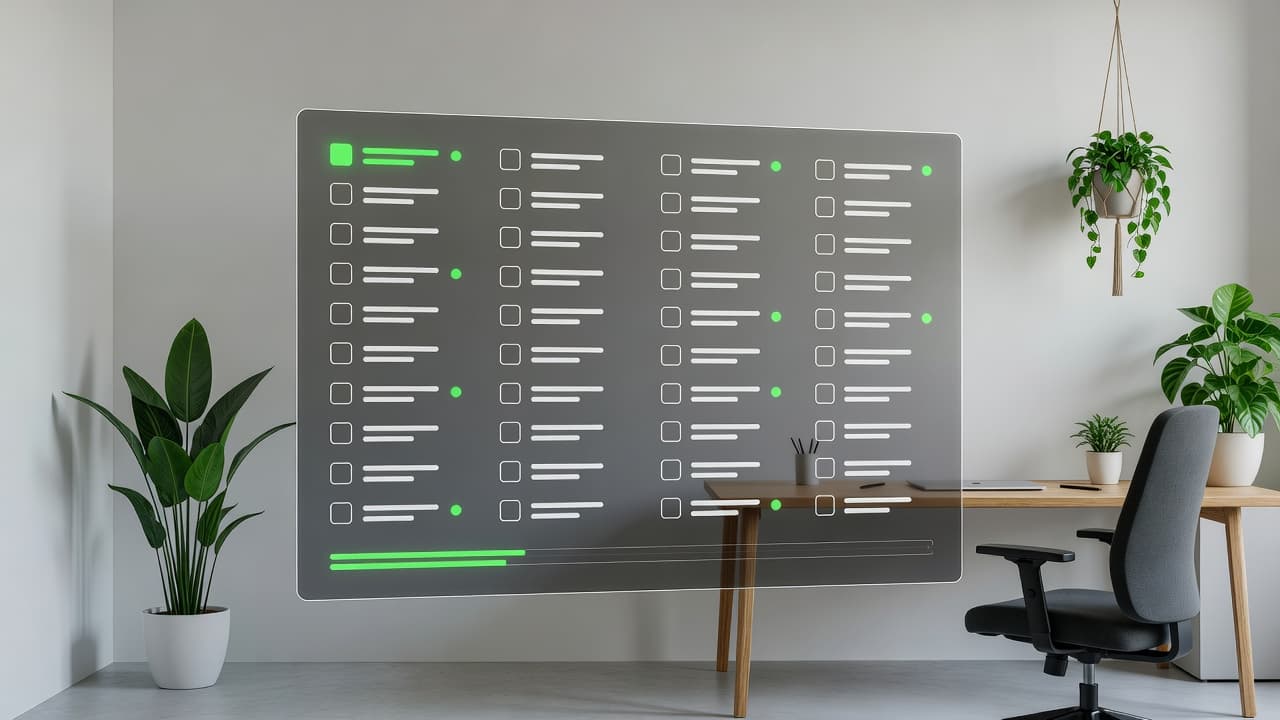
A strong audit moves in order, from ownership to sharing to cleanup. That keeps the review short and prevents missed gaps.
- Confirm the owner for every file and library. Someone needs to know why the asset exists and who should see it.
- Match access to current roles. A lead designer, contractor, and executive stakeholder should not all have the same rights.
- Check who can edit, not only who can view. Edit access creates the biggest risk when a file holds sensitive material.
- Review shared links and prototypes. Public or broadly shared links can outlive the project that created them.
- Inspect shared libraries and component sets. A library with loose access can spread permissions across many files.
- Look for stale guest accounts. Guest access often lingers after a project ends or a vendor rolls off.
- Reset handoff access for vendors and agencies. Give the smallest access needed, then remove it when the task ends.
- Record exceptions with a clear expiry date. Temporary access without an end date has a habit of becoming permanent.
- Re-check the file after launches, incidents, or org changes. People move, scope changes, and old permissions stay behind.
- Tie the review to one place in your process. Link it to your offboarding checklist, launch readiness runbook, or design system governance page so the review happens on schedule.
Team-level vs file-level permissions
This is where a lot of permission drift starts. Team access is broad, while file access is narrower. When you mix them without a plan, sensitive assets can spread faster than anyone expects.
| Permission layer | What it controls | Common risk | What to check |
|---|---|---|---|
| Team-level | Access across a whole team or workspace area | Broad rights stay in place long after they stop making sense | Remove old members and limit editors |
| File-level | Access to one specific file or prototype | Sensitive files can inherit too much access from the surrounding team | Review each file that holds private content |
| Library or project level | Access to shared components and grouped assets | One open library can expose many related files | Confirm who owns the library and who can use it |
| Public or shared links | Access through a link instead of a named person | Links can escape the intended audience | Turn off public links when they are no longer needed |
Team-level access works best for stable groups that need broad collaboration. File-level access is better for exceptions, short-term vendor work, and sensitive prototypes.
If your files include privacy-sensitive prototypes, this overview of Figma privacy settings is a useful companion when you review sharing paths.
Fixing the biggest access gaps
Once you spot a problem, fix the highest-risk items first. Start with the permissions that can expose the most content to the most people.
- Strip edit rights from people who only need comments or view access. This is the fastest way to reduce accidental changes and unnecessary exposure.
- Revoke stale guest accounts right away. If a vendor, agency, or contractor is done, their access should be done too.
- Replace public links with named access for active work. Named access gives you a clearer record and better control.
- Move shared libraries into controlled projects. A library should have an owner, a reason, and a limited audience.
- Tighten handoff access after the handoff ends. Developers, testers, and partners rarely need the same rights forever.
- Review files after role changes. A new manager, new product lead, or new vendor contact often means old permissions no longer fit.
- Document exceptions in plain language. If someone needs extra access for a launch or incident, write down why and when it ends.
Temporary access should stay temporary. If it does not, it becomes hidden risk.
For a deeper cross-check on least privilege and access hygiene, compare your process with secure Figma access best practices.
If your design system, prototypes, or release decks carry sensitive data, Book a Discovery Call with Bud Consulting to pressure-test the access model with a security-minded partner.
Keeping reviews routine
A one-time audit helps, but routine reviews keep the risk down. The right cadence depends on how often files change and how many outside people touch them.
A good rhythm is simple:
- Before launch, review every file tied to the release.
- After onboarding, grant new hires only the access they need.
- After offboarding, confirm that guests, vendors, and contractors lost access.
- After a workspace re-org, check whether team-level access still makes sense.
- After a security incident or audit request, verify public links and library sharing.
Short reviews work best when they are tied to real events. That is why the review should sit beside your offboarding checklist, launch readiness runbook, and design system governance page. When the process is shared, people stop treating access as an afterthought.
Conclusion
A Figma permission review works best when it is boring, repeatable, and strict about sensitive assets. That means you know what deserves extra care, you limit broad access, and you clean up stale sharing before it spreads.
The goal is simple, keep the right people in the file and everyone else out. When that standard holds, design work moves faster because fewer surprises show up later.
FAQ
How often should a Figma permission review happen?
Review sensitive files at least once per release cycle. Add another check after onboarding, offboarding, vendor changes, or major workspace re-orgs.
What is the biggest mistake teams make with Figma access?
The most common mistake is leaving broad team-level access in place after the file no longer needs it. That usually creates more risk than one-off sharing mistakes.
Should vendors get editor access to sensitive files?
Only when they truly need to make changes. If they only need feedback or reference material, comment or view access is safer.
How should public links be handled?
Use public links only for a short window and only when there is a clear reason. Once the need passes, replace the link with named access.
What should I do about stale guest accounts?
Remove them as soon as the work ends. If a guest still needs access, re-approve it with a current owner and a new expiry date.