table of contents
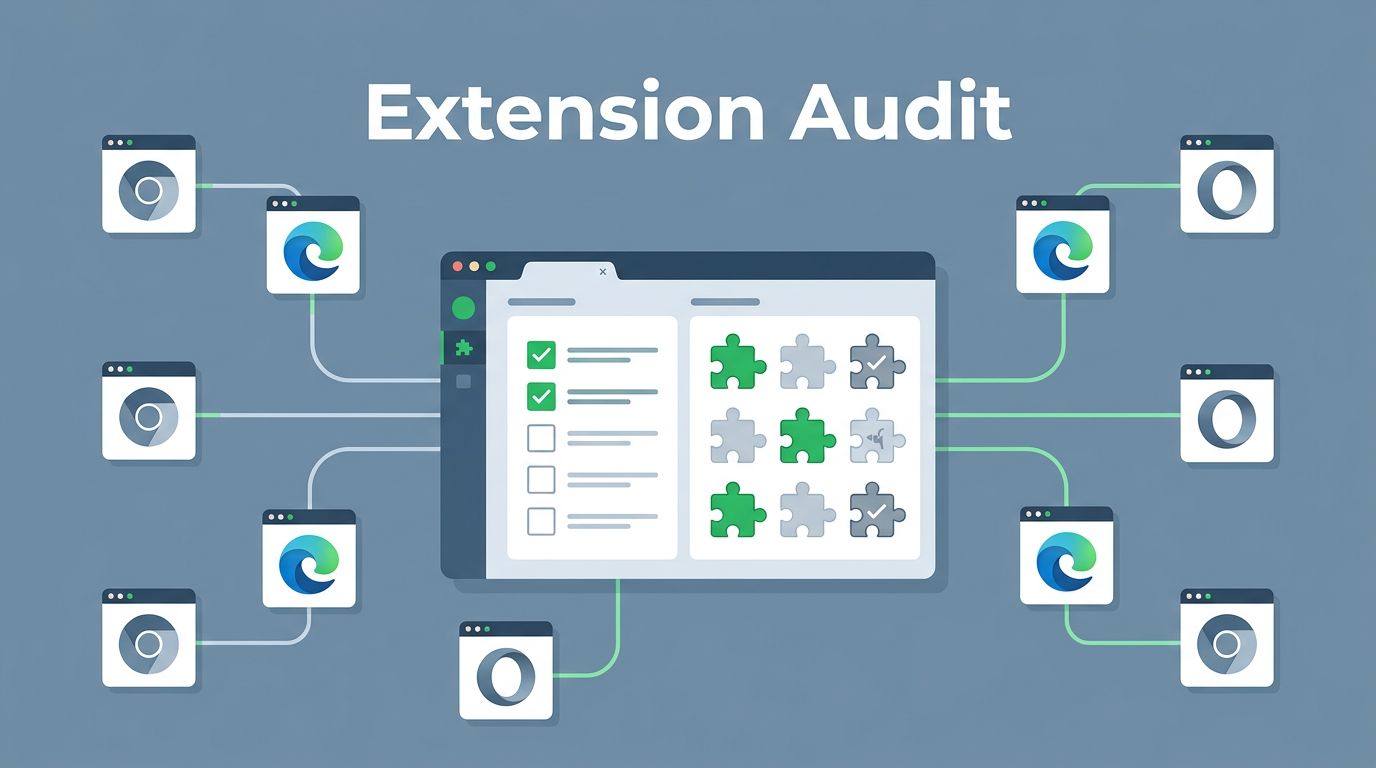
A browser extension permissions audit can uncover access risks that endpoint scans miss. One small add-on can touch email, CRM data, or even the clipboard across thousands of devices.
That matters because browser extensions often spread quietly through teams. Users install them for speed, then forget what they approved.
The fix is a repeatable review process. Start with inventory, then score risky permissions, then lock the results into policy.
Build the inventory before you judge risk
First, pull a full list of extensions from your browser admin console, your endpoint management tool, and any device inventory you trust. If your org supports Chrome, Google’s Chrome app and extension permissions guidance is a good baseline for what admins can control.
Include managed and unmanaged devices where possible. Otherwise, your audit will miss the laptops that drifted outside policy.
Also capture the extension source. Store-installed extensions, sideloaded packages, and internal builds do not deserve the same trust level. In 2026, that source data matters as much as the name of the extension.

Spot the permissions that can expose data
Not every permission is equal. Some only support a narrow feature, while others can expose user activity or site data.
If you need the exact API names, the Chrome permissions reference maps the options in plain terms. A practical walkthrough from BSWEN also shows how broad permissions can hide inside familiar tools.
Here’s a quick way to sort the most sensitive permissions:
| Permission or access | What it can touch | Audit signal |
|---|---|---|
| Browsing activity | URLs, page content, and user behavior | Review for business need |
| Clipboard access | Copy and paste data | Treat as sensitive by default |
| Downloads | Files saved from the browser | Check for data export risk |
| Tabs | Open pages and tab titles | Watch for session visibility |
| Cookies and site data | Session tokens and local site state | High risk for account access |
| All-sites access | Every site the user visits | Require strict approval |
If an extension needs all-sites access, tabs, and clipboard access, treat it like a privileged tool.
That table should drive your first-pass triage. An extension that edits screenshots does not need broad cookie access. A simple note tool does not need full browsing activity.
Compare each extension to the job it claims to do
After the inventory, compare each permission against the stated function. Ask a simple question, does the access match the work?
A password manager may need access to site data and tabs. A sales widget might need browsing context on a few approved domains. A link checker or meeting helper often does not need clipboard or download access at all.
This is where allowlists and blocklists matter. Use browser enterprise policies to allow approved extensions by default, then block anything risky or unowned. Endpoint management tools can push those rules across managed browsers so users do not bypass them one device at a time.
A short checklist helps keep the review consistent:
- Confirm who owns the extension.
- Check whether the publisher is known and trusted.
- Match each permission to a real feature.
- Mark any all-sites access, clipboard access, or cookie access as high risk.
- Decide whether the extension stays, gets limited, or gets removed.
When you remove or restrict an extension, tell users early. Give the reason, the timing, and the approved replacement if one exists. Clear communication cuts help desk noise and keeps the remediation from feeling random.
Turn the findings into policy and remediation
Findings only matter if they change control. Put the approved list into browser enterprise policy, then connect it to your MDM or EMM platform so changes reach users fast.
Keep the rules simple. Approved extensions should have a named business owner, a review date, and a clear reason for access. Anything that reads browsing activity, cookies, site data, or all-sites access should get a deeper review before it reaches broad deployment.
This is also a good time to clean up exceptions. If a team still needs a tool with broad permissions, limit it to that team and document the reason. Broad access should be the exception, not the habit.
If your team needs help aligning browser policy, endpoint controls, and the people side of remediation, Book a Discovery Call with Bud Consulting.

Keep the review on a schedule
A browser extension permissions audit should not be a one-time cleanup. Permissions drift, users request new tools, and vendors change what their extensions can do.
A solid cadence is monthly for high-risk groups, like admins, finance, and legal, then quarterly for the rest of the org. Re-check immediately after a browser policy change, a major extension update, or a security incident.
Track a few simple measures over time, such as approved extensions, blocked requests, and removals tied to high-risk permissions. Those numbers show whether your controls are getting tighter or just creating more exceptions.
Make browser permissions part of normal access review
The strongest programs treat browser extensions like any other access layer. They inventory, review, approve, and revisit.
That approach keeps one quick install from turning into broad data exposure. It also gives your team a clear process when users need helpful tools without opening the door too wide.