table of contents
An executive calendar can expose far more than meeting times. It can reveal travel, board prep, client work, and personal routines.
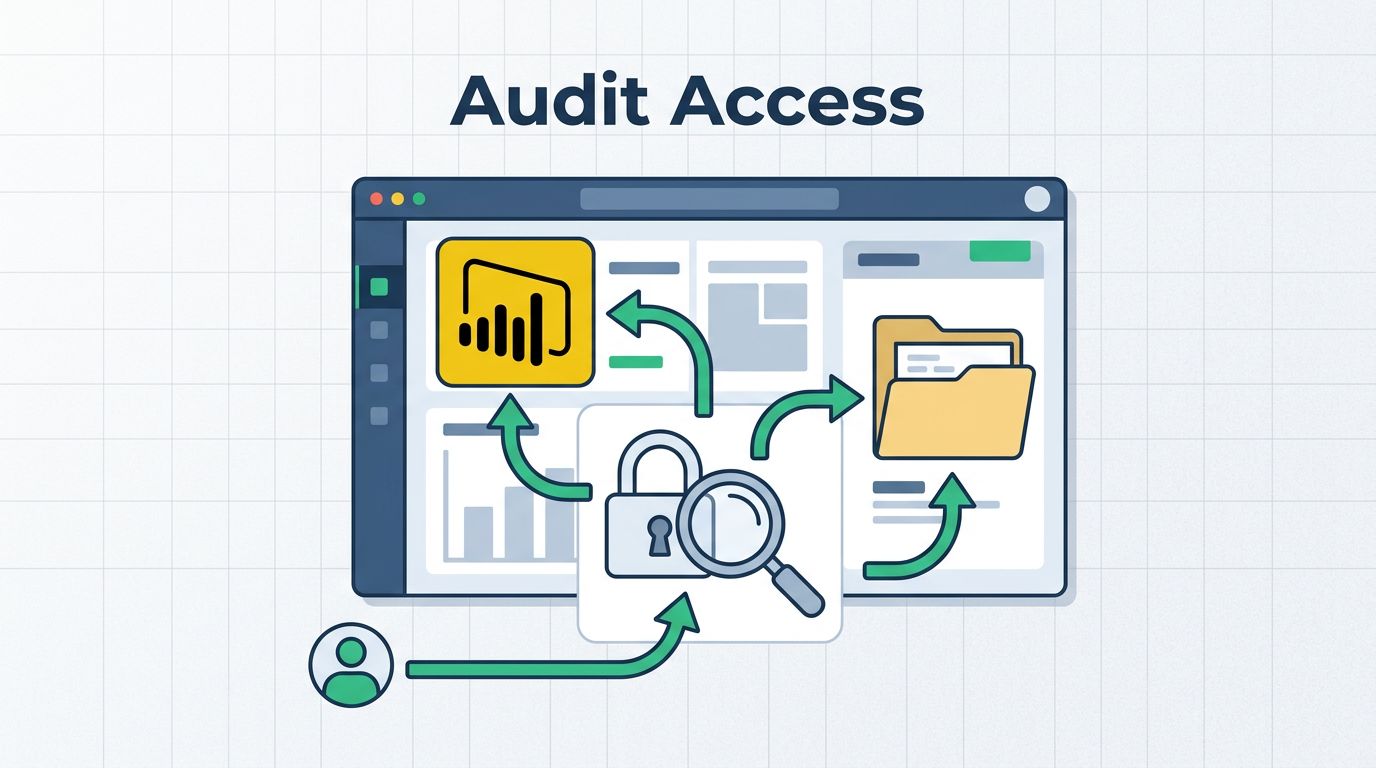
A shared calendar access audit helps you see who can view, edit, delegate, or re-share that data. It also catches stale access that lingers after a role change or departure.
For IT, security, and compliance teams, the goal is simple, keep access narrow, time-bound, and easy to prove. The sections below show how to do that in Microsoft 365 and Google Workspace.
Why executive calendars need their own review
Executive calendars are sensitive because they show patterns. A week of board meetings, legal calls, and deal reviews tells a story that email often hides. If one assistant, vendor, or service account has broader access than needed, that story becomes easy to copy or alter.
Treat calendar access as a separate control from mailbox access. In Microsoft 365, Microsoft Purview audit logs help you trace changes. In Google Workspace, Calendar Audit Activity Events show sharing and calendar changes. That record matters for insider risk reduction, because you want to know who changed access, when it changed, and whether it had approval.
In 2026, the best programs also tie every grant to a business reason and an expiry date. That keeps governance clean and helps during audits. It also stops “temporary” access from turning permanent.
Common calendar permission levels and what they mean
Platform labels vary, so align the team on plain language first. A clean permission map makes the review faster and less noisy.
| Permission level | What it allows | Risk in executive use |
|---|---|---|
| Free/busy visibility | Shows open and busy blocks only | Lowest risk, useful for scheduling |
| Viewer or read-only | Shows event details, titles, attendees, and locations | Can expose plans and sensitive names |
| Editor rights | Create, change, or delete events | Can hide, rewrite, or move meetings |
| Delegate access or full access | Act on behalf of the owner, and sometimes manage broad calendar or mailbox data | Highest risk, confirm scope and approvals |

Free/busy is often enough for assistants, travel teams, and some project coordinators. Anything broader should be rare and time-boxed. In Microsoft 365, delegate access can let someone act on behalf of the executive. Full access often reaches beyond the calendar, so verify mailbox scope too.
In Google Workspace, the closest labels are “See only free/busy”, “See all event details”, “Make changes to events”, and “Make changes and manage sharing”. In Microsoft 365, List calendarPermissions shows the identities and roles tied to each shared calendar. If you cannot explain a permission in one sentence, it should go on the review list.
How to run the audit without missing edge cases
A calendar review should answer three things: who can see it, who can change it, and who can share it again.
Start with the executive owners. List every senior leader, board-facing account, and shared calendar tied to them. Include assistants, chiefs of staff, travel support, and any outside schedulers.
Next, export the current permissions. Pull the live access list, then compare it with your approved access matrix. In Microsoft 365, that usually means checking the owner’s calendar permissions against your admin records. In Google Workspace, the audit and investigation tool gives you investigation rights, but those rights should stay separate from executive access itself.
Then separate standing access from temporary access. Vacation coverage, project support, and event planning help are valid reasons for short-term rights. They still need an end date.
Use this audit order every time:
- Start with the executive owner and every shared calendar linked to that person.
- Export the current permission set.
- Match each entry to a business reason and an approver.
- Flag any external account, service account, or inactive user.
- Compare sharing changes with audit logs.
- Remove anything stale, duplicated, or impossible to justify.
A simple record helps here. Store the owner, recipient, permission level, approval date, expiry date, and next review date in one place. That makes compliance reviews faster and keeps exception handling clean.
Signs the access list is broader than it should be
A good audit usually finds the same problems. A former assistant still has delegate rights. A vendor can edit meetings. Someone who only needs availability can see full event details. Temporary coverage never expires.
Those are not small issues. They create privacy risk, increase insider risk, and make executive protection harder. They also leave weak spots for social engineering, because attackers love accounts with more access than they need.
Use this monthly checklist:
- Export all executive calendar permissions.
- Confirm each grant has a named business owner.
- Keep free/busy for most schedulers and coordinators.
- Remove access for departed staff and ended contracts.
- Review external, delegate, and editor rights first.
- Save approval, expiry, and removal dates in the audit record.

If your team needs help building a repeatable review process across Microsoft 365 or Google Workspace, Book a Discovery Call with Bud Consulting.
An executive calendar audit works best when it stays boring, repeatable, and documented. Keep permissions tied to real job needs, check logs for every change, and remove access the moment the need ends.
That discipline protects privacy, lowers insider risk, and gives compliance teams a clean trail. It also turns least-privilege access into a control you can defend, not just a policy on paper.