table of contents
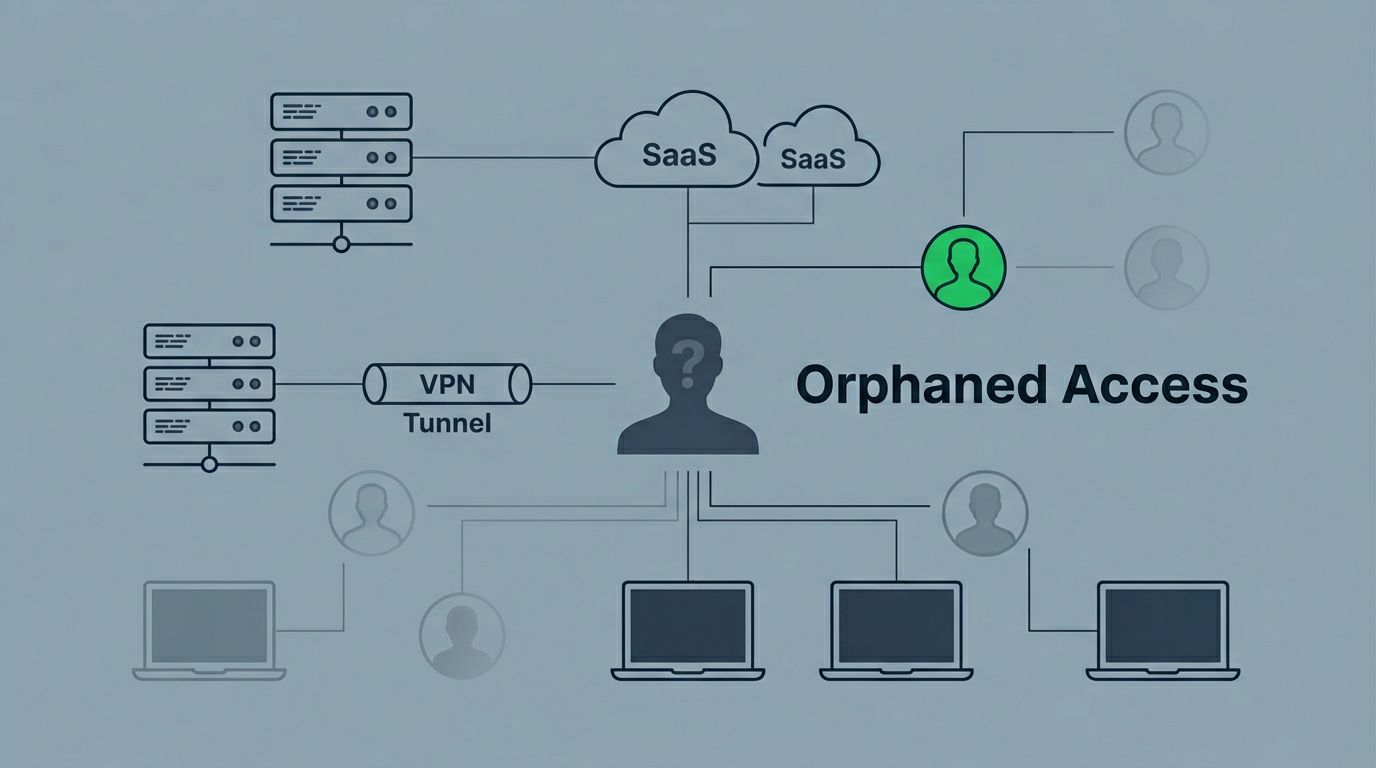
Employee turnover rarely ends when someone hands back a laptop. Access often stays behind in directories, SaaS tools, VPNs, and admin consoles long after the person leaves. That leftover access is where orphaned accounts start causing trouble.
The risk is simple. A deleted employee may still have active permissions, old tokens, or a shared mailbox tied to their name. If you can’t see those accounts fast, you can’t close them fast.
Start where turnover leaves the most blind spots
Most teams check the obvious places first, then miss the systems that matter most. Start with your identity source, then work outward. That means Active Directory, Microsoft 365, Google Workspace, your SSO or IdP platform, VPNs, and any SaaS app that stores its own users.

A former employee may be removed from Entra ID or Google Workspace, yet still keep access inside a connected app. That gap is common in SaaS stacks, especially where SCIM or full deprovisioning is missing. Google’s guidance on reconciling orphaned managed user accounts is a good reminder that every account should map back to an authoritative identity.
Look for three patterns. First, accounts that still authenticate. Second, accounts that no longer have a clear owner. Third, accounts that still hold data, licenses, or admin rights.
Use a short offboarding audit every time someone leaves
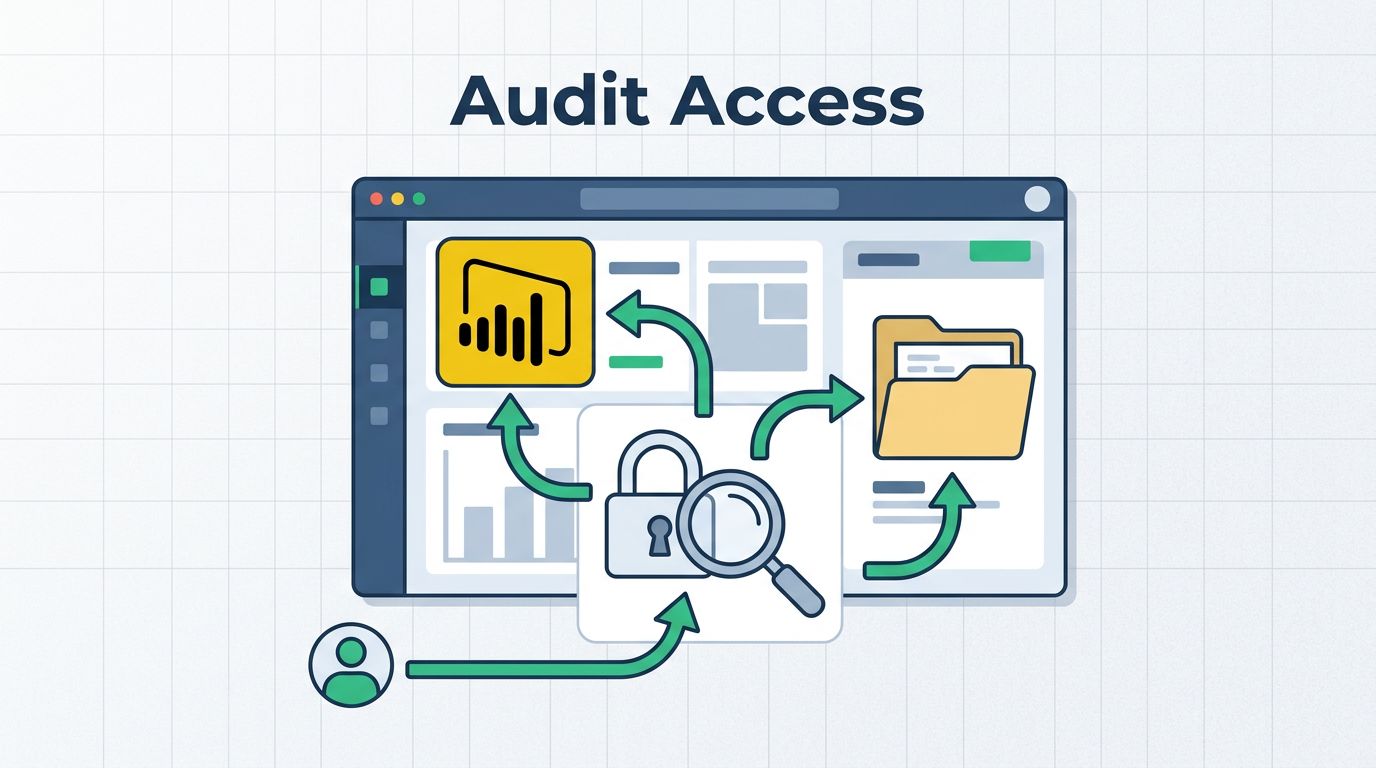
A repeatable audit catches more than an ad hoc cleanup. Keep it short enough to finish during the offboarding window, but detailed enough to catch stragglers.
- Pull the leaver list from HR and compare it to your directory export.
- Check Active Directory, Microsoft 365, and Google Workspace for active sign-ins, mailbox access, and group membership.
- Review your IdP, such as Okta or Entra ID, for app assignments that still point to the former employee.
- Scan VPN, remote access, and admin portals for any lingering access.
- Search SaaS apps that may not follow SSO or SCIM rules.
- Record the owner, action taken, and date closed for each account.
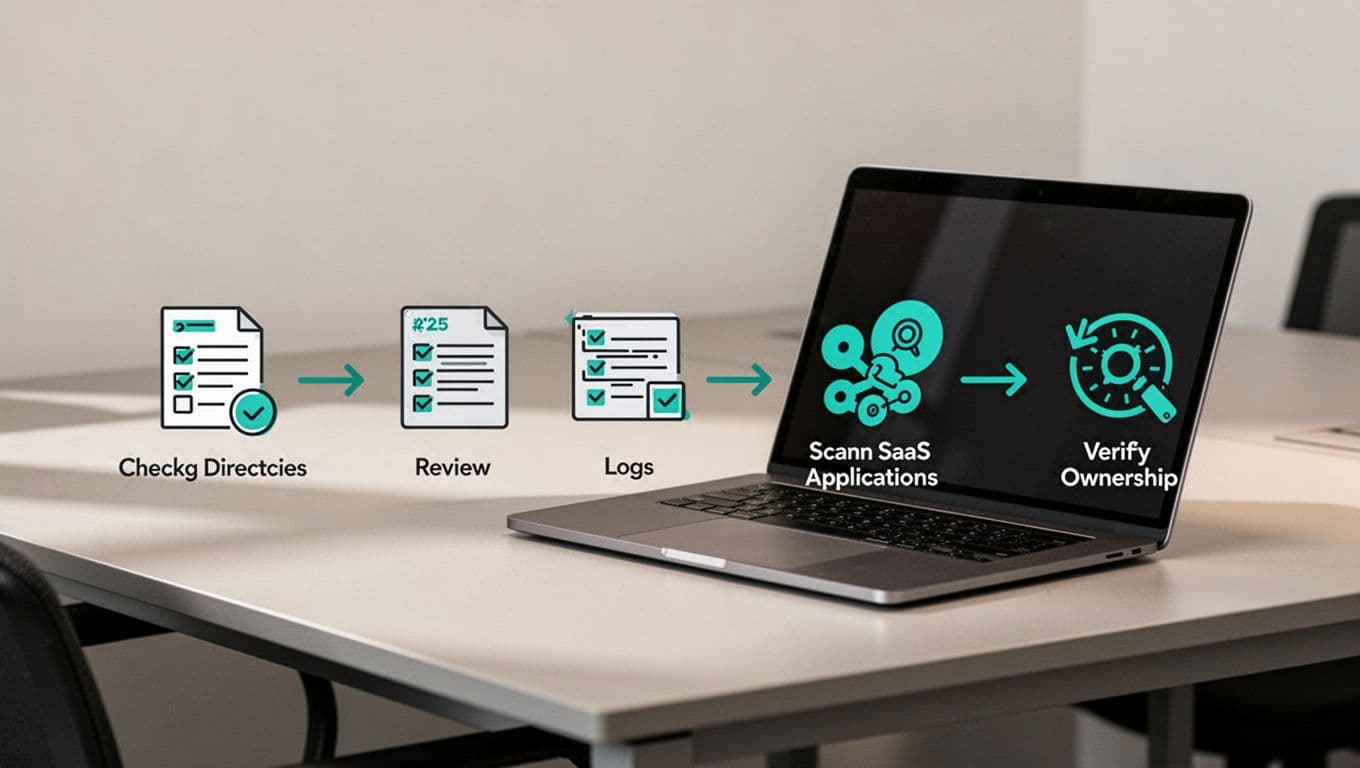
If an account has no named owner, treat it as a risk until someone proves otherwise.
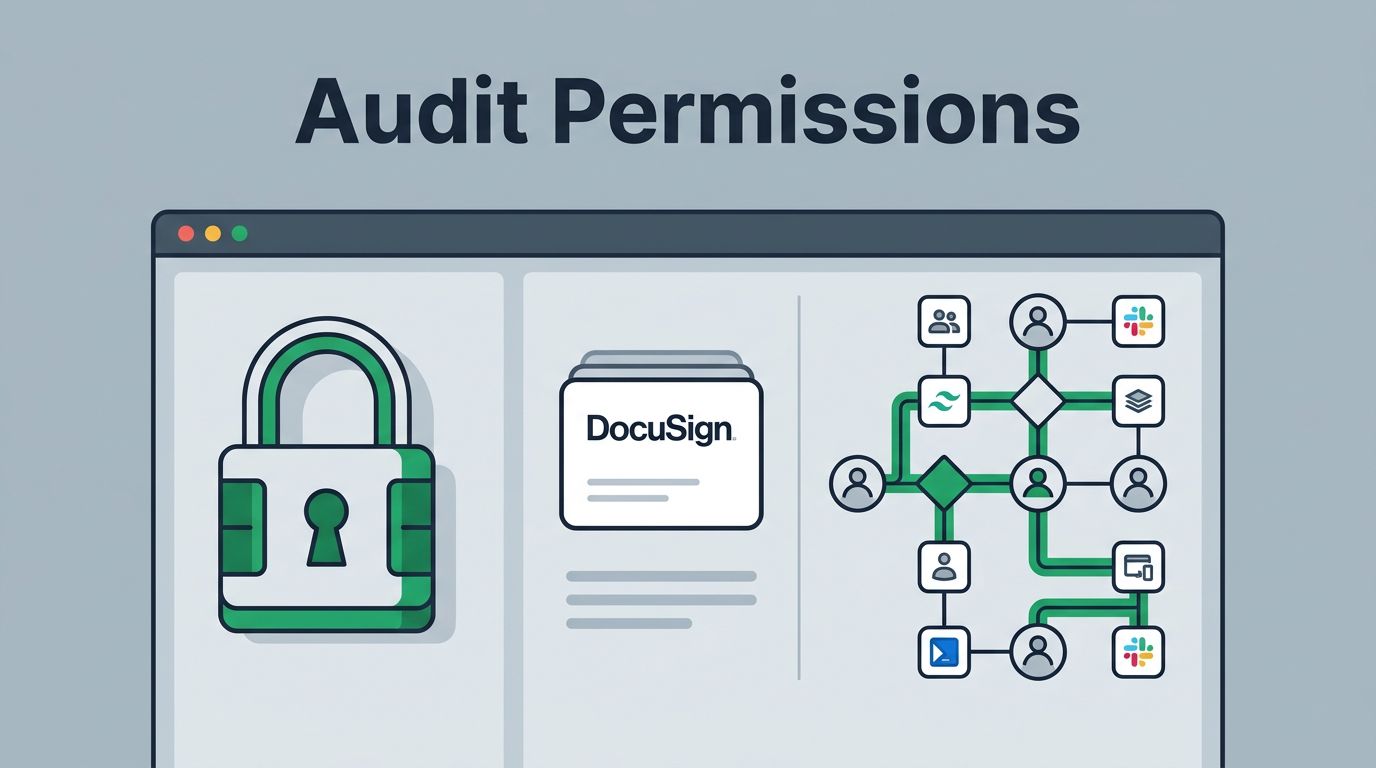
For Microsoft-heavy environments, check mailbox delegation, SharePoint access, Teams membership, and shared folders. In Google Workspace, review Drive permissions, Gmail delegation, OAuth grants, and group membership. In Active Directory, look beyond the user object and inspect nested groups, local admin rights, and linked service accounts. A useful vendor-neutral guide on detecting and removing orphaned user accounts can help frame this work.
Don’t trust the IdP alone
SSO makes access easier to manage, but it does not cover everything. Many organizations still run disconnected apps that sit outside the IdP, and that is where orphaned accounts hide.
Stitchflow’s write-up on Okta deprovisioning gaps shows the scale of this problem in plain terms. If an app does not support SCIM, or if IT never connected it to SSO, then offboarding has to happen another way. That means manual checks, app-owner review, or a separate SaaS inventory.
This is also where residual access gets missed. A former employee might no longer log in to the main portal, yet still hold access through API tokens, remembered sessions, or delegated app permissions. TechTarget’s review of residual access failures explains why those leftovers are still a common cause of exposure.
Pay close attention to these areas:
- SaaS apps bought by individual teams
- VPN clients with cached credentials
- OAuth apps connected to mail or file systems
- Privileged admin accounts tied to projects
- Service accounts created for integrations
Disable first, delete later
The safest cleanup plan starts with disable, not delete. Disabling blocks access fast and preserves evidence for audit or investigation. Deletion makes sense later, after retention, legal, and data-transfer checks are complete.
Here’s a simple rule set.
| Action | Best use | Why it matters |
|---|---|---|
| Disable | Standard user accounts and uncertain cases | Stops access fast while keeping the record |
| Delete | Confirmed personal accounts with no dependencies | Removes stale objects after review |
| Keep and review | Service accounts, break-glass accounts, shared logins | These often support systems, not people |
Service accounts need extra care. Review them for stale ownership, old scripts, and forgotten API keys. If nobody can explain what the account does, that’s a problem. Privileged accounts need even tighter control, because one missed admin account can undo a clean offboarding process.
Keep ownership and reviews in the routine, not the exception
Every account should have a named owner, a business purpose, and a review date. Without that, the next turnover cycle will create the same mess again.
Build recurring access reviews into your calendar. Monthly checks work well for privileged accounts and service accounts. Quarterly reviews are fine for normal user access in smaller environments. During each review, confirm the account is still needed, still linked to a current process, and still owned by someone who can act on it.
Document the basics in one place:
- Owner name and department
- Account purpose
- System location
- Last used date
- Disable or delete decision
- Review schedule
That record saves time during audits and makes handoffs cleaner when staff change. It also gives security and compliance teams a clear trail when they need to explain why access stayed open, or why it was closed.
If your team needs a repeatable way to find and clean up orphaned accounts across the stack, Book a Discovery Call with Bud Consulting.
Turnover will keep happening. The goal is to make sure access doesn’t outlive the people who had it. When you treat orphaned accounts as a routine audit item, you cut risk, protect data, and keep the next offboarding cycle under control.