table of contents
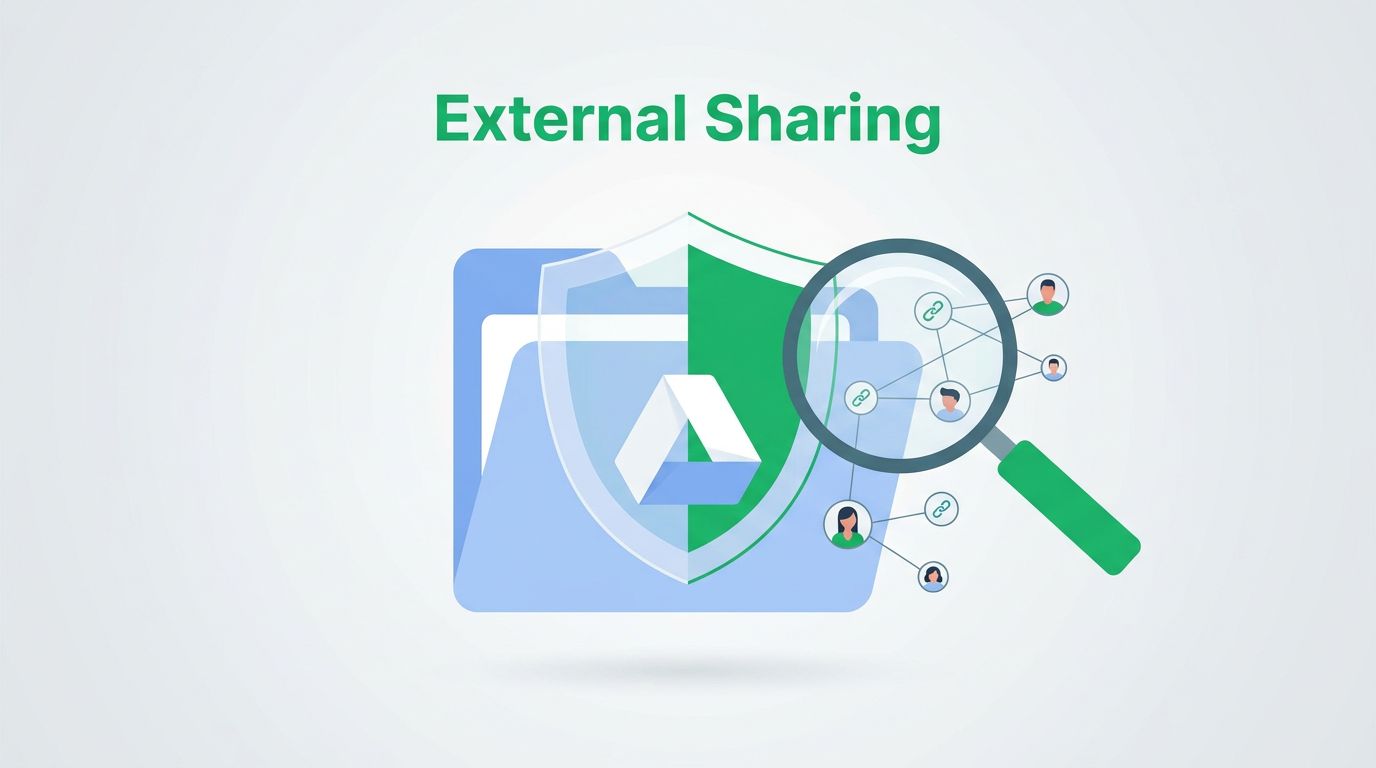
Google Drive external sharing can spread fast when one file gets the wrong link or the wrong role. A single edit can expose a folder, a shared drive, or a whole project trail.
If you manage Google Workspace, you need a clear way to spot outside access, check who allowed it, and decide what to lock down next. Google gives admins enough built-in controls to do that without guessing.
Table of Contents
- Review the current sharing rules first
- Find externally shared files in audit logs
- Tighten controls before the next review
- FAQ
Review the current sharing rules first
Start at the source. Before you inspect files, confirm what users are allowed to share outside the organization.
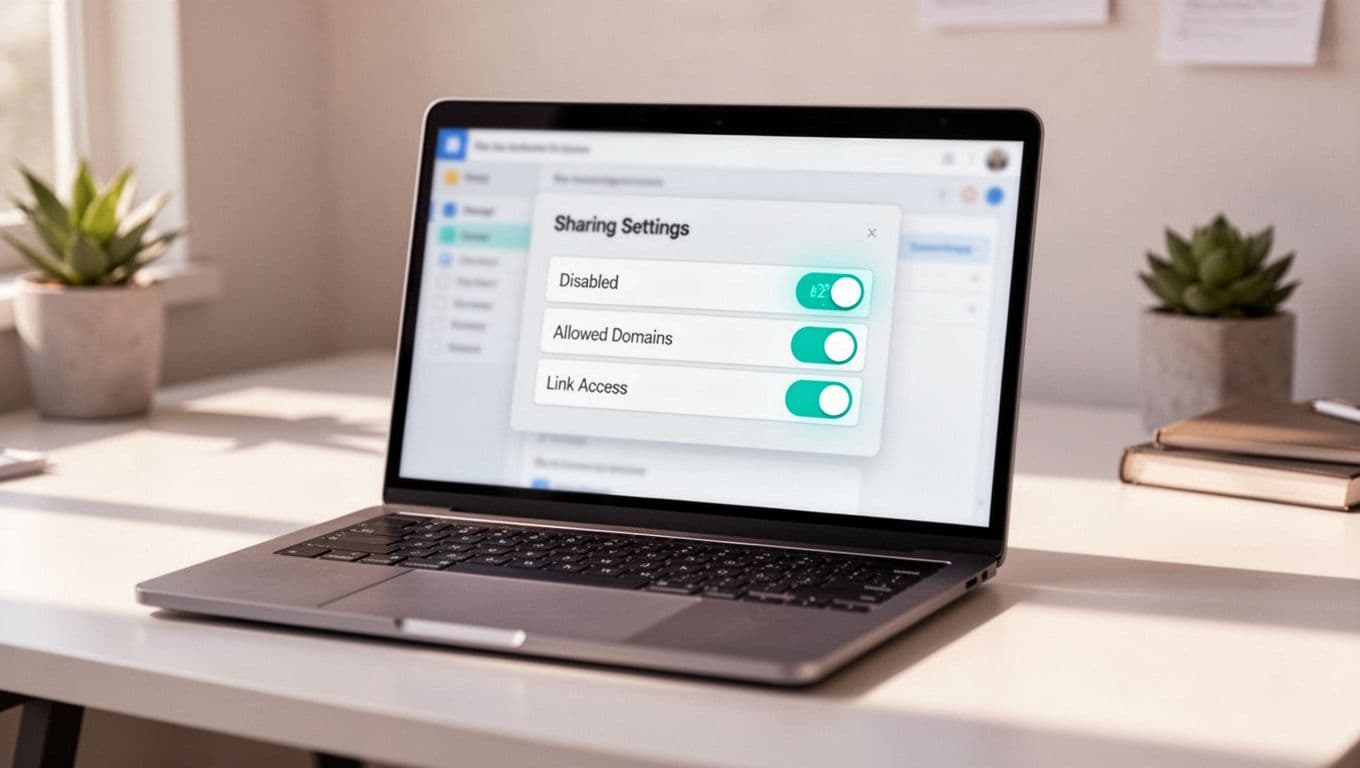
Google documents the main admin controls in Manage external sharing for your organization. In the Admin console, that usually means checking Apps > Google Workspace > Drive and Docs > Sharing settings. From there, you can see whether external sharing is open, limited to trusted domains, or turned off.
A quick comparison helps when you are triaging risk.
| Control point | Best use | What you learn |
|---|---|---|
| Sharing settings | Set the baseline | Whether outside sharing is allowed at all |
| Trust rules | Narrow access by group or domain | Which users and domains can share or receive files |
| Shared drive settings | Control team spaces | Who can join, edit, or share drive content |
The point is simple. If the baseline is weak, your logs will show more noise later. If the baseline is tight, the audit work gets cleaner.
For teams that work with contractors or partners, visitor access matters too. Google explains that flow in visitor sharing for non-Google users. Use it only when your business case is clear.
Find externally shared files in audit logs
Once the rules are clear, move into the logs. This is where you see what happened, who did it, and when.
The current Google Workspace approach uses two built-in paths. First, the Investigation Tool under Security > Investigation Tool. Second, the Drive audit log under Reports > Audit and Investigation. Google also lets admins manage shared drives directly, which matters when outside access happens in team spaces. See Manage shared drives as an admin for the admin-side controls.
Use the right tool for the job:
- Investigation Tool works well for a focused search, such as recent external visibility changes.
- Drive audit log works well for broader review, trend checks, and user-level history.
- Shared drive admin controls help when the risky item sits inside a team-owned drive.
A simple workflow in the Investigation Tool looks like this:
- Open the Admin console and go to Security > Investigation Tool.
- Choose Drive log events as the data source.
- Add a condition for Visibility change and set it to External.
- Filter by date, user, or file name if you need a smaller set.
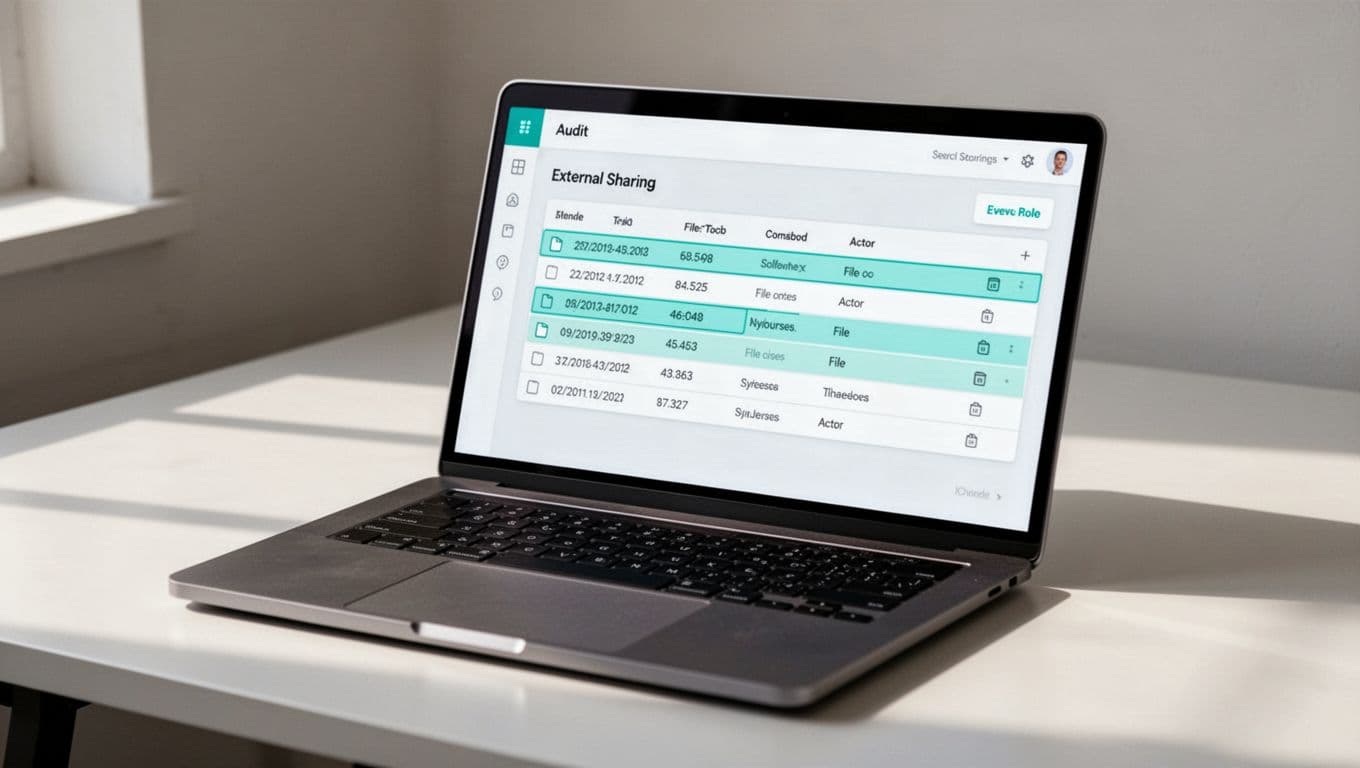
- Run the search and review the file title, actor, timestamp, and event type.
- Export the results for follow-up in Sheets or a report file.
If a file looks risky, check the sharing rule first, then the event log. The file tells you what changed, but the policy tells you what was possible.
The audit log gives you a second lens. It helps you spot repeated sharing by one user, stale external links, or old permissions that never got cleaned up.
Tighten controls before the next review
Reviewing Google Drive external sharing is only half the job. The other half is stopping the same issue from coming back next month.
A good org-level review ends with a few direct actions:
- Remove stale access for ex-employees, old vendors, and finished projects.
- Restrict sharing by domain when you only trust a narrow partner set.
- Review shared drives that collect large teams or long-lived project files.
- Check link-based access for files that should have named viewers instead.
- Use trust rules to scope who can share and who can receive content.
Google’s trust rules for Drive sharing are useful when one blanket policy is too broad. They let you apply more precise controls by user, group, org unit, or domain.
For many teams, a monthly cadence works well. High-risk orgs may need weekly checks, especially if they support outside collaboration, client work, or regulated data.
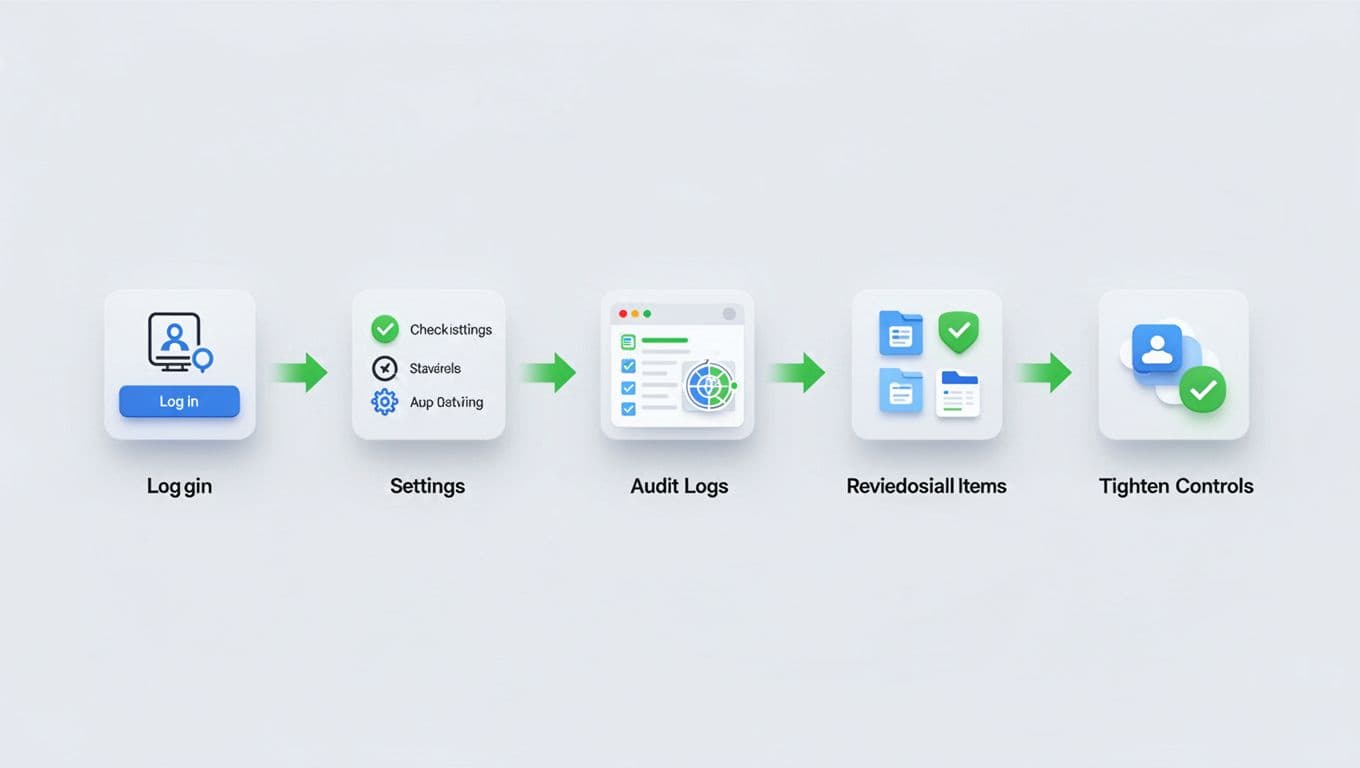
Here’s a simple review loop:
- Pull the latest Drive audit events.
- Flag any external visibility change.
- Confirm whether the share is approved.
- Remove or downgrade risky access.
- Re-check the setting on the source file or shared drive.
- Record the outcome so the next review is faster.
If your team wants help building a practical review process around Google Workspace security, Book a Discovery Call with Bud Consulting.
FAQ
Can I see every externally shared file in one place?
Usually, no. Google’s native tools are better for logs and investigation than a single perfect file inventory. Use the Investigation Tool and Drive audit logs together, then export the results for cleanup.
What should I look for first during a review?
Start with recent visibility changes and shares that moved outside your domain. Then check who made the change, whether the file sits in a shared drive, and whether the access is still needed.
How often should admins review Google Drive external sharing?
Monthly is a solid baseline for most organizations. Teams with heavy partner access, sensitive data, or compliance duties should review more often.
A clean review process does more than find shared files. It shows whether your Google Workspace settings, logs, and trust rules are working together. When those three pieces stay in sync, google drive external sharing becomes much easier to control.