table of contents
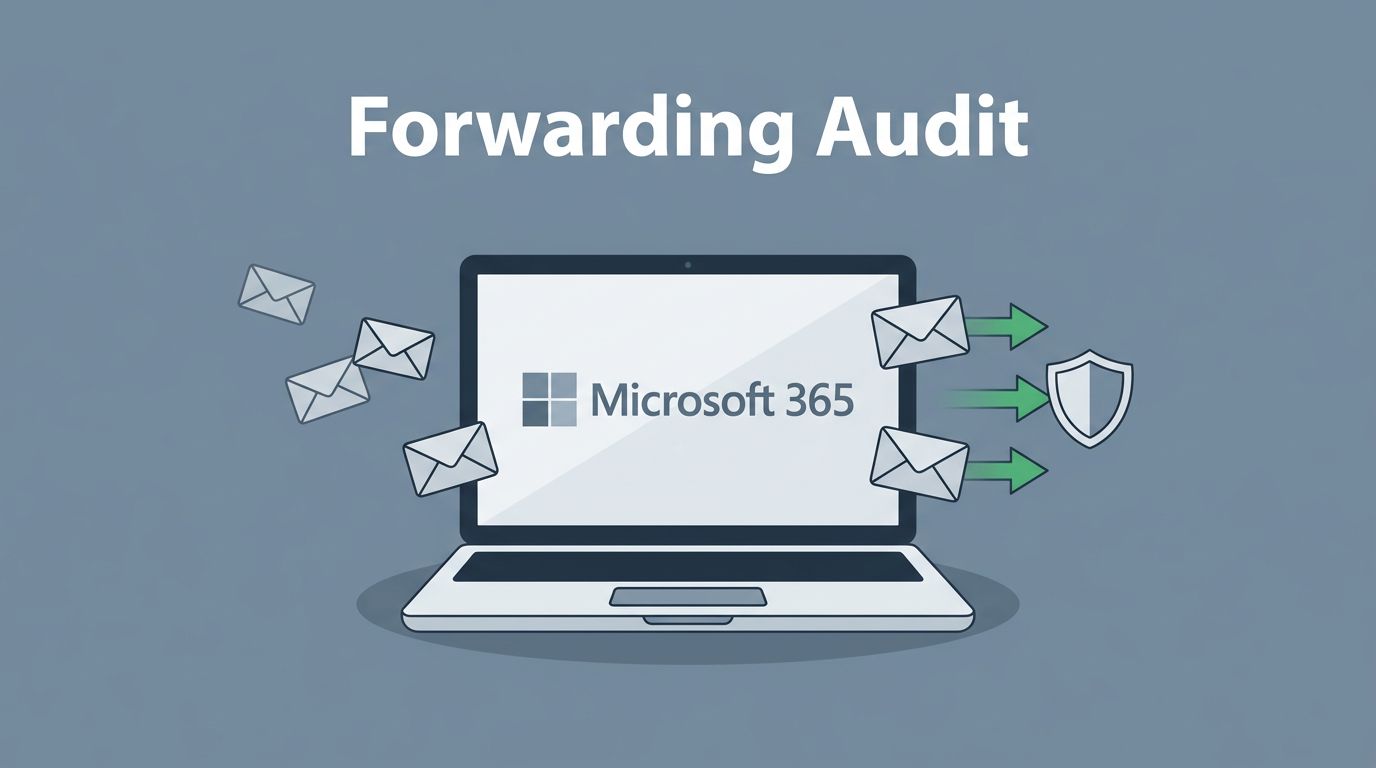
A quiet forwarding rule can move sensitive mail out of your tenant in seconds. That makes Microsoft 365 mail forwarding one of the easiest places for attackers, careless admins, and well-meaning users to create risk.
The hard part is that forwarding can hide in more than one place. You need to check mailbox settings, inbox rules, mail flow rules, and audit logs together, or you may miss the real path.
Table of contents
- Why Microsoft 365 mail forwarding is a real risk
- Tools and access you’ll need before you audit
- A practical audit workflow for admins
- Which forwarding rules to keep, block, or investigate
- FAQs
Why Microsoft 365 mail forwarding is a real risk
Forwarding is popular because it feels harmless. Someone wants mail in a personal inbox, a shared mailbox, or a new vendor system, so they add a rule and move on.
That convenience is the problem. Attackers love forwarding because it gives them a quiet copy of email, often including password resets, invoice threads, and internal alerts. Microsoft documents this in its guide on identifying who modified mailbox rules, which is a good starting point when you need to trace a change back to a person or event.
If forwarding reaches an external mailbox, treat it like an unapproved data path until you confirm the owner, purpose, and destination.
You should also watch for mail flow rules. Microsoft explains how to manage mail flow rules in Exchange Online, and those rules can route or rewrite mail outside normal mailbox settings.
Tools and access you’ll need before you audit
As of 2026, the main places to check are still the Exchange admin center, Microsoft 365 Defender, and Microsoft Purview. You need the right roles before you start, or you will only see part of the picture.

The table below shows the core review points.
| Check point | Where to look | Why it matters |
|---|---|---|
| Mailbox forwarding | Microsoft 365 admin center, user mailbox settings | Reveals direct forwarding to an external address |
| Inbox rules | Outlook on the web, Exchange Online PowerShell | Catches hidden forwards, redirects, and move rules |
| Mail flow rules | Exchange admin center | Finds tenant-wide rules that send mail out of the org |
| Audit log | Microsoft Purview Audit | Shows who changed a rule and when |
| Outbound forwarding policy | Microsoft 365 Defender | Confirms whether external auto-forwarding is allowed |
If you need a bulk first pass, PowerShell is still the fastest route. Scripts such as Identify and Block External Email Forwarding Using PowerShell can help you find risky patterns across many mailboxes.
A practical audit workflow for admins
Start with the most direct path, then move outward. That keeps the review fast and makes it easier to explain later.

- List mailboxes with forwarding enabled. Check for any mailbox that sends mail to another address, especially outside your tenant.
- Review inbox rules for forward, redirect, or hidden actions.
Get-InboxRulecan expose rules that users do not see easily in Outlook. - Check mail flow rules and remote domain settings. These can allow or block external forwarding at the tenant level.
- Search the audit log for rule creation or edits. Compare the timestamp with sign-in logs, password changes, and help desk tickets.
- Confirm the business reason. If nobody owns the rule, disable it first and ask questions second.
Microsoft 365 alerts can also help. Keep an eye on alert names like Creation of forwarding/redirect rule and Suspicious Email Forwarding Activity. They often show the difference between a normal admin change and a hidden attack.
Which forwarding rules to keep, block, or investigate
Not every forward is bad. Some are legitimate, but they need a clear owner and a documented reason.

Use this simple filter:
- Keep it if the destination is internal, the owner can explain it, and the rule is tied to a real process.
- Block it if it forwards to a personal mailbox, an unknown external address, or a domain you do not trust.
- Investigate it if the rule appeared after a suspicious sign-in, a password reset, or a help desk scam.
- Escalate it if mail is missing, alerts are firing, or the rule hides mail instead of forwarding it.
That last point matters. Some rules do not forward messages at all. They move them to deleted items, archive folders, or obscure subfolders. Those rules can be just as damaging, because they hide evidence and delay response.
If your team wants a second set of eyes on forwarding risk across tenants, Book a Discovery Call with Bud Consulting.
FAQs
How often should Microsoft 365 mail forwarding be audited?
Monthly is a good baseline. High-risk tenants, regulated teams, and recent incident survivors should review forwarding weekly.
What is the difference between mailbox forwarding and inbox rules?
Mailbox forwarding happens at the mailbox level and sends mail elsewhere. Inbox rules live inside the mailbox and can forward, redirect, move, or hide messages. Audit both.
Can Microsoft 365 block external forwarding?
Yes. Microsoft 365 Defender outbound spam policies can block or restrict automatic external forwarding, and Exchange settings can limit which remote domains are allowed.
What should I do first if I find suspicious forwarding?
Disable the rule, preserve the audit evidence, check recent sign-ins, and review whether other mailbox settings changed at the same time.
A forwarding rule is small, but the damage can be large. The safest audit looks at the mailbox, the inbox, the transport layer, and the audit trail together.
If those four pieces do not match, treat the rule as a risk until proven otherwise.