table of contents
Third-party apps promise productivity boosts in Google Workspace. But they often request broad access to email, calendars, or drives. One unchecked app can expose sensitive data across your organization.
As an admin, you control this through OAuth settings. Users grant permissions via OAuth scopes, but you set the rules. This guide walks you through the latest 2026 steps to audit and secure Google Workspace OAuth app access.
Start in the Admin Console. You’ll spot risky connections fast.
Access the Admin Console to Review Apps
Log in to admin.google.com with your admin account. You need the Service Settings admin role for full control.
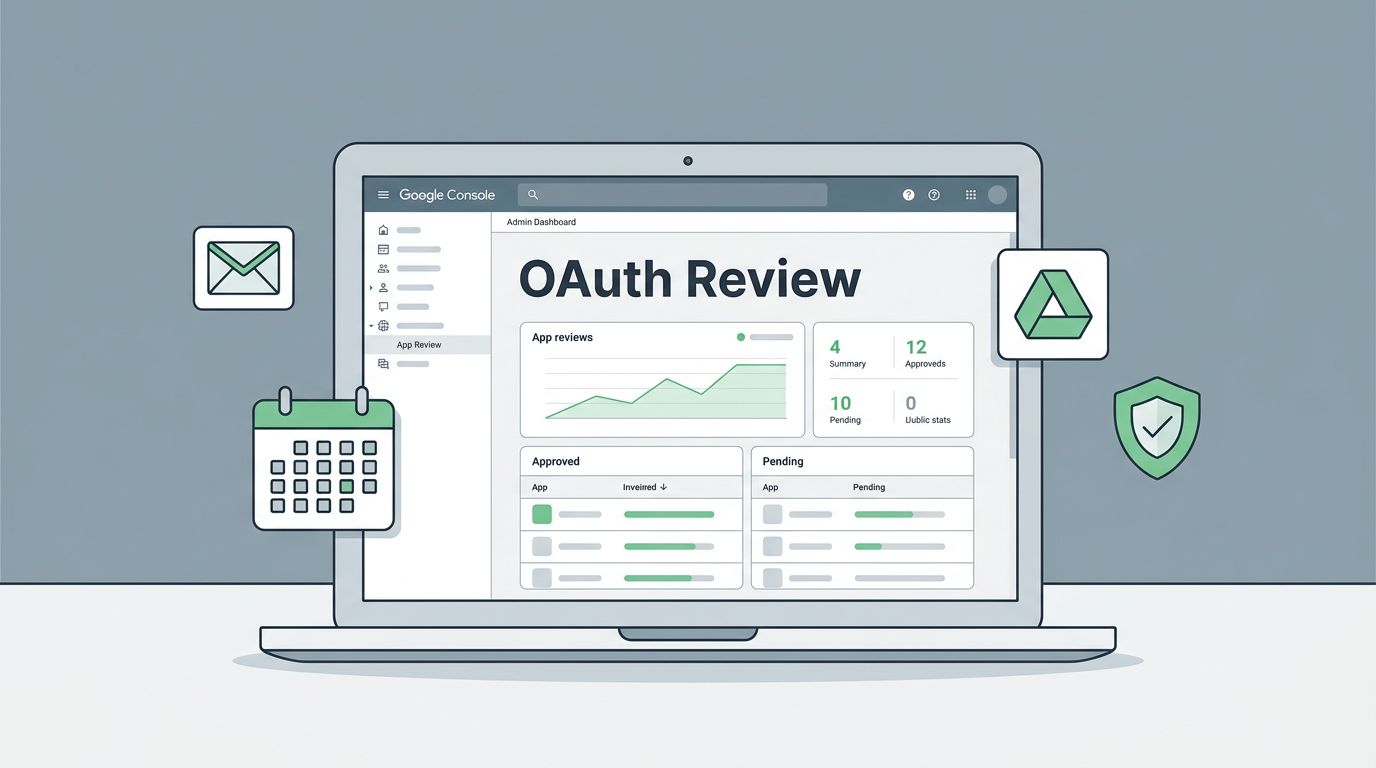
From the menu, go to Security > Access and data control > API controls > Manage App Access. This dashboard lists Google-owned, internal, and third-party apps.
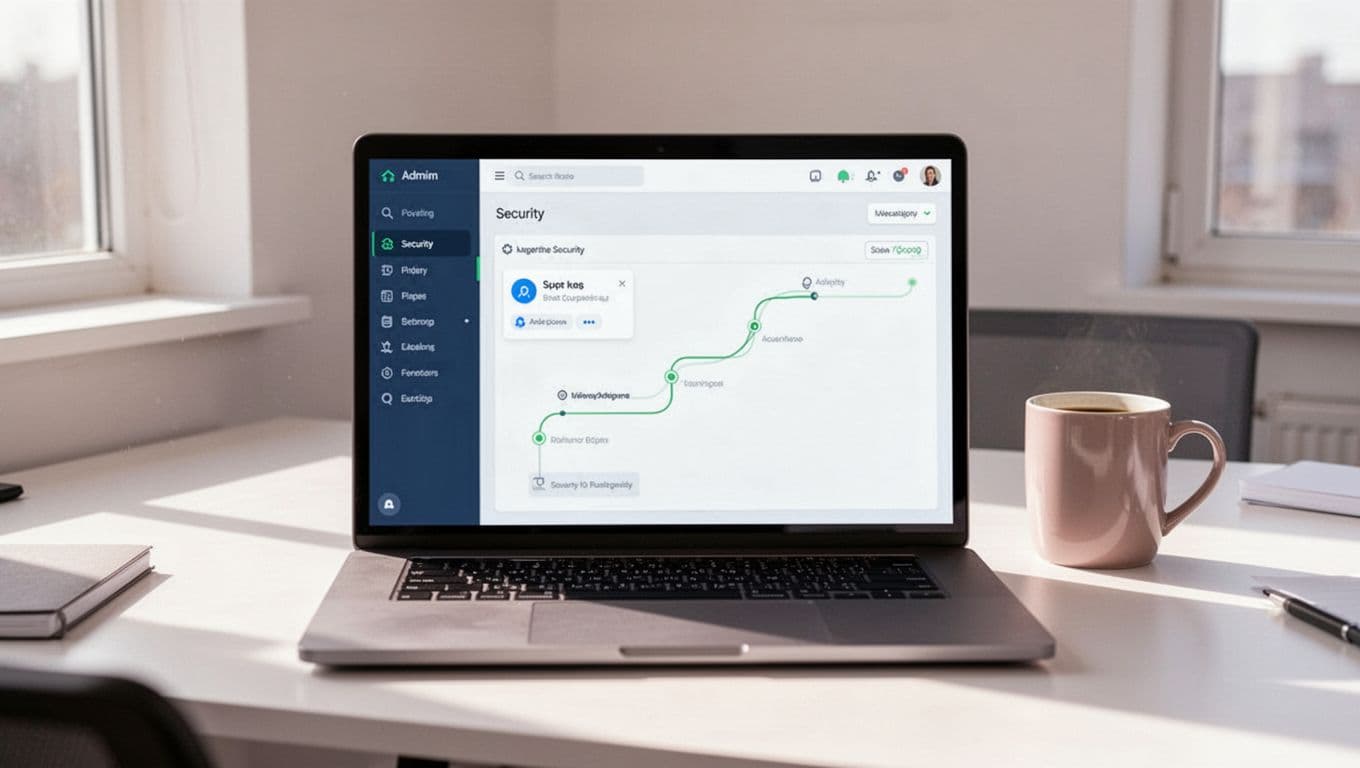
Here, you see Configured apps (ones you’ve set) and Accessed apps (user-granted ones). Expand rows for details like OAuth scopes. Google-owned apps skip scopes, but third-party ones show exact permissions.
Click View under Accessed apps to scan user connections. Filter by app type or users. Changes apply organization-wide, so test on a small group first.
For logs, check Reporting > Audit and investigation > OAuth log events. This tracks app usage and requests. Use the Security center’s Investigation tool for deeper searches.
Review Connected and Configured Apps
In Manage App Access, start with Configured apps. These follow your policies. Note the app name, client ID, users accessing it, and requested services.
OAuth scopes define risks. Basic scopes handle profiles. Sensitive ones touch Gmail or Calendar. Restricted scopes need extra review.
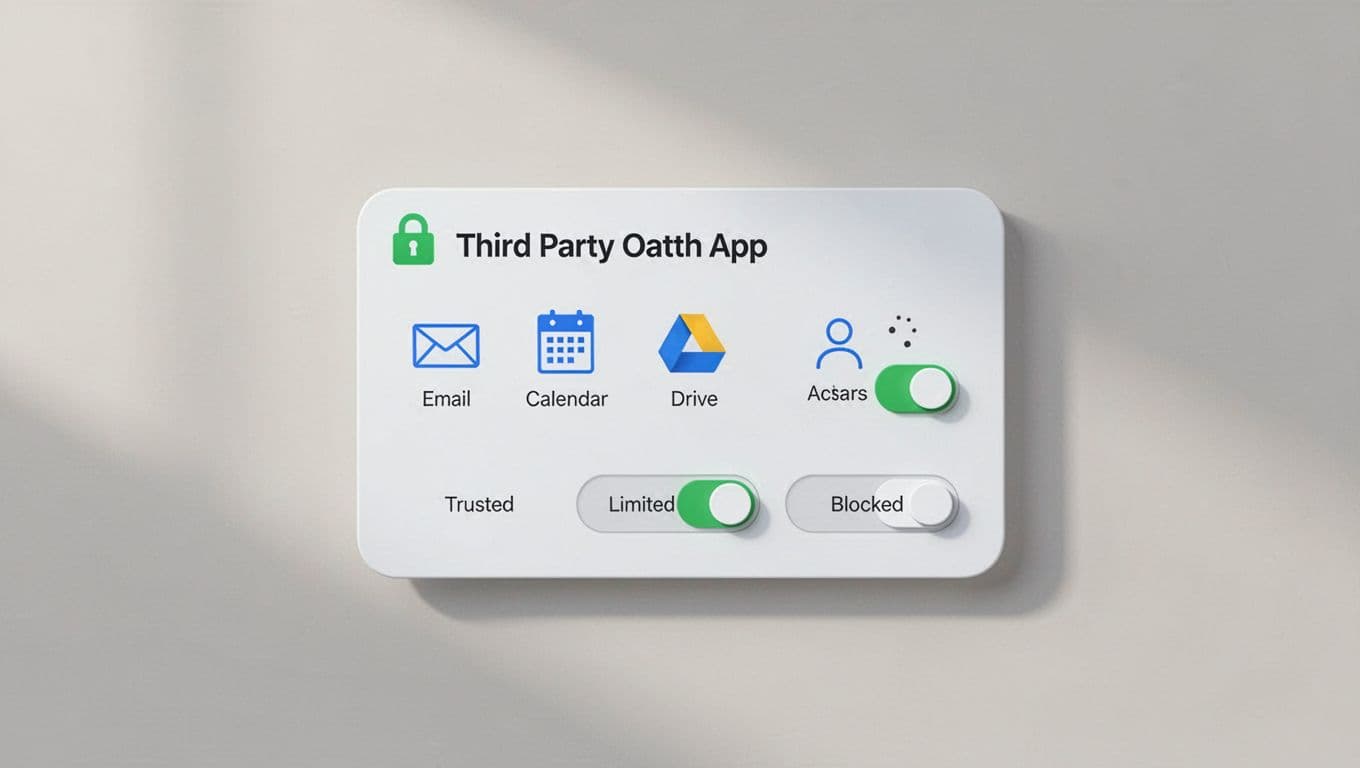
Switch to Accessed apps for user-level grants. High user counts signal popular tools. But popularity doesn’t mean safety.
User-connected apps differ from admin policies. Users can grant access outside your configs until you block them. Review both to close gaps.
For individual users, go to Users > [select user] > Security > Connected apps & sites. Revoke suspicious ones there.
Manage Pending App Access Requests
Users hit blocks on unconfigured apps. Requests land in Apps pending review.
Navigate to Menu > Security > Access and data control > API controls. Click Apps pending review under App access control.
Each request shows the app, user, and scopes. Options include allow, dismiss, or block. Allow moves it to Configured apps for policy.
Dismiss sends a note to the user. Block prevents future tries.
Since March 2025, apps must use OAuth for Gmail, Calendar, and Contacts. Chat apps got granular consent in January 2026, so users pick exact data.
Check Google’s guide on reviewing third-party app access requests for screenshots.
What to Check When Reviewing Apps
Spot red flags before approving. Focus on business need first.
Verify the publisher. Google verifies trusted ones. Unverified apps trigger warnings.
Examine scopes. Does the app need full Drive access for calendar sync? No. Stick to least privilege.
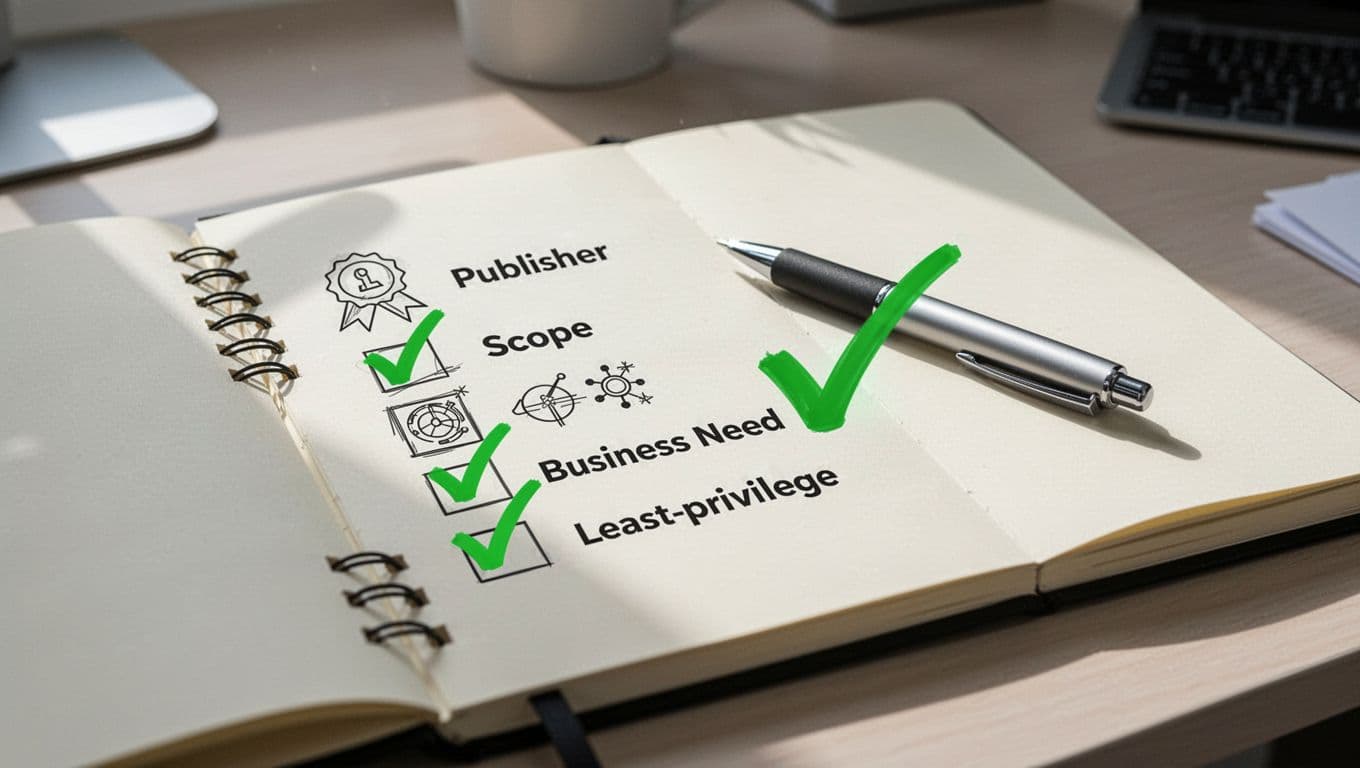
User count matters. New apps with few users might test risks.
Here’s a quick checklist:
- Publisher status: Verified by Google?
- Requested scopes: Match business use? Avoid broad ones like full admin access.
- Access history: Recent log events in OAuth audits?
- Alternatives: Google Marketplace option safer?
For scope details, see OAuth 2.0 scopes for Google APIs. Flag sensitive or restricted ones.
Inventory all apps quarterly. Tools like those in OAuth log events reports help.
| Access Level | Description | When to Use |
|---|---|---|
| Trusted | All scopes allowed | Vetted internal apps |
| Specific Google data | Pick exact scopes | Most third-party tools |
| Blocked | No access | Unknown or risky apps |
Set to Specific for safety. Users get your custom block message.
Follow best practices for OAuth scopes like incremental requests.
Configure and Secure App Policies
Click Configure new app in Configured apps. Search by name or client ID.
Pick the level, select scopes if needed, and save. For Specific, choose only required services like read-only Calendar.
Apply to organizational units. Roll out gradually.
Revoke old access. In Accessed apps, block unused ones.
Monitor via control third-party app access guide. Since 2026 updates, granular Chat consent reduces over-grants.
If gaps persist, book a discovery call with Bud Consulting for IAM audits.
Key Takeaways
Regular reviews keep Google Workspace OAuth app access tight. Start with Admin Console paths to spot connections. Check scopes against needs, set least-privilege levels, and handle requests promptly.
You now audit user grants versus admin policies. This cuts risks from over-permissive apps.
Strong controls build secure habits. Your data stays safe.