table of contents
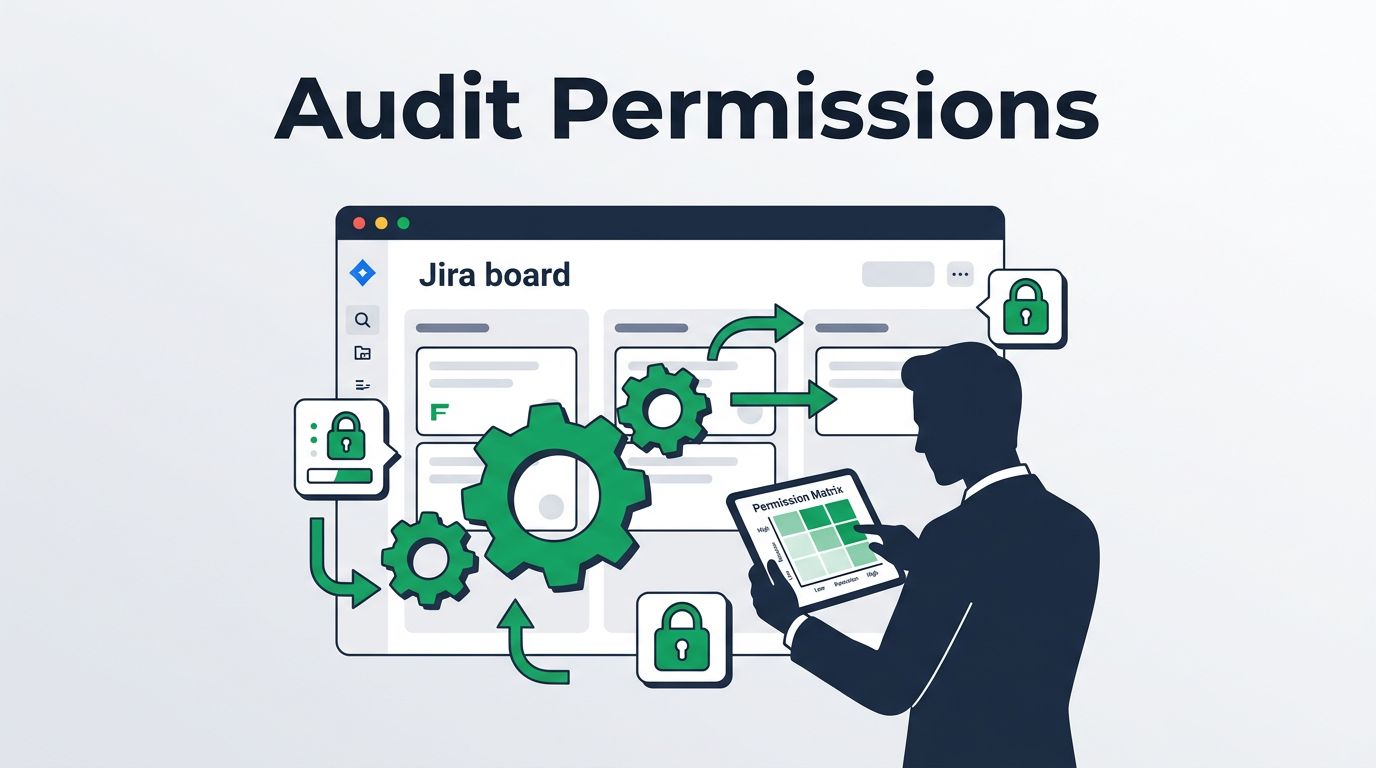
Jira project permissions are easy to misread because the real controls sit in more than one place. A user can lose one permission and still reach sensitive work through a workflow rule or an open issue security level.
If your team handles HR cases, finance tasks, security incidents, or release approvals, that gap matters fast. The safest audit starts with the actions a user can take, then checks the scheme, workflow, and security settings behind them.
Start with the actions that matter most
A useful audit begins with the question, “What can someone do with this project?” That sounds simple, but it cuts through a lot of noise.
Focus on the actions that create risk first:
- See the project
- Edit the issue
- Move issues through the workflow
- View confidential tickets
- Change security settings
- Administer the project
Those six actions tell you where the weak spots are. If someone can browse a project, they may see more than the team expects. If they can transition issues, they may push a sensitive item into a status that looks approved or complete. If they can administer the project, they can often change the rules themselves.
A clean audit treats access like layers in a building. One open door can expose the whole floor.
For a clear primer on the main layers, Jira Cloud permissions guide is a useful reference.
Read the permission scheme before touching the workflow
The permission scheme is the base map. It tells you which users, groups, or project roles can do what across the project. If that map is broad, the rest of the audit becomes harder.
A quick comparison helps you separate the moving parts.
| Layer | What it controls | What to check |
|---|---|---|
| Permission scheme | Core project rights | Who has Browse Projects, Edit Issues, Transition Issues, and Delete Issues |
| Project roles | Named access buckets | Whether the right people sit in each role, and whether the role includes stale users |
| Groups | Directory-level membership | Whether broad groups like “all staff” or “everyone in engineering” grant too much access |
| Workflow conditions | Who can see a transition | Whether sensitive transitions are limited to the right role or group |
| Validators | What must be true before a transition | Whether unsafe moves are blocked, even if the button is visible |
| Issue security | Who can view a specific issue | Whether confidential tickets use the right security levels |
| Admin exceptions | Who can change the rules | Whether elevated access is documented, timed, and reviewed |
If the same scheme is reused across several projects, review it carefully. One small change can open access in places you never meant to touch.
A project can look locked down and still leak access through one open transition or one empty security level.
Keep an eye on the difference between project roles and groups. Roles are easier to manage inside a project. Groups are broader and often outlive the need that created them. That matters when a team changes, a contractor leaves, or a project gets reused for a new purpose.
Check workflow conditions, validators, and transitions
Workflow rules often hide the most interesting mistakes. A transition may look private on the screen, yet still be visible to more users than expected.
Conditions control who can see or use a transition. Validators check whether the issue meets a rule before the move happens. Transitions are the path itself, the step from one status to another. When these three pieces drift apart, access starts to feel inconsistent.
A common mistake is giving broad edit rights, then using a workflow only as a soft guardrail. That works until someone finds a path around it. A validator that checks for a required field is helpful, but it does not replace a condition that restricts the transition to the right role.
Look at transitions that matter most to your business. Approval, closure, escalation, handoff to another team, and moves into a confidential status deserve special attention. If a user can push an issue into “Done” or “Approved” without a review, the workflow is too open.
Check each sensitive transition with these questions:
- Who can see the transition button?
- Who can execute it?
- Does the transition depend on role, group, or issue field values?
- Can automation or an integration use it?
- Does the next status expose the ticket to a wider audience?
That last question matters more than people think. A transition can change a ticket into a status that triggers notifications or dashboard visibility.
When custom fields drive routing or approval, they deserve the same review as permissions. Secure custom fields review shows how field logic can shape access in ways that are easy to miss.
Review issue security for tickets that should stay private
Project permissions decide whether someone reaches the project. Issue security decides which issues they can see once they are inside. That difference matters a lot for sensitive tickets.
Use issue security for work that should stay private even inside an otherwise open project. HR cases, security incidents, legal requests, and disciplinary actions are common examples. These issues often need tighter control than the rest of the project.
The key test is simple. If the issue should not be visible to every user with Browse Projects, it needs a security level. If the ticket is confidential by default, the security level should be set as soon as the issue is created. Waiting until later leaves a window where the issue may be visible longer than expected.
Check the security scheme itself, then check the assigned levels. Make sure each level contains only the right users, groups, or project roles. Broad levels like “all logged-in users” or “everyone in the department” usually create more exposure than the owner expects.
Also review comments and attachments. A sensitive title is one problem. A private update with a copied attachment is a bigger one. If people can comment on or attach files to an issue that should stay limited, they may reveal more than the status line ever does.
The safest rule is simple. If a ticket carries private context, the security level should be part of the workflow, not an afterthought.
Watch for risky project roles and admin exceptions
Project roles are useful, but they can become too wide over time. One role may start with five people and end with fifty. Another may include contractors, service accounts, and old employees who were never removed.
That is where audits often find the largest surprises. The setup looks normal on paper, yet the role no longer matches the job.
Common risky setups include:
- A broad developer role that can edit and transition sensitive issues
- A project admin role that also sits inside day-to-day workflow access
- An automation account with more rights than the human users it supports
- A security level built on a role that includes contractors
- A former employee still present in a group that grants access
- A global permission that overrides the intent of the project scheme
Admin exceptions need special care. Jira admins and project admins often need temporary access to fix schemes or support incidents. That access should be documented, time-limited, and reviewed after the change is done. Otherwise, the exception becomes the new normal.
Global permissions deserve a separate look too. A user who can administer Jira or manage shared objects may bypass project-level controls in ways that are easy to miss during a project-only review.
If your team keeps finding access problems in the same projects, Book a Discovery Call with Bud Consulting to talk through a tighter review process.
Build a repeatable Jira permission audit checklist
A one-time review helps, but a repeatable process works better. Permissions drift as teams change, projects get reused, and groups expand.
Use the same checklist every quarter or after any major role change:
- List the projects that hold sensitive work.
- Identify the permission scheme for each project.
- Note who has Browse Projects, Edit Issues, Transition Issues, and Administer Project.
- Review the project roles and the groups behind them.
- Check every sensitive workflow transition for conditions and validators.
- Confirm the issue security scheme for private tickets.
- Test access with real user accounts, including one normal user, one project lead, and one admin.
- Record every exception, owner, and expiry date.
- Remove stale users, unused groups, and old integration accounts.
- Re-test after every change.
That list catches the most common failures without turning the review into a maze. It also gives compliance teams a paper trail they can follow later.
A good audit record should show what changed, who approved it, and when the next review is due. If you cannot explain why someone has access, the access is probably too broad.
Fix what you find and retest access
Once you spot a weak point, fix the root cause instead of patching the symptom. If a broad group grants too much access, narrow the group or replace it with a project role. If a workflow transition is open to everyone with edit rights, add a condition that limits it to the right team.
These fixes usually give the best return:
- Split read access from transition access.
- Remove broad group grants when a role will do the job.
- Set default issue security for confidential projects.
- Trim project roles until each one has a clear purpose.
- Remove stale users, old service accounts, and unused integrations.
- Re-test every major change with the Permission Helper and a real account.
Retesting matters because Jira permissions interact in layers. A change in one scheme can affect a workflow you forgot about. A small adjustment can also reveal a hidden exception that was never documented.
The final pass should be simple. Open the project as a normal user, move through the sensitive workflow, and confirm that the private issues stay private. If the result still feels messy, the scheme needs another review.
Conclusion
A strong Jira audit starts with the user path, then follows the settings that shape it. That means checking the permission scheme, the workflow rules, the issue security levels, and every admin exception that sits around them.
The most common failures are also the easiest to miss. A broad role, an open transition, or a blank security level can expose sensitive work without any obvious warning.
When you review jira project permissions with those layers in mind, the picture gets much clearer. You stop guessing at access and start proving it.
FAQ
What should I audit first in Jira permissions?
Start with the most sensitive projects and the actions that matter most. Check who can browse, edit, transition, and administer those projects before you look at less risky areas. That gives you the fastest view of where exposure lives.
How do workflow conditions differ from validators?
Conditions control who can see or use a transition. Validators check whether the issue meets a requirement before the transition completes. A workflow can have one without the other, so both need review on sensitive paths.
When should I use issue security?
Use issue security whenever an issue should stay hidden from part of the project audience. HR tickets, incident response work, legal requests, and private customer cases are good examples. If a user should not see the issue even though they can access the project, issue security should be in place.
Why are admin exceptions such a problem?
Admin access is necessary, but it often lasts longer than planned. If an exception is not documented and reviewed, it turns into permanent access. That creates gaps in both security and compliance.