table of contents
SaaS renewals are where access sprawl hides. A tool can look cheap until you count the extra seats, stale admins, and risky integrations attached to it.
A saas app permissions audit before renewal helps you see what the app still does for the business. It also shows where access has drifted past the need for it.
If you wait until after the contract renews, cleanup gets slower and more expensive. Start with the permissions that matter most.
Start with the app inventory you can trust
Pull your app list from more than one source. SSO logs, procurement records, expense data, and admin consoles all catch different parts of the stack.
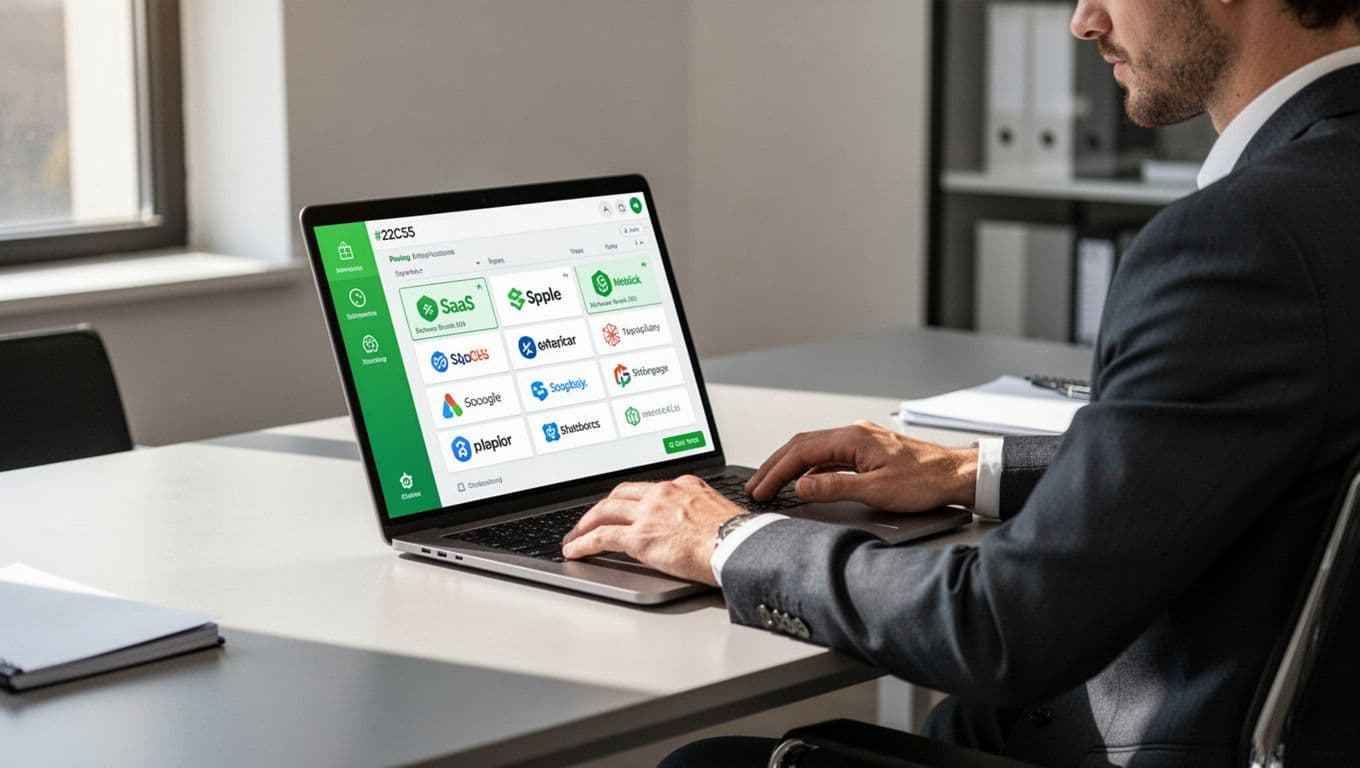
For each app, record the owner, business use, renewal date, connected identity provider, and data type. That gives you a clean base for the review.
A SaaS security checklist can help you cover the basics, but renewal work needs live ownership data. If an app has no owner, treat that as a risk. If no one can explain why it exists, it may already be shadow IT.
Compare access to real job needs
Renewal is the right time to ask a simple question. Does each role still need this level of access?
Least privilege sounds formal, but the idea is plain. Give people the access they need, then stop there. Over time, teams collect extra rights, and those rights often outlive the project that justified them.
What to check in common tools
- Google Workspace: Look at super admin roles, delegated admins, external sharing, shared drive access, and OAuth grants from third-party apps.
- Microsoft 365: Review Global Admin and Exchange roles, guest access in Teams and SharePoint, mailbox delegation, and connected Power Platform apps.
- Slack: Check workspace owners, app installs, private channel access, guest accounts, and any change to retention or export settings.
- Salesforce: Review profiles, permission sets, “View All Data”, “Modify All Data”, API access, and report folder sharing.
Salesforce often needs a deeper pass because permissions stack fast. This permission audit guide for complex environments shows how easy it is for access to spread without anyone noticing.
The same pattern applies across other SaaS tools. Admin rights, shared folders, guest access, and app tokens all deserve the same scrutiny.
Hunt for orphaned accounts and risky connections
Orphaned accounts are one of the easiest things to miss. They belong to former staff, contractors, interns, or service accounts that no one owns anymore.
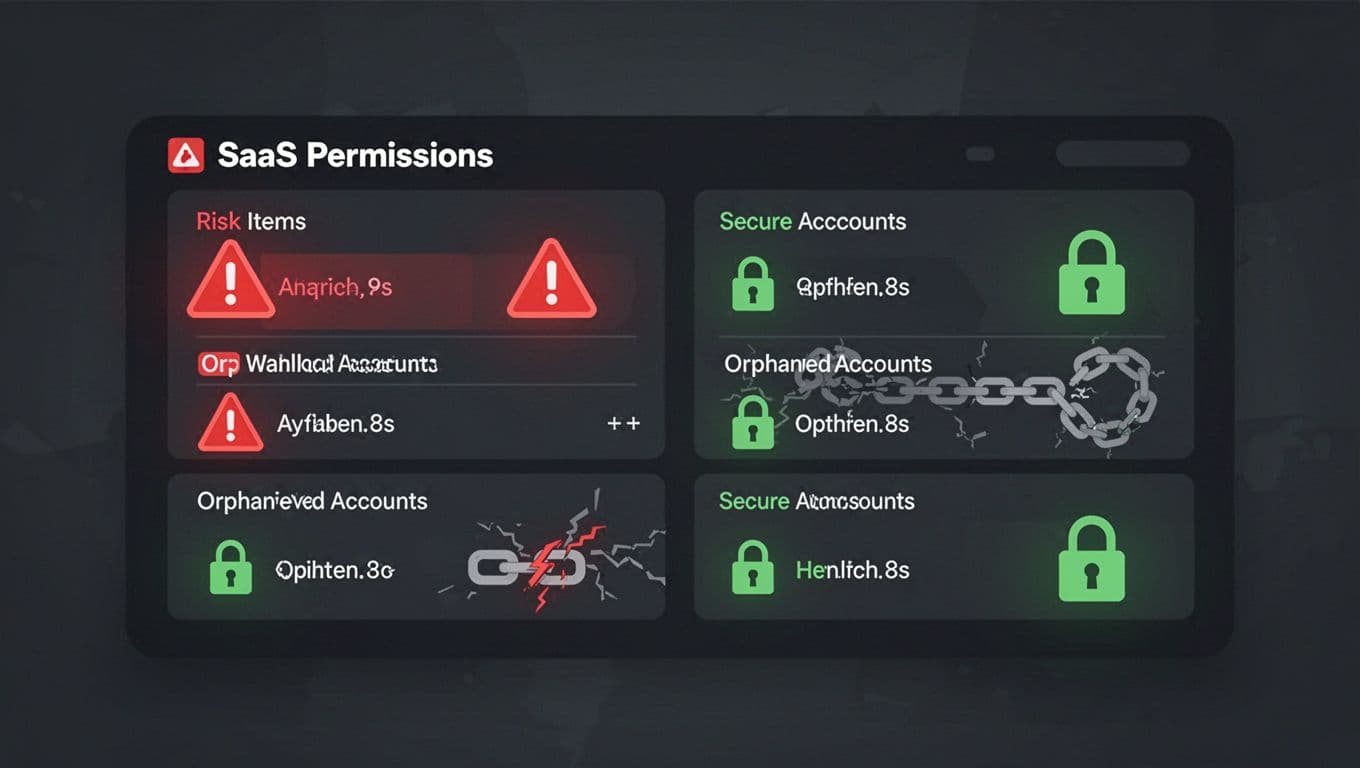
Check for users who left the company but still have seats, folders, or admin rights. Then look at shared mailboxes, bot accounts, and service principals. Those often keep working long after the original owner is gone.
Third-party apps create another layer of risk. A user may no longer need the app, but the OAuth grant still gives it broad access. If that app connects to Google Workspace or Microsoft 365, revoke risky OAuth grants before renewal closes.
Shadow IT also shows up here. A team may use a personal card to buy a tool, then connect it to Slack, files, or CRM data. That tool may never hit your formal inventory, yet it still touches company data.
Right-size licenses before the contract renews
A permissions audit should also show where money leaks out. Some users need the app, but not the top-tier plan. Others barely log in at all.
Compare assigned licenses with active use. Look at last login, feature use, and whether the person still works in the team that owns the app. If half the sales team only needs basic collaboration, premium seats may be wasting budget.
This step helps security and finance at the same time. You lower exposure by removing access that no one uses. You also cut spend by dropping unused or overbuilt plans.
The cleanest wins usually come from three places. First, remove inactive seats. Next, downgrade users who do not need advanced features. Finally, reclaim duplicate accounts after mergers, reorganizations, or role changes.
A renewal review is a good time to challenge every expensive seat. If the app owner cannot explain the need, the seat probably should not renew as-is.
Use a short checklist and bring the right people in
A good review stays simple. Keep the process tight, repeatable, and tied to the renewal date.

Use this quick pre-renewal checklist:
- Confirm the app owner and renewal date.
- Export active users, roles, groups, and guests.
- Review admin access, editor access, and integrations.
- Remove orphaned accounts and stale OAuth grants.
- Match licenses to current usage and remove extras.
Bring the right people into the review as soon as possible. IT pulls the reports. Security checks risky access and control gaps. App owners explain business need. Procurement handles contract terms. Finance verifies savings and spend impact.
If the audit exposes ownership gaps or a wide mess of access, Book a Discovery Call with Bud Consulting before the renewal date gets too close.
A renewal deadline gives you leverage, but only if you use it well. The goal is simple, fewer stale permissions, fewer surprise apps, and licenses that match how people work today.