table of contents
Managing Slack app permissions is a critical security task because an integration can look harmless until an app begins reading messages, pulling private files, or acting on behalf of a user. That is where a simple integration becomes a path for data access you never planned for.
A clean review starts with a comprehensive list of every app, what it can touch, and who approved it. The goal is to keep Slack app permissions tied to a real business need, rather than a vague promise from a vendor.
Key Takeaways
- Maintain a complete inventory: Security begins with visibility; track every installed app, its business purpose, and its assigned owner to prevent unauthorized or forgotten integrations from lingering.
- Apply the principle of least privilege: Map every permission scope directly to a specific business task and remove any access that exceeds what is necessary for the app to function.
- Prioritize high-risk scopes: Focus your audit on sensitive areas such as message history, file access, and the ability to act as a user, as these present the greatest risk for data exposure.
- Build a repeatable workflow: Treat app management as a continuous process rather than a one-time project by scheduling quarterly reviews and establishing a formal, restricted process for new installations.
Table of contents
- Why Slack app permissions deserve a closer look
- Start with a complete app inventory
- Step-by-step Slack app permissions audit
- High-risk permission categories to flag first
- Build a repeatable review workflow
- Slack app permissions FAQ
- Conclusion
Why Slack app permissions deserve a closer look
Slack apps often enter a workspace for a good reason. Whether you are integrating third-party services to post alerts, collect survey feedback, or manage ticket workflows, these tools are designed to boost productivity. The risk appears when an app asks for far more access than the job calls for.
Slack’s security best practices guidance points teams toward a simple rule: keep access narrow and review what apps can do. Following this rule matters because broad permission scopes can expose sensitive data, including message history, files, channel names, and direct messages. Effectively managing these security risks is essential to maintaining a protected communication environment.
The real problem is overlap. One app may need to post in a channel, while another needs to read files, and a third needs both. If you do not check each of these permission scopes one by one, you can end up granting excessive access simply to avoid a support ticket.
If you cannot explain a permission in plain English, it deserves a second look.
Start with a complete app inventory
Before you can accurately assess your security posture, you need a full list of all installed apps. This inventory must encompass everything from admin-approved tools and user-installed integrations to legacy software and anything added during a rush project. Be sure to include tools sourced from both the Slack Marketplace and the broader Slack App Directory to ensure total visibility.
Record a few details for each app:
- App name and vendor
- Install date
- Owner or business sponsor
- Business purpose
- Data types it can reach
- Whether it is still in use
If you run an Enterprise organization, Slack’s Audit logs in Slack help you trace changes, installations, and usage patterns. That makes it much easier to spot apps that slipped into your environment months ago and were never reviewed again.
Once the inventory is complete, sort the apps into simple groups. Keep the ones you recognize, flag the ones with no clear owner, and remove the ones with no defined business purpose. This first pass allows you to effectively manage apps and cuts through the noise immediately.
Step-by-step Slack app permissions audit
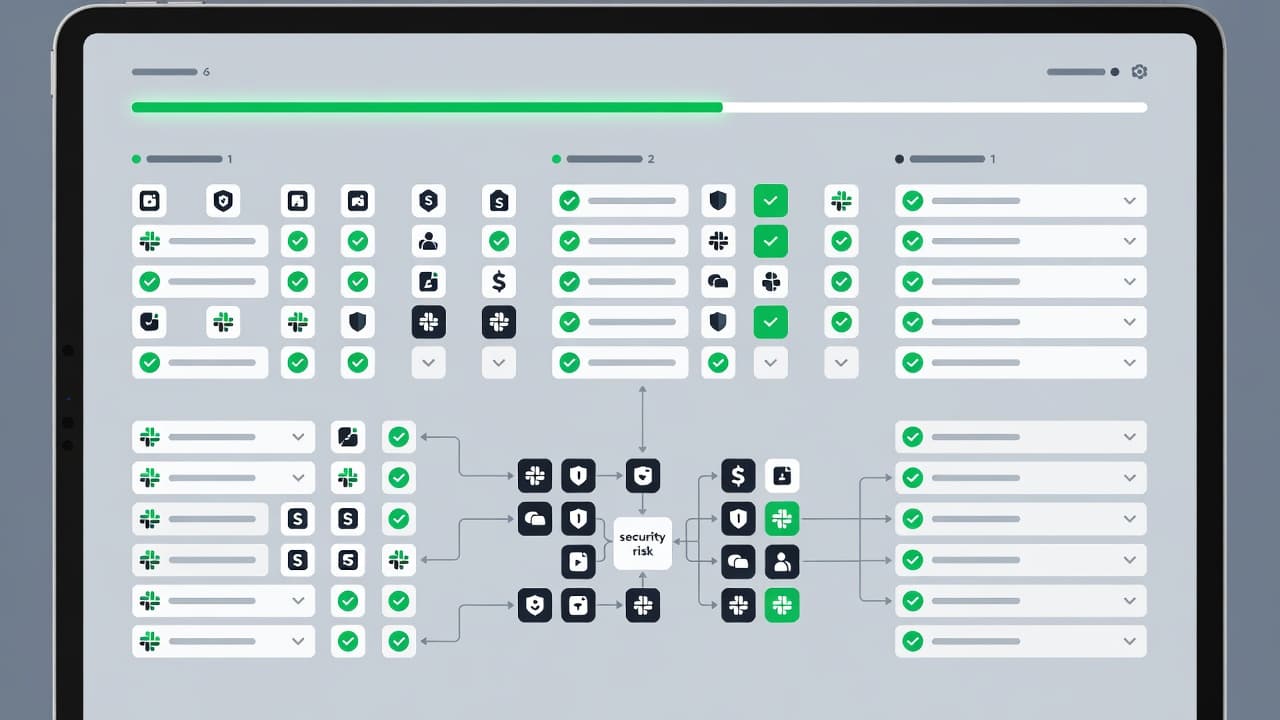
A solid audit works best as a repeatable process rather than a one-time cleanup. By establishing a standard procedure for every app installation, you can maintain a tighter security posture across your workspace. Start with the app list, then move through each scope by asking the same questions every time.
- Confirm every installed app. Check which apps are active, which were added by individual users, and which were approved by admins. If your workspace uses a mix of third-party tools and internal apps, merge these lists into one master review sheet.
- Map each scope to a business task. A reminder bot may need to post messages, but it does not need to read all channel history. A file app may need upload access, but it should not have read access to your messages.
- Check who approved the app and why. Use your App Management Settings to look for a designated owner, a clear use case, and a record of the original review. Missing ownership is a warning sign because no one feels responsible if the app changes its behavior later.
- Test each permission against least privilege. Ask whether the app can do its job with less access. If the answer is yes, trim the scope or replace the app. You can also implement administrator restrictions to enforce these boundaries and ensure apps stay within their intended scope.
- Remove or quarantine unused apps. Old tools often retain more access than newer ones simply because nobody remembers the initial app approval process. If the app is no longer in use, it should not retain data access.
- Recheck after upgrades or reinstallations. New versions can request new scopes. A quiet reinstall can bring back the same risk you previously removed.
A simple rule works well here: if an app cannot justify a permission, the permission should go away. When you are ready to manage apps and secure your environment, follow these steps to keep your data safe.
High-risk permission categories to flag first
Some scopes deserve attention before others because they expose more sensitive information or provide broader control over your workspace. Use the table below as a quick risk screen to prioritize your assessment.
| Permission category | Why it raises risk | What to check |
|---|---|---|
| Message history and channel access | It can expose internal discussion and context. | Does the app need full history, or only a narrow channel? |
| Files and attachments | Documents often contain contracts, screenshots, or IDs. | Does the app truly need to read, upload, or export files? |
| Acting as a bot user | It can post or trigger actions that look like human activity. | Does the app need to send messages on behalf of people? |
| Private channels and direct messages | These often hold the most sensitive conversations. | Is private access required for the app’s job? |
| Profile and directory data | Names, emails, titles, and teams help map the org using user data. | Can the app work with less identity data? |
| External sharing or webhooks | Data can leave Slack with limited visibility regarding data access. | Who receives the data outside Slack, and why? |
The biggest warning sign is scope creep. An app that started as a simple channel notifier can grow into a broad data path over time. Compare the app’s current permissions with the vendor’s stated use and look for gaps. Keeping an eye on these security risks is essential, and our guide on Slack security risks and best practices can help you compare your findings against common failure patterns.
Build a repeatable review workflow
A one-time audit provides a solid baseline, but a consistent schedule prevents security risks from creeping back into your environment. Workspace Owners should set a clear rhythm for these evaluations so that Slack app permissions remain under control at all times.
- Assign an owner to every integrated app.
- Monitor new installations by workspace members before they proliferate across teams.
- Implement a formal app request process, requiring admin approval for all high-risk scopes.
- Revisit all approved apps every quarter to determine if access is still required.
- Utilize settings to pre-approve apps that have been vetted, while keeping restricted apps behind a formal approval gate.
- Turn on alerts for new installs, scope changes, and suspicious activity.
This cadence is vital because security risk often shifts in small, overlooked steps. A vendor might add a scope, a team may forget to remove an integration, or a new manager might authorize a tool without checking what data it can access when workspace members request apps.
If your review process starts to stretch across other SaaS tools, Book a Discovery Call with Bud Consulting and compare your Slack controls with the rest of your access model.
Slack app permissions FAQ
Which Slack permissions are most risky?
The most sensitive permissions usually involve message history, file access, private channels, direct messages, and the ability to act as a user. Because these scopes expose sensitive user data rather than just metadata, they pose significant security risks and deserve your immediate attention during a review.
How often should Slack apps be audited?
Quarterly works well for most teams. High-change environments may need monthly reviews, especially when new apps are added often or when vendors update their scopes without much notice.
Can audit logs help with app reviews?
Yes. Audit logs provide a clear trail of installs, configuration changes, and other account activity, which helps you connect specific permissions to a timeline. This is essential when you need to verify the app approval history to determine who authorized an installation and when access permissions were modified.
What should you do with an unused app?
Remove it if there is no active business need. Unused apps create unnecessary risk without adding value, and they often retain broad access that nobody is actively monitoring.
What if an app needs broad access to work?
If an integration requires extensive access to function, it should undergo a more rigorous review rather than receiving a free pass. Check whether the vendor offers a more restricted mode, an alternative integration path, or a way to limit these Slack app permissions to specific channels or users.
Conclusion
Slack access tends to grow one small approval at a time. That is why a successful audit looks at ownership, scope, and current usage patterns simultaneously.
Keep your review process simple, repeat it on a consistent schedule, and remove any integrations you cannot justify. By proactively managing your data access and ensuring that Slack app permissions remain strictly limited to the task at hand, your workspace becomes both easier to defend and much simpler to verify during a security audit.