table of contents
Local admin rights on Windows endpoints open doors for attackers. One compromised standard user account can escalate to full control if it’s in the Administrators group. You see this in breaches where over-privileged accounts speed up lateral movement.
Too many endpoints carry extra admins from old help desk practices or forgotten domain groups. Regular audits fix that. They help you enforce least privilege and cut risks.
This guide walks you through PowerShell commands for single machines and fleets. You’ll learn to spot nested groups, stale accounts, and more. Start auditing today to secure your environment.
Why Local Admin Rights Need Regular Audits
Excess local admins create weak spots. Attackers target them for persistence and escalation. In 2026, with hybrid work and Entra ID, endpoints join domains or Azure but still hold local groups ripe for abuse.
Audits reveal who has access. They show direct members and hidden ones through nesting. Document findings first. Then plan removals to avoid breaking apps.
Security teams run these checks quarterly. They pair audits with tools like LAPS for password rotation. Results guide policy updates in Intune or Group Policy.
Audit a Single Endpoint
Check one machine fast with PowerShell. Open an elevated prompt. Run this to list Administrators group members:
Get-LocalGroupMember -Group "Administrators"
Output shows users, groups, and SIDs. Local accounts end in the machine name. Domain ones use DOMAINname format.
For nested domain groups, query Active Directory. Use Get-ADGroupMember -Identity "GroupName" -Recursive. Replace “GroupName” with the nested entry from your local list. This expands all users inside.
A script combines both. Save it as AuditLocalAdmins.ps1:
$group = Get-LocalGroupMember -Group "Administrators"
$group | Select-Object Name, ObjectClass, PrincipalSource | Export-Csv -Path "C:Audit.csv" -NoTypeInformation
Run it. Review the CSV. Exclude built-ins like Administrator and edge cases.

Netwrix offers a similar approach with net localgroup administrators piped to filter junk lines. Test on non-prod machines first.
Audit Across Multiple Endpoints
Scale to your fleet with Invoke-Command. List computers in a text file, Servers.txt. Then run:
$computers = Get-Content "C:Servers.txt"
Invoke-Command -ComputerName $computers -ScriptBlock {
    Get-LocalGroupMember -Group "Administrators" | Select-Object Name, ObjectClass
} | Export-Csv -Path "C:FleetAudit.csv" -NoTypeInformation
This pulls data remotely. You need WinRM enabled and admin rights on targets. For large domains, filter Domain Admins upfront.
Add error handling for offline machines:
foreach ($computer in $computers) {
    try {
        Invoke-Command -ComputerName $computer -ScriptBlock { Get-LocalGroupMember -Group "Administrators" } -ErrorAction Stop
    } catch {
        "Failed on $computer : $_" | Out-File -Append "C:Errors.txt"
    }
}
Mike Robbins shares a version for servers that exports clean results. Lansweeper’s script loops AD computers too.

Schedule via Task Scheduler. Output to SharePoint for team review.
Spot Common Issues in Your Audit
Nested groups hide users. A local admin entry like DOMAINIT-Admins expands to dozens. Use recursive AD queries as noted earlier.
Stale accounts linger. Cross-check last logon with Get-ADUser -Identity "User" -Properties LastLogonDate. Flag any over 90 days inactive.
Shared accounts scream risk. Look for generics like “HelpDeskAdmin”. Local ones often tie to ex-employees.
Privilege escalation paths show in non-standard members. Table common flags:
| Issue | Sign in Output | Next Step |
|---|---|---|
| Nested Group | ObjectClass: Group | Run Get-ADGroupMember -Recursive |
| Stale Account | Old domain user, no logon | Verify lastLogonTimestamp |
| Shared Local Admin | Name like “ServiceAccount” | Rotate or remove |
| Unauthorized User | Personal name in business group | Investigate addition date |
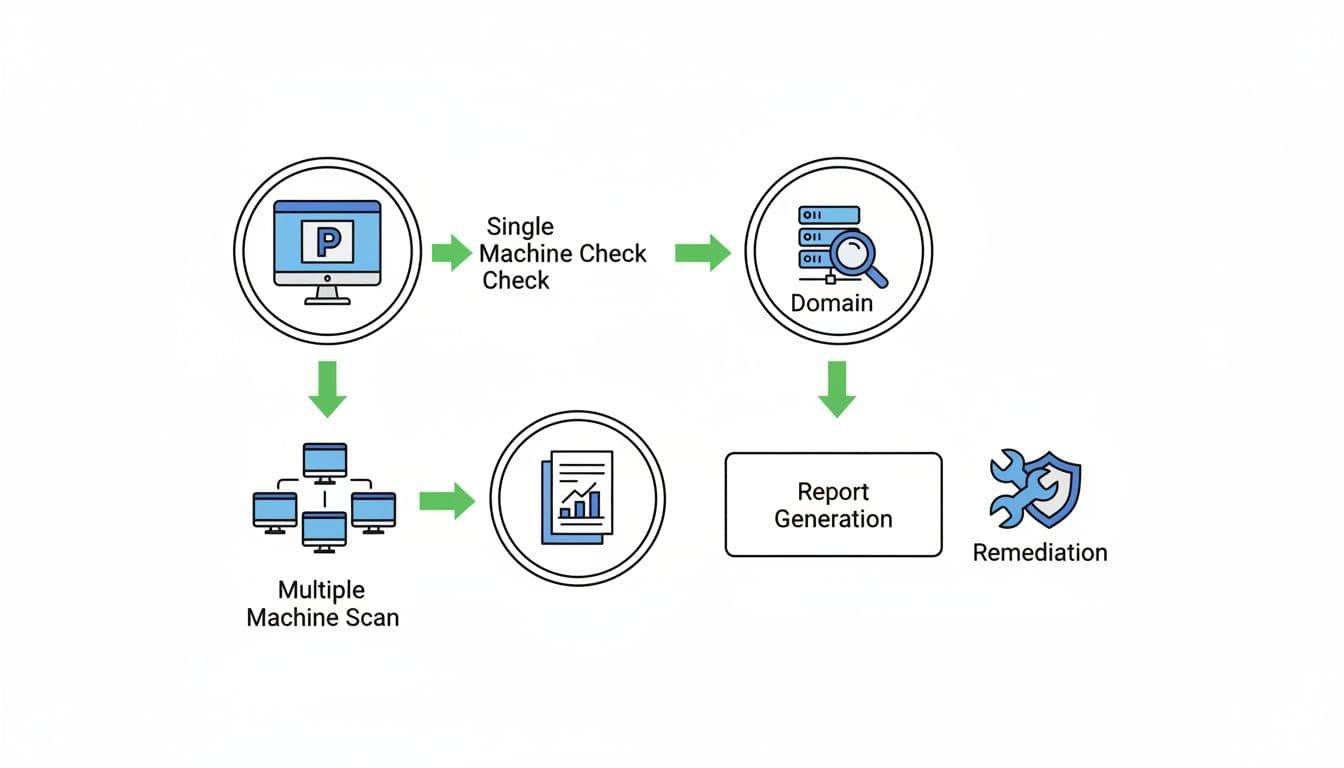
Spiceworks discusses nested local admin detection. Infrasos covers AD recursion.
Use Intune and Entra ID for Ongoing Checks
In Entra-joined setups, standard users get device admin via roles. Audit extras with custom compliance scripts.
Deploy a detection script in Intune Remediations. It checks beyond the three defaults: local Admin, Global Admin, and Device Local Admin.
James Vincent’s Intune script excludes approved like LAPSAdmin and logs unauthorized ones. PowerShell is Fun has a compliance policy that marks devices non-compliant if extras exist.
Pair with LAPS. It randomizes local admin passwords per machine. Configure via Intune policy: 30-day rotation, 14-char complexity.
ScaleFusion outlines LAPS best practices like RBAC on passwords.
Remediate Findings and Build Repeatable Workflows
Document everything. Create a spreadsheet: endpoint, member, owner, action.
Remove extras: Remove-LocalGroupMember -Group "Administrators" -Member "DOMAINUser".
Test apps post-change. Roll out in waves.
Automate with LAPS or Privileged Access Workstations. Re-audit monthly.
For help scaling audits or hiring IAM experts, Book a Discovery Call with Bud Consulting.
Key Takeaways
Audits cut local admin risks fast. PowerShell handles single checks and fleets. Spot nests, stales, and shares to enforce least privilege.
Run them now. Document, remediate, repeat. Your endpoints stay secure.
(Word count: 982)