table of contents
An MFA dashboard can say “enabled” while an attacker still walks through a side door. That happens when one app uses SSO correctly, another still allows local login, and a break-glass account never hits the policy at all.
For high-risk apps, MFA coverage validation means proving the control applies to every real access path. If you cannot show that in logs, config, and user tests, you have a setting, not enforcement.
Recent attack patterns still use stolen sessions and prompt bombing, so the safe question is simple, which users, apps, and login routes actually stop without MFA? Start with the full app map.
Map every app and every sign-in path
Begin with the apps that would hurt most if they were taken over. That list usually includes VPNs, admin consoles, finance tools, HR systems, source code platforms, and cloud control planes. After that, sort each app by access path.
A single app often has several. Users may sign in directly with a username and password. Others come in through SAML or OIDC federation. Some use mobile clients, recovery accounts, legacy protocols, or API tokens. Each path needs its own check, because a clean browser login does not prove the rest are covered.
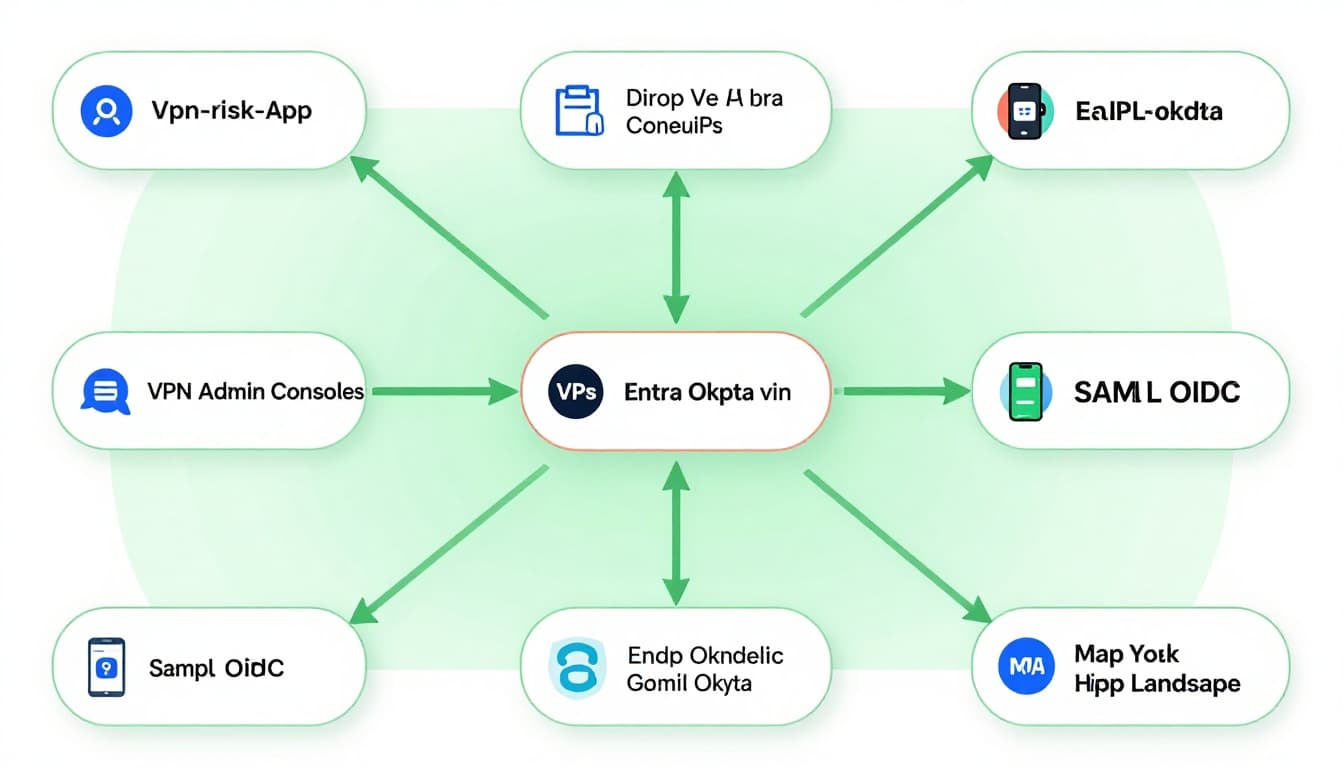
Microsoft Entra ID, Okta, and Google Workspace all fit this pattern. Entra can enforce Conditional Access for one route while a legacy protocol still slips around it. Okta can protect one app sign-in policy while a recovery path or group exception stays open. Google Workspace can sit behind another IdP, which means you need to test both sides of the trust chain.
The first audit question is not “Is MFA turned on?” It is “Which paths are protected, and which ones still let a password alone open the door?”
Use logs to prove the policy fired
Policy screens help, but logs tell the truth. In Microsoft Entra ID, applied Conditional Access details in Entra logs show whether the policy applied to the sign-in and whether MFA was required. In Okta, app sign-in policies and system logs show which rule fired and which factor completed the session. If you export Okta events into a SIEM, Google’s Okta log parser shows how to normalize those records before analysis.
Use more than one evidence source, because each one answers a different question.
| Evidence source | What it should prove | Common gap |
|---|---|---|
| IdP policy review | The app, user, and auth strength are in scope | The app is excluded, or a role is bypassed |
| Sign-in logs | MFA was challenged and satisfied on the tested path | The login succeeded with no MFA prompt |
| App config check | Local auth and legacy protocols are blocked | Basic auth, IMAP, POP, or app passwords still work |
| User testing | Real users hit the same control on web, mobile, and VPN | One path behaves differently from the others |
A clean MFA setting does not prove coverage. Only the tested login path does.
The best evidence set combines policy, logs, app settings, and a live test. If any one of those four disagrees, the gap is real. A screenshot from last quarter won’t help you when the current app config has drifted.
Test the paths people forget
This is where most coverage reviews become useful. Privileged users often get custom rules. Contractors may land in a separate group. Emergency access accounts are supposed to bypass normal flow, but they still need tight storage, monitoring, and review. Mobile access can also hide gaps, because a session may stay valid long after the first login.
Check these paths one by one:
- Direct logins and local accounts, especially in SaaS apps that predate federation.
- SAML and OIDC federation, including apps that trust Entra or Okta for primary auth.
- VPN and admin consoles, since they often use a separate policy stack.
- Legacy authentication such as IMAP, POP, SMTP AUTH, basic auth, and app passwords.
- API-related flows, including service accounts, personal access tokens, and device code flows.
For Google Workspace, test both the Workspace sign-in and the upstream IdP session. For Entra and Okta, test admin portals separately from user apps. Admin access often has its own rules, and that is where attackers try first.
A good test plan uses real accounts from each group type. That means a normal employee, a contractor, an admin, and a break-glass account. If one of those can still enter without MFA, the app is not covered in practice.
Turn the findings into a repeatable audit checklist
A short checklist keeps reviews consistent across teams and quarters.
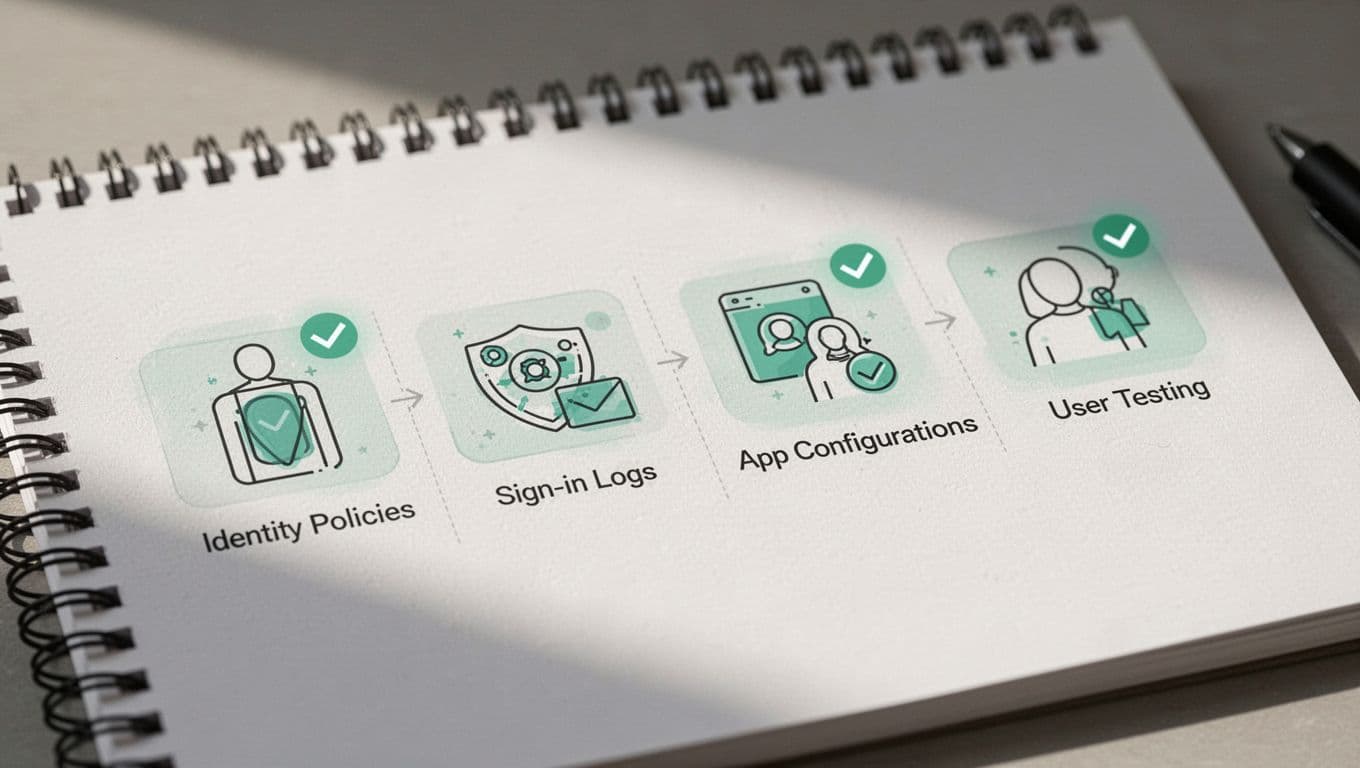
- Build the high-risk app inventory and mark every sign-in path.
- Review the IdP policy scope in Entra, Okta, or Google Workspace.
- Pull sign-in logs for each path and confirm the MFA challenge and result.
- Run user tests for web, mobile, VPN, contractor, and break-glass access.
- Fix gaps, retest, and store the policy IDs, log exports, and test results.
When the evidence is consistent, you can label an app as covered. When a path fails or skips MFA, call it partial. That language matters, because “enabled” can hide a weak exception that no one noticed.
If your team needs help tracing those paths across Entra, Okta, Google Workspace, and custom app stacks, Book a Discovery Call with Bud Consulting.
Conclusion
MFA coverage validation is about proof, not preference. A high-risk app is only protected when the policy, the logs, and the live test all match.
The fastest way to miss a gap is to stop at “MFA enabled.” The better question is whether every direct login, federated sign-in, mobile session, admin path, and legacy route is actually blocked without it.
When you can answer that for each app, you have a control that means something in a review, not just on a dashboard.