table of contents
Ever assigned a Global Administrator role to get a quick user reset done? That choice haunts many tenants. Excess access in Microsoft 365 admin roles opens doors to breaches. Hackers love standing privileges.
You manage a busy environment. Jobs change. Old roles linger. This leaves your tenant at risk. Regular reviews fix that. They enforce least privilege and boost audit readiness.
Let’s walk through spotting issues and cleaning them up.
Why Check Microsoft 365 Admin Roles Regularly
Excess admin access tops security risks. One compromised account with broad roles can wipe data or leak secrets. Microsoft reports show standing Global Admins as prime targets.
Think about it. Your team handles Exchange, Teams, or SharePoint daily. Broad roles seem easy. But they grant control over everything. A single mistake or insider threat spirals fast.
Governance demands reviews. Compliance standards like GDPR or SOC 2 require proof of least privilege. Set a cadence now. Check quarterly. That keeps you ahead.
Ongoing audits also build habits. Teams learn safer assignments. Tenants stay lean.
Spot Signs of Excess Access in Your Roles
Look for these red flags first. Multiple Global Admins scream trouble. Aim for two at most, eligible via PIM only.
Users with mismatched roles count too. A helpdesk tech doesn’t need SharePoint Administrator. Check assignment dates. Roles over six months old warrant questions.
Inactive accounts hold risks. Leavers keep access sometimes. Sign-in logs reveal ghosts.
Overlaps hurt. One user in User Administrator and Groups Administrator duplicates power. Tools flag this.
Run a quick export. See who holds what. High counts in privileged roles signal cleanup time.
Common Overassigned Roles and Safer Alternatives
Global Administrator tops the list. It controls all services. Too many hold it permanently.
Exchange Administrator follows. Folks reset mailboxes with it. But User Administrator suffices for basics.
SharePoint Administrator gets handed out for site tweaks. Sites Administrator works better for that scope.
Here’s a quick comparison of broad roles versus limited ones:
| Broad Role | Permissions Scope | Safer Alternative | Use Case Example |
|---|---|---|---|
| Global Administrator | All services, full control | Privileged Role Administrator | Emergency only, via PIM |
| Exchange Administrator | Full mailbox/ transport mgmt | Helpdesk Administrator | Password resets, basic support |
| SharePoint Administrator | All sites, full tenant | Sites Administrator | Specific site collections |
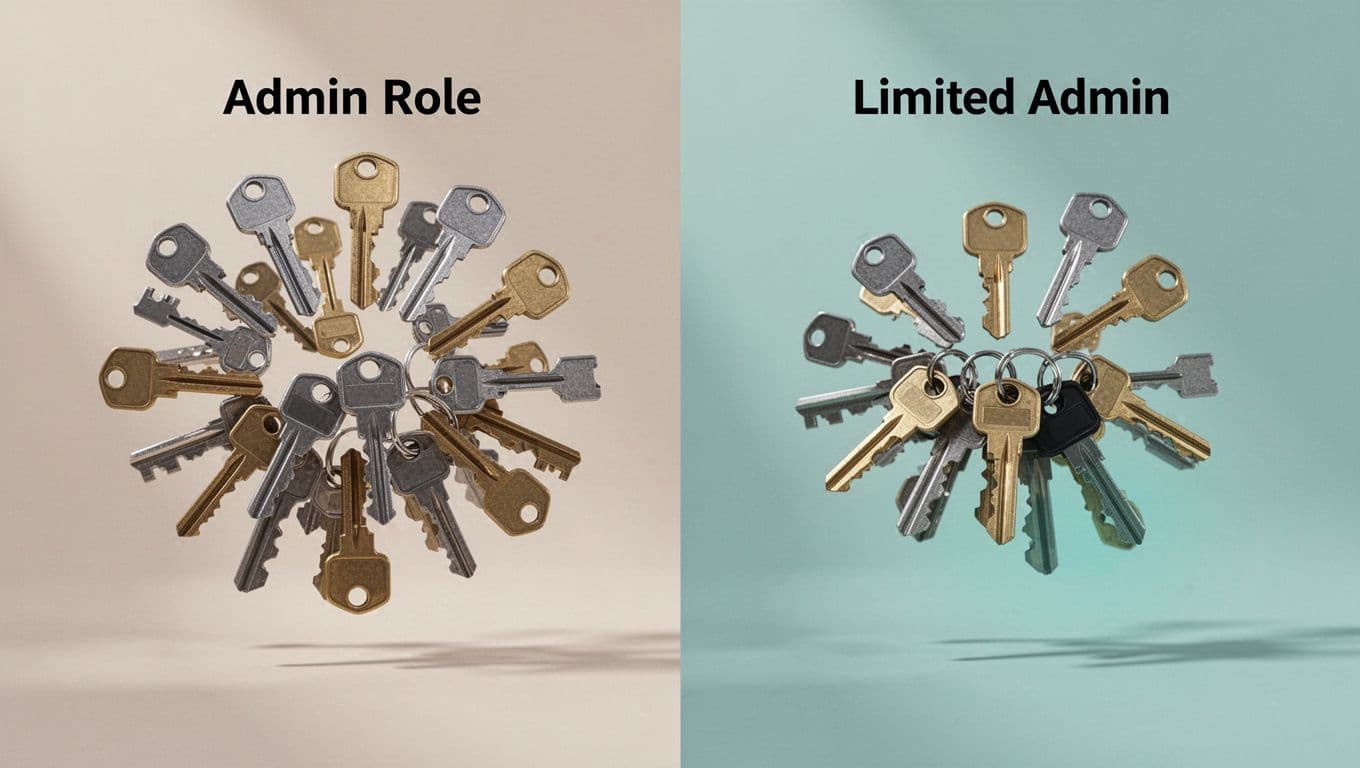
This table pulls from Microsoft’s least privileged roles by task. Pick the narrow fit. It cuts exposure.
For deeper details on admin roles in the Microsoft 365 admin center, check official docs. They list permissions clearly.
Step-by-Step Guide to Review Roles
Start in the Microsoft Entra admin center. Go to Identity > Roles & admins. This lists all Microsoft 365 admin roles.
Filter by service. Export the full list. Note assignees and scopes.
Next, compare permissions. Select up to three roles. Hit Compare roles. See differences side-by-side, per Microsoft’s assign roles guide.
Check logs. Review audit logs for activations. Spot unused powers.
Remediate now. Revoke broad roles. Assign limited ones. Test access post-change.

Document changes. Note who, what, why. This aids audits.
- Log in as Global Admin.
- Navigate to Entra > Roles.
- Export and sort by privileged count.
- Match tasks to least privileged options.
- Reassign and confirm.
Repeat for Microsoft 365 admin center under Users > Admin roles.
Implement Governance for Lasting Security
PIM changes everything. Make roles eligible, not permanent. Users activate just-in-time. Set one to eight hours max.
Enable access reviews. Schedule every three months. Owners attest needs. Auto-revoke no-shows.
Require MFA on all admins. Add Conditional Access for risky sign-ins.
Monitor with alerts. Azure Monitor watches role changes. Respond fast.
For AI agents in 2026, watch new roles like Agent Registry Administrator. Assign sparingly.
Build a review playbook. Assign owners per service. Review cadence sticks.
If governance overwhelms, Book a Discovery Call with Bud Consulting. They specialize in IAM setups.
Key Takeaways for Admin Role Reviews
Clean reviews enforce least privilege. They shrink breach windows and pass audits.
Focus on PIM and narrow roles. Review often. Your tenant thanks you.
Start today. Export roles now. Safer access follows.