table of contents
Auditors love surprises. They show up and spot 50 users with full Salesforce admin access when you thought it was just five. That moment stings.
You run a tight org. Still, permission creep happens. Projects end. People switch roles. Suddenly, inactive contractors hold god-mode privileges. Auditors flag it as excessive access or poor segregation of duties.
This guide walks you through a full review. You get steps to inventory users, check permissions, and build a repeatable process. Start now. Beat them to the punch.
Inventory Your Salesforce Admin Users
First, list everyone with admin powers. Don’t guess. Use reports.
Go to Setup. Search for “Users with System Administrator.” Run that list view. Export it as CSV. Note active users, last login, and role.
Next, check custom profiles like “Super Admin” or “Dev Admin.” Query PermissionSetAssignment with SOQL. Something like: SELECT AssigneeId, PermissionSet.Name FROM PermissionSetAssignment WHERE PermissionSet.IsOwnedByProfile = false AND PermissionSet.Name LIKE ‘%Admin%’.
Aim for 2-5% of your user base with high privileges. More than that signals over-provisioning, per Salesforce developer best practices.
Include integration users. They often pack View All Data. List them too.

Document owners for each. Who approved this access? When? This covers weak documentation, a top auditor gripe.
Run Salesforce Health Check weekly. It flags risky setups like unlocked session policies. Spring ’26 updates auto-notify admins on changes.
Examine Profiles, Permission Sets, and Groups
Profiles set the floor. Permission sets add extras. Groups bundle them.
Start with profiles. Read-only users shouldn’t have System Admin. Use Minimum Access as baseline, then layer on sets. Spring ’26 delayed profile retirement, but shift anyway for scalability.
List all profiles. Check object permissions, field-level security, and system perms like Manage Users. Export via Setup Audit Trail.
For permission sets, review assignments. Look for “Modify All Data” on sales reps. Clean up orphans from old projects. Name sets by job, like “Sales Manager Reporting.”
Permission set groups shine here. Mute unneeded perms without recreating sets. Use Object Access view (new in 2026) to see all grants per object.

One hand points to the flow. It shows how profiles feed into sets and groups.
Follow the Salesforce Admin’s guide to profiles and permissions. It stresses least privilege.
Scrutinize Delegated Admins, Logins, and Edge Cases
Delegated admins handle subsets, like user management. List them in Setup under Delegated Administrators. Verify they match needs. Revoke extras.
Check login policies. IP ranges too broad? Session timeouts short? Auditors hate open networks.
Inactive users top the list. Deactivate anyone idle 90+ days. Query LastLoginDate < LAST_N_DAYS:90.
Contractors and vendors get time-bound access. Note end dates. Break-glass accounts (emergency admins) need MFA and audit logs.
Integrations count as users. Strip unnecessary perms. Use Connected Apps OAuth Usage to track denies, per Spring ’26 tools.
Review Setup Audit Trail daily. Filter for profile changes or user creations. It logs everything but doesn’t alert. Pair with Health Check emails.
Spot and Fix Auditor Red Flags
Auditors hunt four issues. Excessive privileges. Lack of segregation of duties. Poor docs. Rare reviews.
Too many admins? Trim to essentials. SoD fails when one user approves and executes. Split duties across roles.
Docs matter. Map each admin perm to a business need. Quarterly reviews prove governance.
Salesforce’s separation of duties guidance outlines it. Follow least privilege: assign minimum, audit often.
Weak spots include lingering project perms. Use permission set groups to revoke cleanly.
Your Pre-Audit Checklist
Run this quarterly. It takes a day.
- Export user list with admin profiles and sets.
- Validate with managers: Does this match current roles?
- Revoke inactive or excess access.
- Document changes in a shared sheet.
- Run Health Check and Audit Trail review.
- Test SoD: Can one user bypass controls?

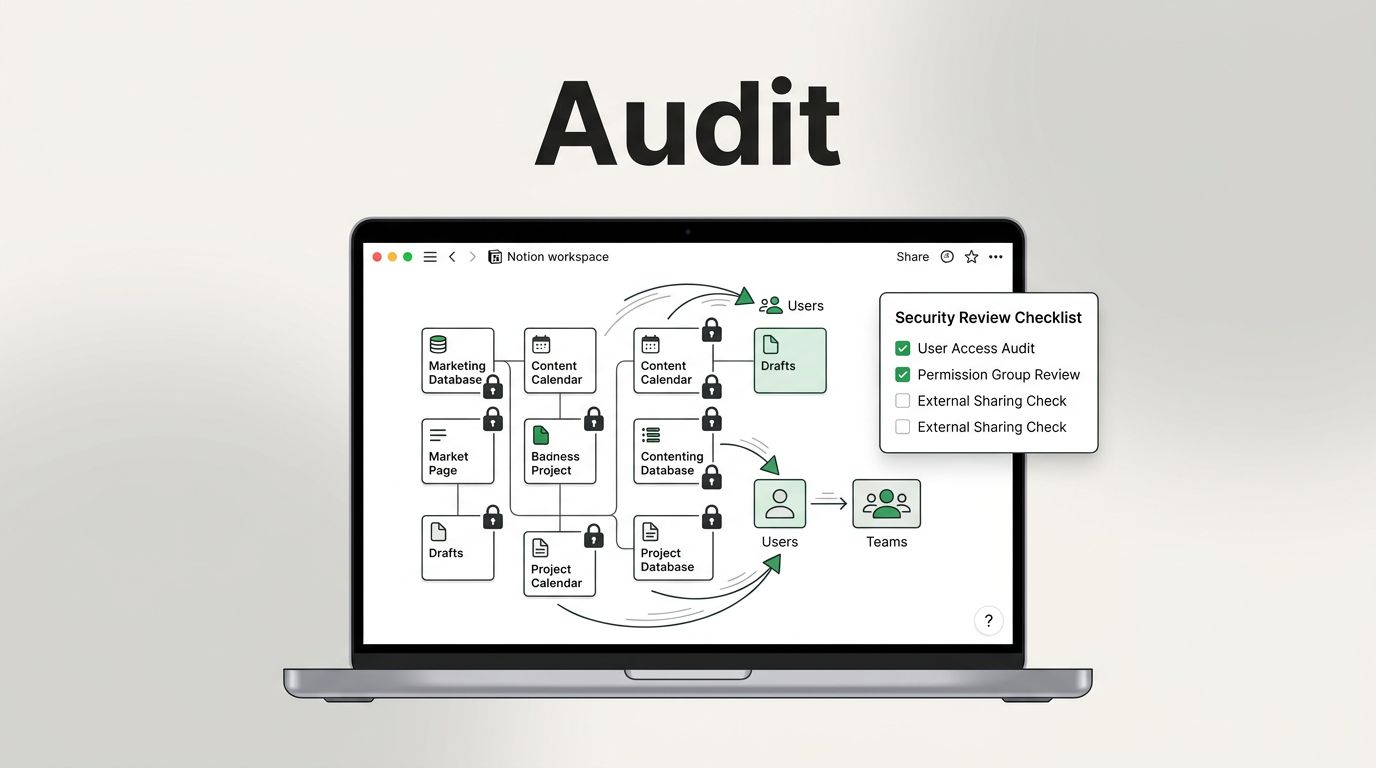
The checklist keeps it simple. Green checks mark progress.
For complex orgs, automate with tools. Still, manual spot-checks build evidence.
Need expert eyes? Book a Discovery Call with Bud Consulting.
Key Takeaways
Review Salesforce admin access quarterly. Inventory users first. Clean profiles and sets next. Hit edge cases like inactives.
Least privilege rules. Document everything. Auditors see control.
You control the narrative now. No surprises later. Your org stays secure and compliant.