table of contents
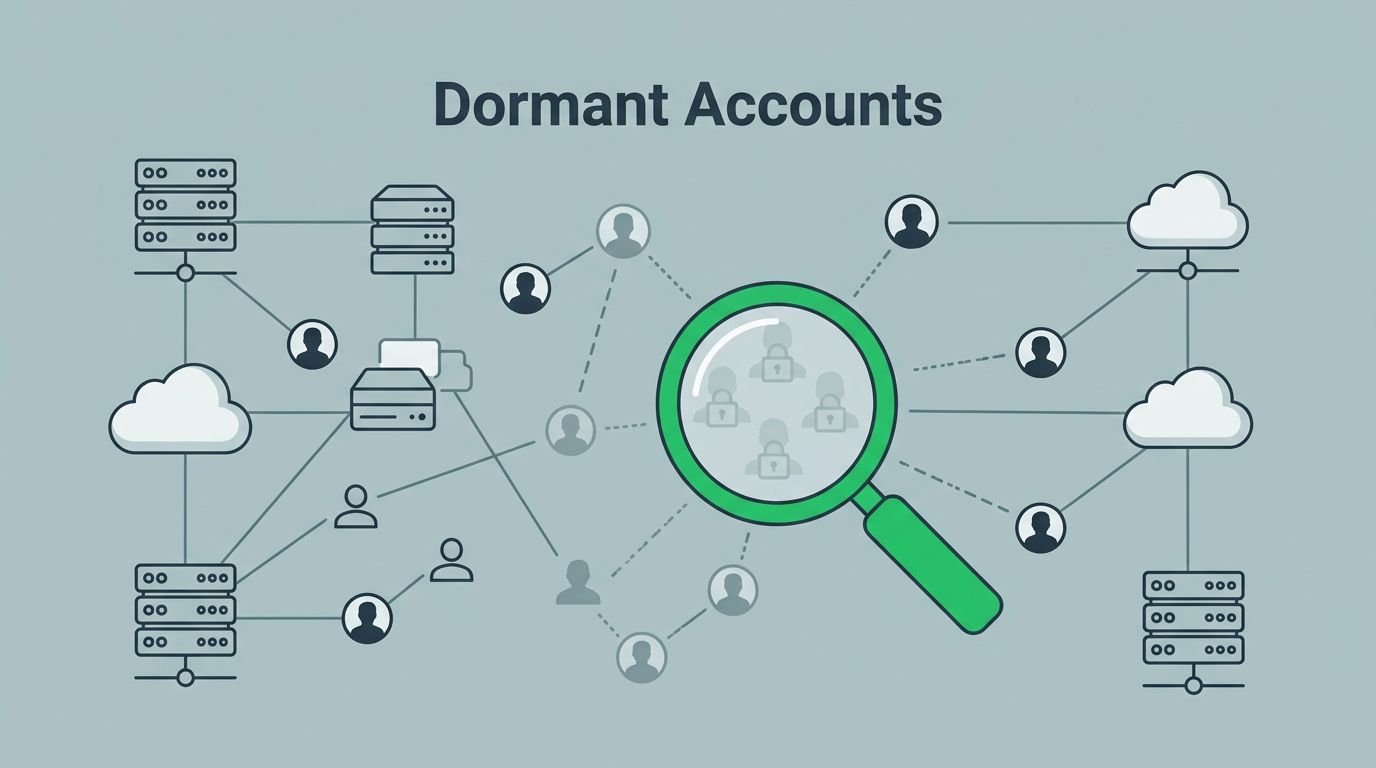
Dormant accounts are easy to miss until they become a problem. They sit in SaaS apps, linger in Active Directory, and keep old access alive long after the work is done.
That creates risk, waste, and audit pain. It also makes access reviews harder than they need to be. The good news is that you can find dormant accounts with a few clear signals and a repeatable process.
A dormant account is more than clutter. It is a standing path into your environment.
Start with one inactivity rule, then add context
The fastest way to fail at account cleanup is to use only one metric. A 90-day rule is a good start, but it should not be the only one. A user might sign in rarely and still be active, while another account may show no login but still have app activity through API tokens or sync jobs.
Set a baseline window first. Most teams use 90, 120, or 180 days, then add exceptions for service accounts, leave of absence cases, and break-glass access. After that, layer in other signals such as disabled status, no MFA use, failed logins, and stale group membership.
A simple rule works best when it fits your environment. If you run a high-risk stack, shorter windows make sense. If your business has seasonal users, build review rules around that cycle.
Spot dormant accounts in SaaS platforms
SaaS apps often give you the clearest clues. Start with last sign-in time, then check app activity. A user who has not signed in for months, never opens shared files, and has not touched records or tickets is a strong candidate for review.

Licenses also tell a story. An account may still be active in the directory, but unused inside the app. That is where cost and risk meet. A paid seat with no real usage is a clean win for cleanup.
Look for these SaaS signals together:
- Last login older than your review window.
- No app activity, such as no edits, no uploads, or no record changes.
- No MFA use on accounts that should have it.
- Failed logins that suggest a forgotten password or an account no one uses.
- Disabled or suspended status that was never followed by a full cleanup.
- Orphaned accounts with no clear owner, manager, or admin contact.
Okta’s inactive third-party app user workflow template is a useful pattern if you want to automate the first pass. It groups inactive users so you can review them before access is removed.
For Microsoft-heavy SaaS estates, keep an eye on app-level access reviews too. Microsoft Entra ID governance now supports inactive user lifecycle workflows, which helps teams move from manual checks to scheduled cleanup.
Uncover dormant accounts in Active Directory
Active Directory needs a different lens, because login data can be messy in hybrid environments. Microsoft recommends regular reviews of inactive users in AD, and it is a good place to start with inactive user account guidance.

Start with the simplest checks. Find accounts with old last logon dates, disabled status, and no recent password changes. Then look at group membership. A stale user in a privileged group is a bigger problem than a stale user in a low-risk app group.
Also check for orphaned AD accounts. These are often former employees, vendors, or test users with no current owner. Shared admin accounts deserve extra care too, because they can hide long after the original team has moved on.
If you want a practical route, Active Directory Pro has a useful walkthrough on finding inactive user accounts in Active Directory. That can help when you need a fast PowerShell-based check before a broader cleanup.
For AD, focus on these signals:
- Last logon / last logon timestamp beyond your cutoff.
- Disabled accounts that still remain in active groups.
- Stale group membership, especially admin or app access groups.
- Failed logins that point to abandoned or attacked accounts.
- Orphaned accounts with no manager, owner, or ticket history.
Compare SaaS and AD signals before you remove access
The same account can look active in one system and dormant in another. That is why a side-by-side review matters.
| Signal | SaaS meaning | Active Directory meaning |
|---|---|---|
| Last login | No app sign-in in 90 to 180 days | No domain logon in the same window |
| MFA usage | No enrollment or no recent challenge | Usually a policy gap, or unmanaged legacy access |
| Failed logins | Forgotten account or possible abuse | Old credentials or attempted reuse |
| Disabled status | Account may be parked, not removed | User may still exist in groups or roles |
| No app activity | No edits, uploads, or record changes | No recent use of assigned domain access |
| Stale group membership | Old app roles still assigned | Privileged access may still be live |
The real takeaway is simple. Dormant account detection works best when you combine signals, not when you trust a single report.
Clean up, then keep the list short
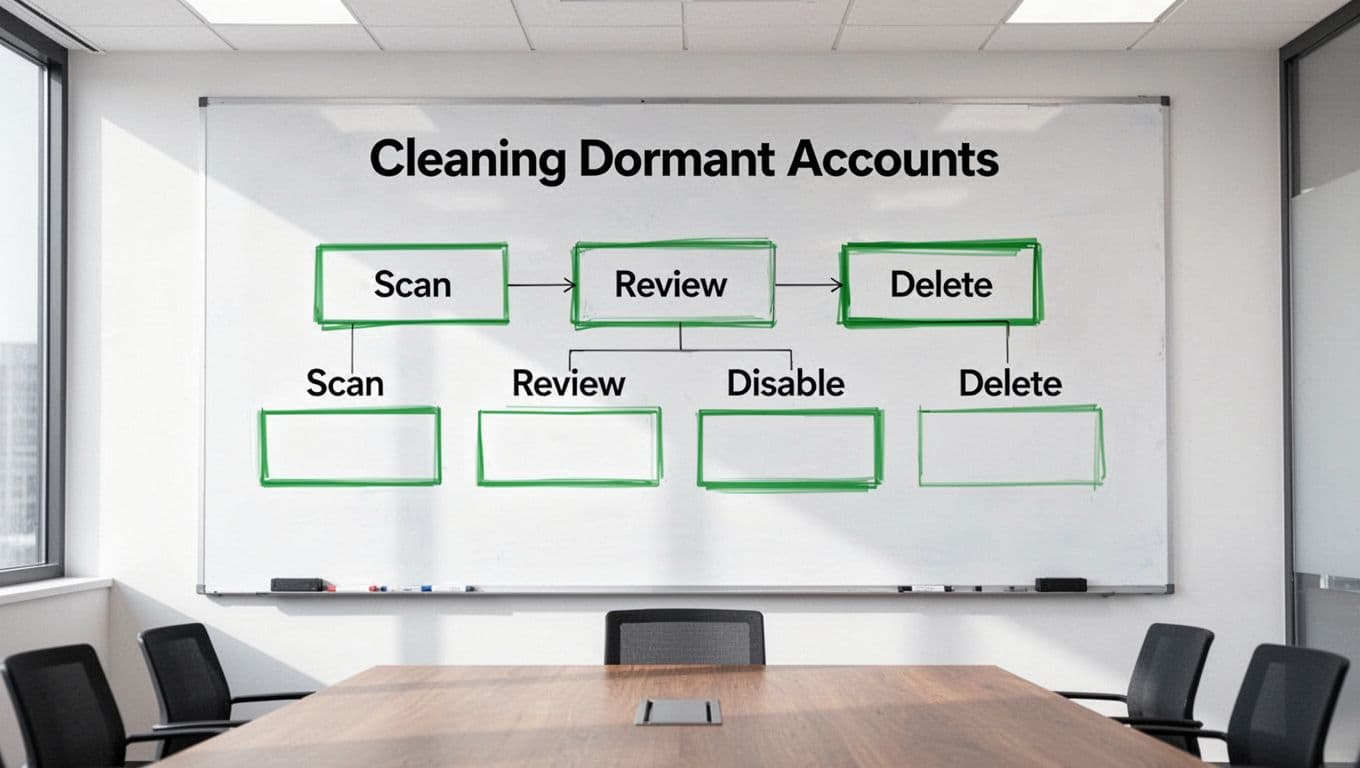
Once you find dormant accounts, move them through the same path every time. Review, verify, disable, notify, then delete after a grace period if nothing changes. That order keeps you from removing access that still has a business need.
In 2026, access reviews should not be a one-off project. They should run on a schedule, with ownership attached to every account class. That means app owners, HR, IAM teams, and system admins all have a role.
If your team needs help sorting a large backlog of inactive access, Book a Discovery Call with Bud Consulting.
Common questions about dormant account reviews
How long should an account stay unused before review?
A 90-day window is common, but it is not universal. High-risk environments often use shorter windows, while seasonal teams may need longer ones with manager approval.
Should you disable or delete dormant accounts?
Disable first. That gives you a safe pause for validation. Delete later if the account stays unused and the owner confirms there is no business need.
What about service accounts and shared accounts?
Treat them separately. Service accounts often need technical monitoring instead of sign-in checks, and shared accounts should have named owners with clear business justification.
Dormant accounts are easy to overlook, but they are also easy to control once the process is clear. The best teams watch for last login, app activity, MFA use, group membership, and ownership together, then act before those accounts turn into a weak spot.