table of contents
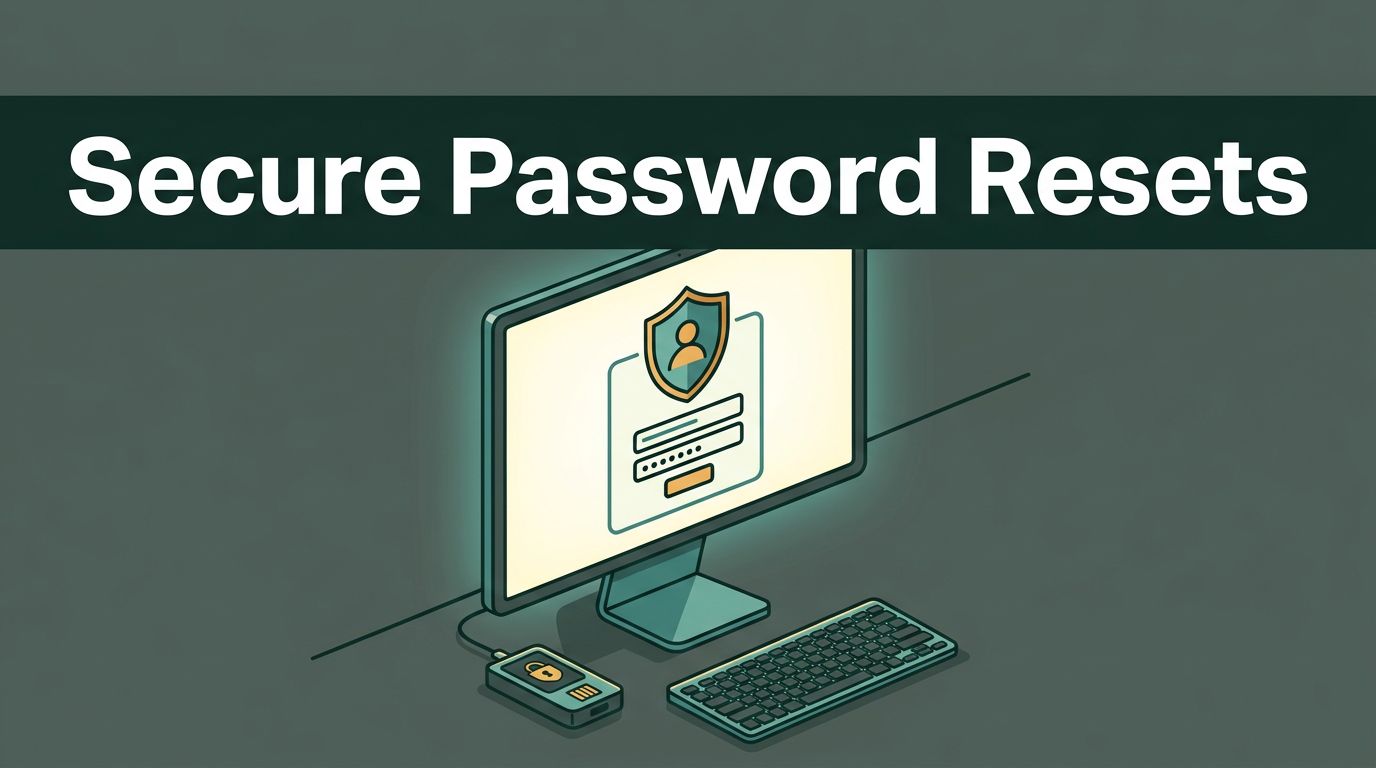
A help desk password reset can restore access in minutes. It can also give an attacker access to a valid employee account if identity checks are weak.
The process must protect both service availability and account security. A reliable procedure verifies the requester, uses approved reset tools, delivers recovery instructions through a trusted channel, and records each action. Start with the identity check.
Help Desk Password Reset: Start With Identity Verification
The help desk should never treat a caller’s name, email address, employee number, or manager’s name as proof of identity. Attackers can find this information through company websites, social media, public records, or compromised mailboxes.
Identity verification must use controls that the requester cannot easily copy or manipulate. The exact controls depend on the organization, account type, and risk level.
Common approved methods include:
- Confirming a push notification through an existing authenticator app.
- Using a verified device or managed endpoint with an active session.
- Calling a phone number already recorded in the identity system, not a number supplied by the caller.
- Confirming details through the organization’s approved employee verification platform.
- Requiring manager or security approval for privileged, executive, finance, or administrator accounts.
Knowledge-based questions need careful treatment. Personal details are often exposed online. They can support a broader verification process, but they shouldn’t be the only control for a password reset. The help desk identity verification guidance provides additional detail on reducing impersonation risk.
The service desk should also check the request context. A reset requested after a phishing message, suspicious sign-in, device loss, or unexpected MFA prompt needs more scrutiny. The correct response may be account containment and incident escalation, not a routine reset.
A help desk agent should verify the person through an existing trusted factor, not through information the person can repeat.
Apply stronger controls to high-risk accounts. A standard employee account may use an approved MFA challenge. A privileged account may require a second technician, security approval, or an emergency access process. Shared accounts require separate controls because the help desk cannot reliably verify one individual through a shared identity.

A Step-by-Step Help Desk Password Reset Procedure
A written process reduces inconsistent decisions. It also gives managers a clear basis for quality checks and incident reviews.
1. Receive and record the request
Open or update a ticket before changing the account. Record the user’s name, username, department, contact method, reported issue, time of request, and assigned agent.
Capture the reason for the reset. “Forgot password” is different from “MFA stopped working,” “account locked,” or “I clicked a suspicious link.” The reason affects the next action.
Never record the user’s current password, replacement password, MFA code, or recovery answers in the ticket.
2. Confirm the account and request type
Check the identity directory and service management system. Confirm that the account is active, belongs to the requester, and isn’t disabled because of termination, leave, policy violation, or an active security investigation.
Identify the actual problem:
- A password reset creates a new credential.
- An account unlock restores access after too many failed attempts.
- An MFA recovery changes a second factor and carries higher risk.
- A suspected compromise requires containment and investigation.
Don’t perform an MFA reset when the user only forgot a password. Don’t unlock an account when signs of compromise are present.
3. Complete the approved identity check
Follow the verification path for the account’s risk tier. Use an existing trusted factor where possible. Ask the requester to approve a prompt in the registered authenticator application or complete verification through the approved identity provider.
If the user has lost the device used for MFA, stop and follow the organization’s account recovery process. A caller who cannot use an existing factor hasn’t automatically proven ownership of the account.
For phone requests, call the verified number in the directory when policy requires it. Don’t accept a number provided during the call. Don’t ask a manager to email a password or verification code on the user’s behalf.
4. Reset the credential in the approved system
Use the organization’s identity and access management platform, such as Microsoft Entra ID, Active Directory, Okta, or another approved service. Avoid manual changes in multiple systems unless the procedure requires them.
Create a one-time recovery path when the platform supports it. Set the reset to require a new password at the next sign-in. Revoke active sessions or refresh tokens when policy or risk conditions require it.
Don’t reuse a temporary password. Don’t use the same temporary value for multiple users. Don’t set a predictable value based on the user’s name, department, birthday, or employee number.
5. Deliver recovery instructions securely
Use the verified channel connected to the user’s account. A self-service reset link that requires MFA is usually safer than sending a temporary password.
Never send a password through an unverified personal email address, ordinary SMS, public chat, or a caller’s newly supplied phone number. Don’t read a temporary password aloud unless the organization’s approved procedure allows it and the user has passed the required verification.
Send instructions, not secrets, when possible. Explain where the user should sign in, how to create the new password, and how to contact the help desk if the reset fails. Recovery links should expire according to company policy.
6. Confirm access and close the ticket
Ask the user to complete the sign-in and password change. Confirm that the account works without requesting the new password. Check that MFA remains active and that required applications are available.
Record the verification method, reset action, delivery channel, agent identity, approvals, and completion time. Keep the ticket free of passwords and MFA codes.
Escalate if the user fails identity verification, requests an exception, reports suspicious activity, or needs access to a privileged account. A delayed reset is safer than an unauthorized reset.

Employee-Facing Password Reset Checklist
Employees need a short process they can follow without interpreting security policy. Publish the checklist in the service portal and link it from the help desk contact page.
- Use the company’s official self-service password reset page or contact the help desk through a known channel.
- Provide your username and describe the problem. Never provide your current password.
- Complete the requested identity verification through your registered MFA method.
- Tell the help desk if your phone, security key, laptop, or authenticator app is lost.
- Use the reset link sent through the verified company channel.
- Create a new password that you don’t use for another service.
- Don’t share a temporary password, reset link, MFA code, or recovery code with anyone.
- Report suspicious sign-in alerts, unexpected MFA prompts, or phishing messages during the request.
The help desk should never ask an employee to send a password or MFA code by email, chat, or ticket. The employee should end the interaction and report it if someone makes that request.
Common Password Reset Troubleshooting Scenarios
Password reset tickets often fail because the underlying issue is different. Use the symptom and system logs to guide the response.
| Scenario | Likely cause | Correct response |
|---|---|---|
| The reset link doesn’t work | The link expired, was already used, or was copied incorrectly | Issue a new link through the verified channel. Don’t extend an old link or send it to a different address. |
| The new password works in one application but not another | Directory synchronization or cached credentials have not updated | Check the identity provider and synchronization status. Ask the user to close old sessions and sign in again. |
| The account is locked again | A phone, laptop, service, or mapped drive is using the old password | Identify repeated authentication failures before unlocking the account again. Update saved credentials on approved devices. |
| The user can’t approve MFA | The registered device is offline, replaced, lost, or blocked | Use the documented MFA recovery process. Apply stronger verification before replacing the factor. |
| The user says no reset message arrived | The message was filtered, the address is wrong, or delivery failed | Confirm the verified address in the directory and check delivery logs. Never switch to a personal address because it is faster. |
| The user reports an unexpected reset | Another person may have initiated the request | Revoke sessions, protect the account, review sign-in events, and escalate to security. |
A reset that repeatedly fails should not become a reason to bypass controls. The agent should review account status, identity provider logs, synchronization health, conditional access rules, and device state.
The help desk password reset best practices also support self-service recovery, strong identity checks, unique temporary credentials, and monitoring. These controls reduce pressure on agents while keeping the process auditable.
Controls for Managers and Service Desk Teams
A password reset procedure needs more than written steps. It needs controls that make the safe action easier than the unsafe action.
Use role-based access for help desk staff. Agents should have only the permissions needed for their support tier. High-risk resets should require approval or two-person review.
Configure the identity platform to log reset requests, verification results, administrator actions, session revocation, and MFA changes. Review these logs for repeated resets, unusual hours, high-risk locations, and accounts targeted by multiple requests.
Separate reset permissions from security investigation permissions where possible. A service desk agent can restore access, while a security analyst reviews suspicious activity.
Test the procedure with real failure cases. Include a lost phone, a terminated employee, an executive request, a locked account, a suspected phishing incident, and a caller who fails verification. Measure reset time, verification failures, repeat contacts, escalations, and policy exceptions.
Self-service recovery can reduce routine tickets, but it doesn’t remove the need for strong identity proofing. It shifts that control into a system that can apply consistent rules.
If your organization needs help reviewing identity operations, service desk controls, or security staffing requirements, Book A Call With Us.
Conclusion
A secure help desk password reset procedure protects access without turning the service desk into a weak entry point. Verify the requester through a trusted factor, use approved identity tools, deliver recovery instructions through a verified channel, and record the complete action.
Employees should never share passwords or MFA codes. Agents should never bypass identity checks to meet a speed target. Fast recovery only matters when the right person gets the access.